It's just after the December holidays, and many people may have received an iPad as a gift. If that's you and you're new to the iPad or this is your first update in some time, make sure to check out the tips below to get the most out of your tablet, whether it's an iPad mini, iPad, iPad Air, or iPad Pro.
Basic Tips for Beginners
If you're brand new to the iPad, we have some basic articles that will walk you through the fundamentals you need to know to get started with your iPad.
Beyond the basics, here are 10 more useful tips about your new iPad:
10 Things to Know About Your New iPad
1. Use a Mouse and Keyboard With Your iPad
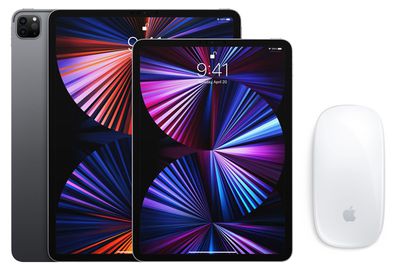
If you want to turn your iPad into a replacement for a Mac when you're working at a desk, you can do so with a mouse and a keyboard.
As with a Mac, you can connect any Bluetooth mouse, keyboard, or trackpad to your iPad to use those inputs as an alternative to the touch screen. It's really as simple as opening up Bluetooth and initiating the pairing process, but we've got some handy how tos that cover all the ins and outs of using a keyboard and a mouse with an iPad.
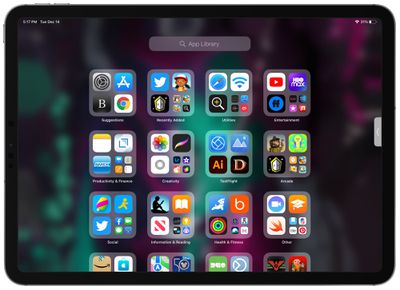
Have an iPad Home Screen that's cluttered up with all manner of apps? As of iPadOS 15, the App Library is available on the iPad, which means you have instant access to a well-organized list of all the apps on your iPad.
To get to it, just swipe all the way over to the end of your Home Screen pages. App Library automatically organizes your apps into categories like Games, Entertainment, Health & Fitness, Social, and more.
You can scroll through the categories and tap into each one to see all the apps listed there, or you can take advantage of the search feature.
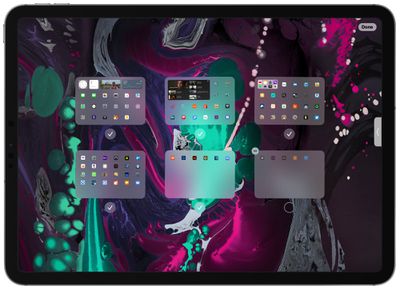
Tip: If you want to delete your Home Screen pages in bulk or rearrange them, just long press on an empty area of the Home Screen and then tap on the row of dots at the bottom of the display. You can drag Home Screen pages to rearrange, or tap on the checkmark and then the "-" to delete them.
3. Drag and Drop Text Between Apps
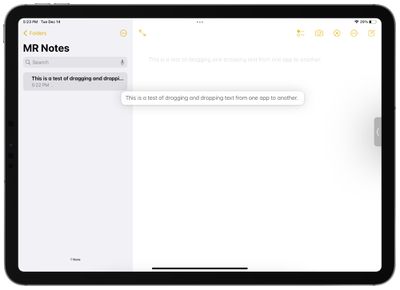
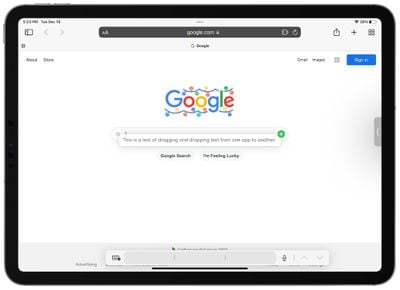
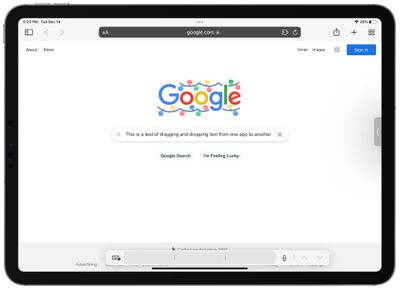
If you want to move text from one app to another on the iPad, such as pasting some text from Safari into Notes, you can do so with a drag-and-drop gesture.
Select the text that you want to move from one app to another by long pressing. Drag the two little bars to get exactly the text you want.
On the highlighted text, press and hold to pull it up from the page.
Keep your finger on the text while you use another finger or your other hand to open up the app you want to move the text to.
When the text is situated in the app where you want it to go, release your finger and it will be pasted over.
Tip: This drag-and-drop text gesture is easiest to use in multitasking mode, where you have two app windows open side by side.
4. Use an Apple Pencil
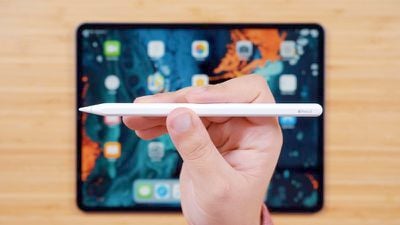
An Apple Pencil is hands down one of the best accessories that you can get to use with an iPad, and all of Apple's modern iPads support one of the two Apple Pencil models. If you didn't get an Apple Pencil gifted with your iPad, it's well worth considering.
With an Apple Pencil, you can sketch and draw within drawing apps, note-taking apps, and more, but you can also navigate with the Apple Pencil and you can write in any text field on the iPad, with the iPad translating it into typed text.
In the built-in Notes app, for example, you can open it up and just start writing with the Pencil. The same goes for Safari searches, Calendar events, Messages, and so much more.
There are two different versions of the Apple Pencil, so the model you need will depend on which iPad you have. To determine your iPad model, open up the Settings app, tap on "General" and then tap on "About." Your model is listed under "Model name."
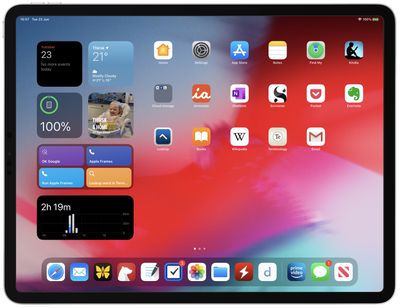
Many of Apple's apps and third-party apps come with widgets, which you can put on your Home Screen or view in the Today Center to get information at a glance.
Here's how to add a widget to your Home Screen:
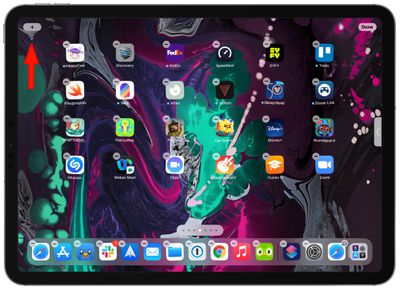
Long press on an empty space on the Home Screen to enter "Jiggle" mode where the icons are wiggling.
Tap on the "+" button in the upper left hand corner of the display.
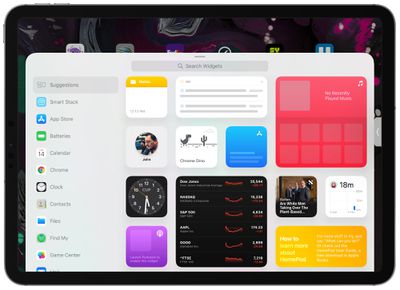
Scroll through the widget suggestions, or search for a specific widget.
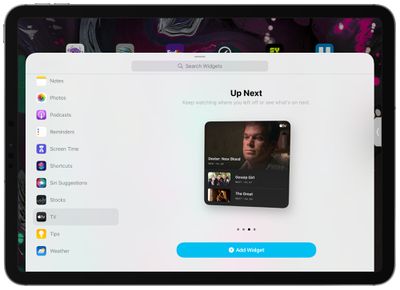
Tap on the widget you want, and then swipe through the the different options. For many widgets, you can choose a size, and for others, you can customize the function.
When you've customized your widget to your satisfaction, tap "Add Widget."
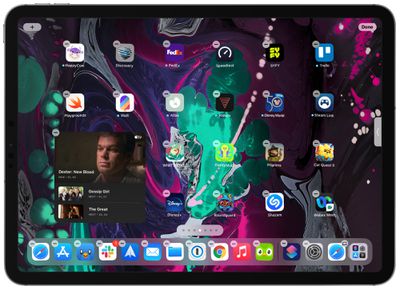
It will be placed on the Home Screen, and from there, you can drag it into the position that you want.
Tap "Done" when you're finished.
Tip: On the iPad, you have access to XL widgets, a larger-sized widget that's not available on the iPhone. You can also add widgets to the Today View by going to your first Home Screen page and then swiping again from left or right to open the Today View interface.
Add a widget by long pressing on the display and then tapping the "+" button as outlined above. You can drag and drop widgets to rearrange them, or pull one out from Today View to your Home Screen.
6. Use Quick Notes
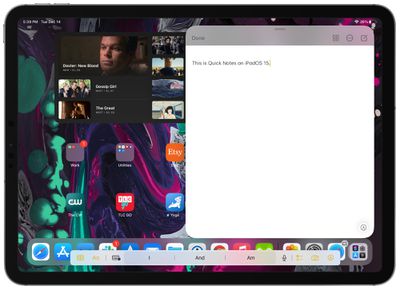
With iOS 15, Apple added a handy Quick Notes feature to the iPad that's designed for jotting down notes without having to open up the Notes app. Quick Notes can be used with or without an Apple Pencil, and the interface can be accessed at any time with a simple gesture.
In any app, or on the Home Screen, swipe up diagonally from the right hand corner of the screen.
You can do the diagonal swipe in either portrait or landscape mode – it works the same.
Type your notes or write with the Apple Pencil.
Swipe to collapse the Quick Note to the side if you want to hide it temporarily and bring it back to look something up.
Tap "Done" when you're finished.
Tip: You can also get to Quick Notes through the Control Center by tapping on the Notes icon, or by using the Globe key + Q keyboard shortcut. If you have an Apple Pencil, you can also tap it on the iPad's locked screen to bring up a note.
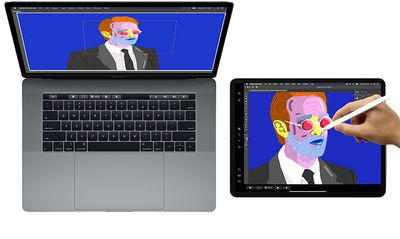
If you have a Mac and it's not too old, you can use your iPad as a second screen with Apple's Sidecar feature.
Using Sidecar is as simple as accessing the display section of the Control Center on your Mac and beaming your screen to your iPad, but we have a detailed guide with full instructions below.
Your iPad needs to be compatible with an Apple Pencil and it needs to be running iPadOS 13 or later. That includes the iPad mini 5 or newer, all iPad Pro models, the sixth-generation iPad or newer, and the third-generation iPad Air or newer.
8. Enhance Safari With Extensions
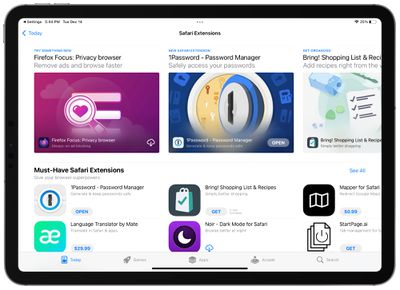
Safari on the iPad supports all of the same extensions that you might get on your Mac, so you can download extensions for turning all webpages to dark mode, using password managers, avoiding AMP pages, and more.
Getting Safari Extensions is as simple as opening up the Settings app, scrolling down to Safari, tapping on Extensions, and then selecting More Extensions to get to the Extensions section in the App Store.
We have a detailed walkthrough on installing extensions and a handy guide on some useful extensions that are worth checking out.
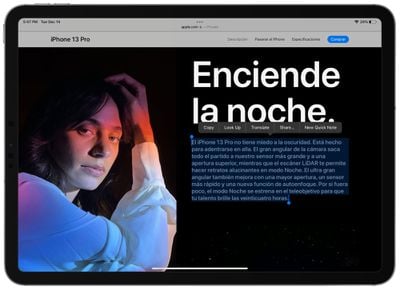
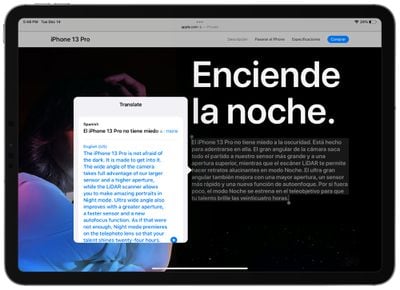
With iOS and iPadOS 15, Apple introduced system-wide translation, so you can select text anywhere on the iPad and get a translation as long as you have an internet connection.
Select the text that you want to have translated by long pressing and then dragging the blue bars.
Tap on the selected text.
On the bar that pops up, tap on the "Translate" option.
The text will be translated in a small window to the side.
You can translate content in the Notes app, Safari, Messages, or any other app where you can select text on the iPad. With Live Text, a feature that recognizes all of the text in photos, you can also take a photo of text in a foreign language and translate that.
System-wide translation works for Arabic, Mandarin Chinese, English, French, German, Italian, Japanese, Korean, Portuguese, Russian, and Spanish.
10. Find Anything With Spotlight
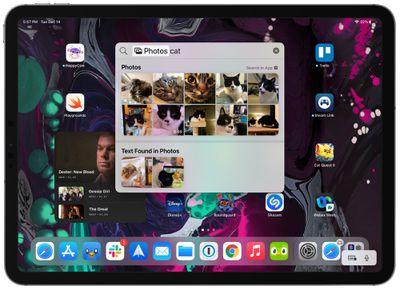
If you don't already use Spotlight on your iPad, it's the best way to find just about anything. To get to it, just go to the Home Screen and swipe down.
In addition to Siri Suggestions, which offers up apps you might want to access based on your usage history, there will be a search bar. Tap into it and you can search for all manner of things. Just some of what you can use Spotlight for:
Finding and launching apps you have installed
Finding new apps in the App Store
Rearranging apps (search for an app and then drag it out of Spotlight to the Home Screen)
Installing apps (after a search, tap on "Get")
Deleting apps (long press and choose delete)
Looking for photos (search by date, person, or object in the photo)
Facts about actors, actresses, and other well-known people
Information on contacts
Web images (search for [subject] images)
Converting measurements
Converting currency
Simple calculations
Find content in Notes, Messages, and other apps
Tip: If you swipe down from the Lock Screen on your iPad, you can get to a Spotlight Search interface without having to unlock your device.
If you want to see more on Spotlight Search and how it can be used, we have a dedicated guide highlighting all of the new features that came in iOS 15.
Learn More About Your iPad
We have dedicated roundups for each of Apple's iPads, with complete feature rundowns.
You'll also want to take a look at the iPadOS 15 roundup to learn how to use all of the iPad functions that were introduced with this year's software update.
Friday September 25, 2026 8:18 am PDT by Joe Rossignol
The next iPad mini, HomePod mini, and Apple TV 4K models have all leaked, just a few weeks before the devices are expected to be announced. Specifically, MacRumors contributor Aaron Perris discovered a few of Apple's official images of the devices, confirming their existence and some new features that are planned.
The most notable iPad mini details revealed in today's leak include an A20 Pro ...
Apple's next-generation iPad mini will feature the A20 Pro chip, a rearranged front-facing camera, and a new speaker system, leaked code reveals.
The information originates from Apple's own code (spotted by MacRumors contributor Aaron Perris) and also shows clear product images of the new iPad mini. Although images of the device only show the front, leaving any design changes of the rear or ...
Friday September 25, 2026 10:12 am PDT by Juli Clover
The next low-cost iPad will be equipped with an A19 chip, C1X modem, N1 networking chip, and 8GB RAM, according to details found in Apple's code by MacRumors contributor Aaron Perris.
We've heard some of these same specifications in prior rumors, so this is more of a confirmation than a new leak. The iPad 11 has an A16 chip, so the upgrade to the A19 in the 12th-generation iPad will bring a...
Tip#11: Show iPad Battery Percentage (something the current iPhone desperately needs)
Set the iPad to show how much battery life is left with a percentage indicator so you know if you have enough power to head out the door or watch another movie. Go to Settings -> General -> Usage -> Battery Percentage -> On.
A nice list. My iPad Pro is on the way, and even though Ive been using my old one for five years, this will come in handy when I set up the new one. One quibble though:
“the App Library is available on the iPad, which means you have instant access to a well-organized list of all the apps on your iPad.”
No you don’t. You have a bunch of apps with no logical organization whatsoever. App Library is, for me at least, nearly useless. Almost always I end up searching by name because I can’t figure out in which of the folders Apple decided to drop them. The App Library won’t actually be useful until Apple allows us to organize them ourselves.
Apple's first foldable iPhone, with a book-style design featuring a 5.4-inch outer display and a 7.6-inch inner display with a minimal crease down the middle.





/https://forums.macrumors.com/attachments/1933873/)