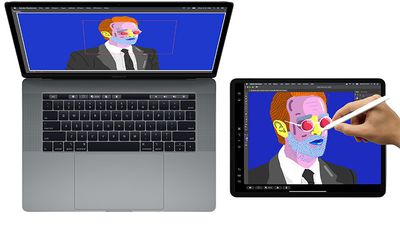
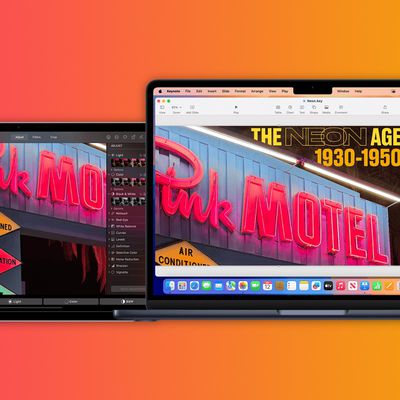
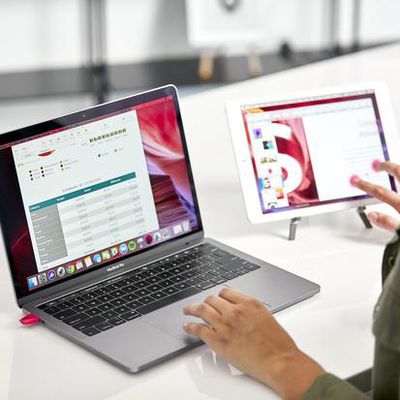
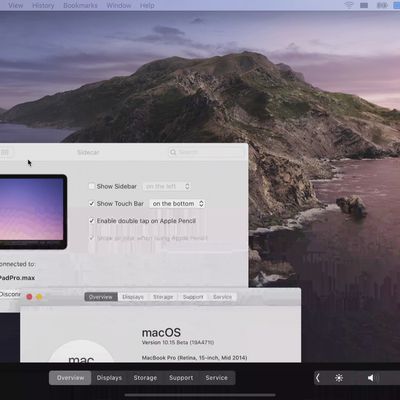
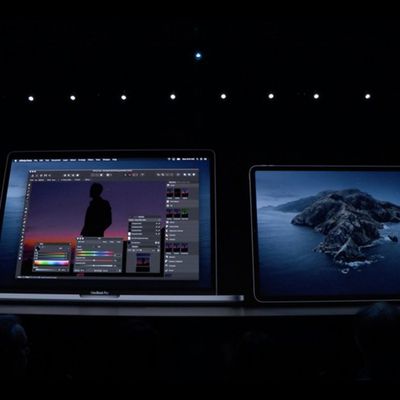
Apple's Macs and iPads include support for a feature called Sidecar, designed to let you use your iPad as a secondary display for your Mac. Sidecar is quick, simple to use, and can either mirror content on your Mac or turn it into a secondary display for extra screen real estate no matter where you are.
This guide covers everything you need to know about Sidecar, from how to use it to compatibility to Apple Pencil integration.
Using Sidecar requires a compatible Mac running macOS Catalina or later and a compatible iPad running iOS 13 or later. There are multiple ways to activate Sidecar, all of which can be done from Catalina.
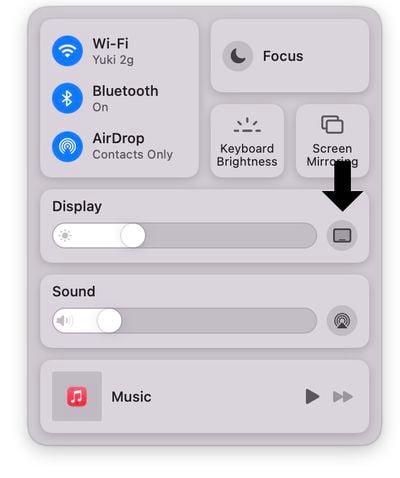
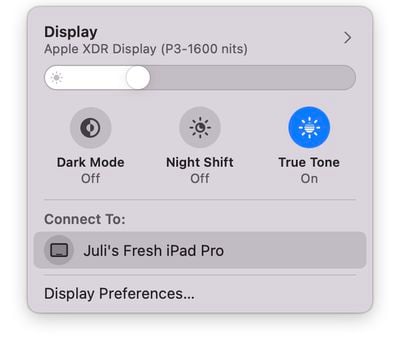
The easiest way to get to Sidecar is to use the AirPlay interface on the Mac. When you click the AirPlay icon at the top of the Menu bar (it's the one that looks like a screen with an arrow), if you have an iPad that's compatible with Sidecar, it will show up in the AirPlay list.
From there, simply choose the iPad that you want to connect to and it will automatically turn on and be activated as a secondary Mac display.
You can also get to Sidecar by clicking and holding the green window expansion button on any Mac app, and you can access Sidecar in the Sidecar section of System Preferences.
Using Sidecar
Sidecar is designed as a secondary Mac display, so it works like any other secondary display you might use with your Mac. You can drag windows from the Mac to the iPad and vice versa, and interact with both using your Mac's trackpad.
Sidecar is not designed to work with touch gestures, so while you can tap some on-screen control options or scroll through some webpages, you're mostly meant to control things with either the trackpad or mouse of your Mac or with the Apple Pencil. That's because Sidecar is not meant to bring touch controls to Mac - it's just a secondary display option.
Apple Pencil Integration
When using Sidecar, the Apple Pencil (first or second generation depending on your iPad) serves as a mouse alternative for clicking, selecting, and other on-screen control tasks. Think of the Apple Pencil as a mouse or trackpad when using it with Sidecar.
In apps like Photoshop and Illustrator, the Apple Pencil does even more. You can draw right in Photoshop or other similar Mac apps, which transforms the iPad into a graphics tablet for your Mac, not unlike a Wacom graphics tablet. It's a great way to create art, edit photos, and more with the interactivity of your Apple Pencil but the power of your Mac.
Keyboard Integration
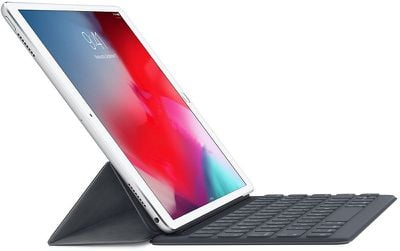
When using a keyboard like Apple's Smart Keyboard with an iPad, the keyboard serves as an alternative to the Mac keyboard, letting you type like you would on the Mac in any open window.
Wired or Wireless Connection
Your Mac can be connected to your iPad over a wired or wireless connection. For a wired connection, you'll need an appropriate cable, such as a USB-C to USB-C cable for the newest iPad Pros or a USB-C to Lightning cable for Lightning-equipped iPad models.
Using a wired connection allows your iPad to charge and it should cut down on any latency issues you might see from a poor wireless connection. Using Sidecar over a wireless connection works well, though it might not work quite as well when connection speeds are low.
Using a wireless connection requires your iPad to be within 10 meters of your Mac, which is actually pretty far.
Touch Bar and Controls
Sidecar puts a control sidebar on your iPad for doing things like hiding or showing the dock, bringing up the on-screen keyboard, closing a window, or accessing controls like Shift, Command, Option, and Control.
Sidecar also adds a Touch Bar to the bottom of the iPad, which is the same as the Touch Bar on the Touch Bar-compatible MacBook Pro models. Even if your Mac doesn't naturally have a Touch Bar, these Touch Bar controls will show up.
Touch Bar controls will pop up for Apple apps and for third-party apps that have implemented support for the Touch Bar.
Accessing Sidecar Settings
If you click on the AirPlay icon while your Mac is connected to your iPad, you can see some quick controls for doing things like hiding the sidebar or hiding the Touch Bar, and there's also an option to swap between using the iPad as a separate display or mirroring the Mac's current display.
Additional Sidecar options can be found by opening up System Preferences and choosing the Sidecar section. In this spot, you can move the sidebar to the left or the right of the screen, move the Touch Bar to the bottom or the top of the screen, or enable double tap on Apple Pencil.
Sidecar Compatibility
Sidecar is limited to many newer Macs, and it is compatible with the following machines:
Most older machines are blacklisted from taking advantage of Sidecar, but some older Macs can use the feature via a Terminal command provided by developer Steve Troughton-Smith. There are few details on this method, but those interested can check out our original article on compatibility.
On the iPad, Sidecar is limited to iPad models that work with the Apple Pencil, so older models that do not have Apple Pencil support can't be used with Catalina. Compatible iPads include the following:
Apple has added direct touch input to Sidecar with macOS 27 Golden Gate and iPadOS 27, allowing users to tap and interact with macOS interface elements using a finger on their iPad for the first time.
Previously, Sidecar was deliberately limited as a touch interface. While multi-touch gestures like two-finger scrolling, pinch-to-zoom, and three-finger editing gestures for copy, cut, paste,...
Tuesday March 15, 2022 5:12 am PDT by Tim Hardwick
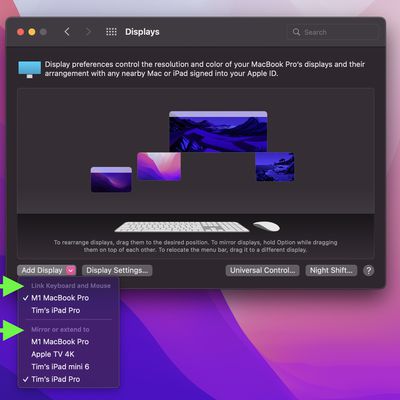
Before macOS 12.3 and iPadOS 15.4 were released to the public, many beta testers who tried Universal Control were unable to get it working if they were already using an iPad in Sidecar mode, but it turns out that in the final release you can actually enable both Universal Control and Sidecar simultaneously on different devices, provided your setup allows for this.
In the final version of...
Wednesday June 12, 2019 2:29 pm PDT by Juli Clover
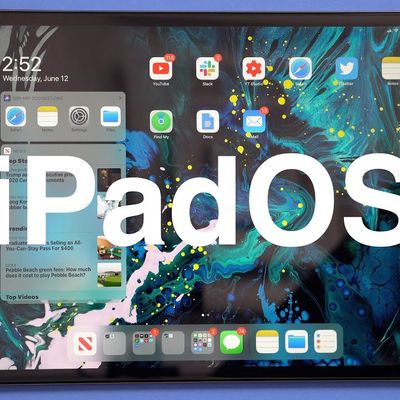
With the launch of iOS 13, Apple decided to split iOS 13 for the iPad into its own dedicated operating system called iPadOS. Going forward, iPadOS will be the version of iOS that runs on Apple's iPad devices.
iPadOS includes all of the features of iOS 13, plus some additional tweaks and changes made specifically for a device with a larger display. In our latest video, we went hands-on with...
macOS Catalina introduces Sidecar, a native feature that turns the iPad into a secondary display for the Mac. It's a useful function that works well, but it's also something that third-party companies have been doing for several years now.
One of those companies makes the Luna Display, a hardware-based dongle that plugs into the Mac to turn the iPad into a secondary display. According to Luna...
Apple in macOS Catalina introduced a new feature called Sidecar, which is designed to turn an iPad into a second display for a Mac, either extending what's on the screen or mirroring the content.
Apple hasn't yet provided details on which devices will work with Sidecar, but developer Steve Troughton-Smith was able to find some details by digging into macOS Catalina's code.
As it turns...
Apple this week unveiled macOS Catalina, the newest version of the macOS software designed to run on Macs. macOS Catalina is launching this fall, but it is available now in a beta capacity for developers.
In our latest video, we went hands-on with macOS Catalina to explore all of the new features that are coming to the Mac later this year.
Subscribe to the MacRumors YouTube channel for more ...
Wednesday June 5, 2019 4:23 pm PDT by Tim Hardwick
In macOS Catalina, it seems whether or not you own a MacBook with a Touch Bar, Apple still wants you to be able to access those virtual controls, even if that means putting them right on the screen.
Image credit: Reddit user dotmax
Apple's new Sidecar app lets you connect an iPad to your Mac for extra screen space. It works both wired and wirelessly, and supports the Apple Pencil as an input...
Apple today at WWDC 2019 unveiled a new Mac app named Sidecar that will allow an iPad to be used as a second display for a Mac, similar to existing third-party options like Duet Display and Luna Display.
Sidecar will work both wired and wirelessly and will support the Apple Pencil as an input device for the Mac. This functionality will be supported across all apps that support tablets....