

With the release of iPadOS 13.4, Apple brought official Bluetooth mouse and trackpad support to its iPads. This article explains how to use your chosen input device with your iPad. To learn how to connect a mouse or trackpad to iPad, click here.
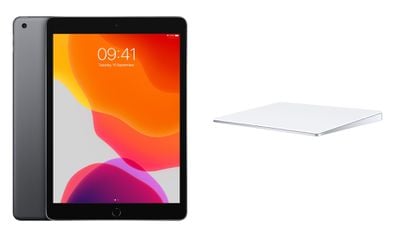
Navigating and controlling your iPad with a Bluetooth mouse or trackpad is similar to using one on a desktop or notebook computer. However, there are a few differences you should be aware of.
The Round Cursor
When using a Bluetooth mouse or trackpad on your iPad, a circular cursor resembling a finger tip appears on the display instead of a traditional arrow pointer.
The round cursor changes shape or shifts out the way as it moves across different interactive elements on the screen. For example, hovering the cursor over an app on the Home screen causes the app icon to pop out a little to let you know you can select it.
The cursor will also turn into an "I-beam" over text, indicating that you can insert it into a text document for the purpose of editing, or to highlight and copy words from a web page.
The cursor disappears after a few seconds of inactivity. Just move the mouse or touch the trackpad to make it appear again.
iPad Cursor Actions
Apple has designed mouse and trackpad support so that several gestures activate different iPadOS functions.
For example, moving the cursor into the top-right corner of the display and tapping brings up the Control Center. You can also interact with all the Control Center's elements using clicks and long presses.
Similarly, move the cursor over to the date and time in the top-left corner of the screen and this will bring up the Notification Center.
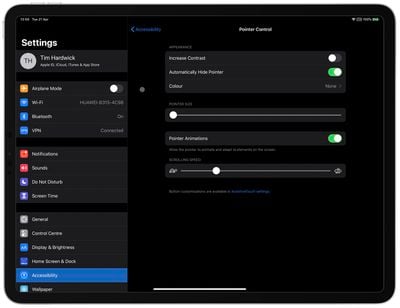
You can change how the cursor looks and how it works in iPadOS. Options include making the cursor darker, changing its color, making it bigger or smaller, and disabling the auto-hide after inactivity. These settings can be found in the Settings app under Accessibility -> Pointer Control.
Trackpad Gestures
Apple has included gesture support for trackpad users. For example, you can enter the Slide Over multitasking interface with a trackpad by moving the cursor over to the right side of the screen or dragging an app over from the Dock. Apple has also added support for multi-touch gestures, including:
Three fingers: If you're using a trackpad, you can swipe downwards with three fingers to access the Home screen from anywhere.
A three-finger swipe up opens up the multitasking interface. Swiping to the left or the right with three fingers also swaps between apps.
Two fingers: A two-finger swipe downwards on your trackpad will bring up Spotlight search. You can also use two fingers to scroll up or down when navigating a web page in Safari.
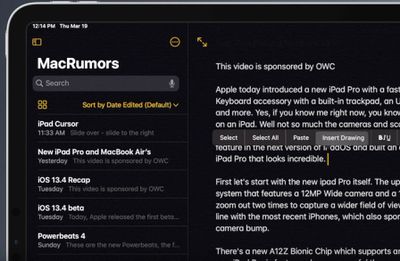
Elsewhere, two-finger tap gestures in a text editing app will bring up Cut, Copy, and Paste options, and there's a right-click gesture to bring up menu bars in most apps.
You can also make a two-finger click or tap behave as a secondary click in the trackpad settings (see below). Note that a secondary trackpad click acts like a long press on the iPad touchscreen, or a Control-click (or right-click) on a Mac. For example, when you use a secondary trackpad click on an iPad app icon, its contextual menu appears.
How to Adjust Trackpad Settings on iPad
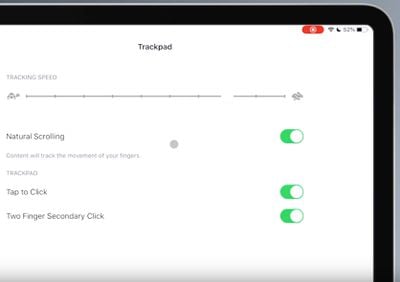
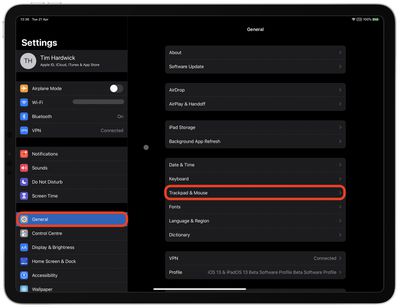
There are some useful trackpad settings in iPadOS that you can change to suit your preferences. The following options can be found in the Settings app under General -> Trackpad.
- Tracking Speed slider – adjusts how quickly the cursor moves across the screen.
- Natural Scrolling switch – makes content track the movement of your fingers when you scroll.
- Tap to Click – makes a tap on the trackpad register as a click.
- Two Finger Secondary Click – makes a two-finger click or tap function as a secondary click.
Note that you can also perform a secondary click on iPad with any pointing device by holding the Control key as you click.
How to Adjust Mouse Settings on iPad
There are also several mouse settings in iPadOS that you can change to suit your preferences. The following options can be found in the Settings app under General -> Trackpad & Mouse.
- Tracking Speed slider – adjusts how quickly the cursor moves on the screen.
- Natural Scrolling switch – makes content track the movement of your fingers when you scroll.
- Secondary Click – lets you choose whether you want a secondary click to happen when you click on the left or right side of your mouse, or not at all.
Final tip: If you've lost the on-screen keyboard since you connected a Bluetooth mouse or trackpad, tap and hold down the arrow key in the shortcuts bar in the bottom-right corner of the screen until the virtual keyboard re-appears.

















































