

Apple Watch is the perfect device for quickly glancing at the things you need to do today or to fill you in on your plans for the weekend. It is also a useful device for quickly setting up a reminder without needing to pull out an iPhone.
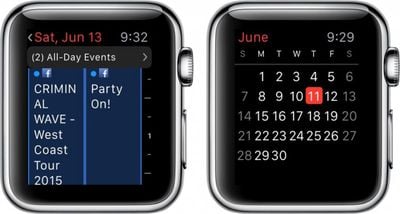
While much of the setup for Calendars is done on iPhone, you can use Apple Watch to respond to invites, add a quick event, and get alerts to remind you when to leave for your next appointment.
Using the Calendar App
The Calendar App on Apple Watch is tied to Apple's native Calendar app on iOS, which is also compatible with OS X. I sync my Calendar app with Google Calendar, but it is compatible with a number of services, like Exchange, Facebook, Yahoo, and remote servers via CalDAV. In order to use the Calendar app on Apple Watch, you must be using it in some form on iPhone.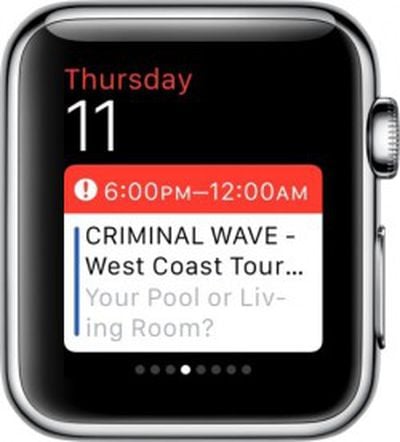 Add the Calendar app to Glances via the Apple Watch app on your iPhone to get a quick view of the next event on your calendar. Open the Apple Watch App and navigate to My Watch. Then, select Calendar from the list and toggle the "Show in Glances" option to the on position.
You can also customize your calendar alerts in this section of the iPhone app. You can either mirror the alert preferences from your iPhone or customize notifications for Upcoming Events, Invitations, Invitee Responses, and Shared Calendar Alerts. For each alert, you can choose to have sound, haptics, or both.
On the Apple Watch, you can tap on the Glance to open the Calendar app, or open it from the home screen. If you have a watch face with the Calendar feature enabled, you can also tap the date to open the Calendar app. The full Calendar app displays a more detailed description of the day's events.
Events within the Calendar app can be viewed as a daily timeline or as a list that shows the events for the next week. In the daily timeline view, you can swipe left on the screen to see a different day and tap on an event to see it in more detail. To get back to the current day, firmly press the screen and then select Today.
In the daily timeline, events are organized by hour so you can get a clear picture of what you need to do in a day. All-day events are listed in a separate window. Tap the banner at the top of the daily timeline window to see a list of all-day events.
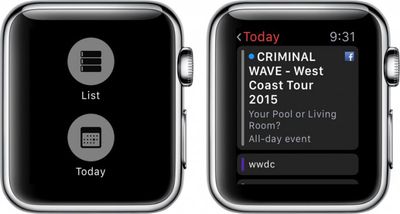
To switch to a list of events, firmly press the display and then select List. Tap an event to view more details. The List view shows one week of upcoming events, making it easy to see an entire week's worth of information in just a few seconds.
If you have your Facebook calendar enabled, you'll be able to see detailed information about Facebook events, like who the organizer is, who has accepted the invitation, and any additional notes on the event. Turn the Digital Crown to scroll down to view the event details.
To see the full month's calendar, tap the arrow in the upper left corner of the screen. Tap the month to go back to the day view.
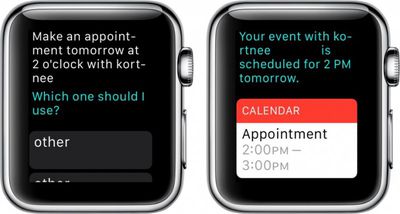
You can use your iPhone to create new calendar events, but if you want to do it right on the watch, you can ask for Siri's help. Activate Siri and say, "Make an appointment" or "Create a calendar event." Siri will let you know if there is a conflict and give you the option to create the event anyway. Then, it will sync with the rest of your connected calendars.
Setting Reminders
You may have noticed that the Apple Watch does not have a Reminders app. That doesn't mean you can't make use of the iOS app. You can address reminders when you receive a notification. Scroll to the bottom of the reminder and either Snooze, Complete, or Dismiss it.
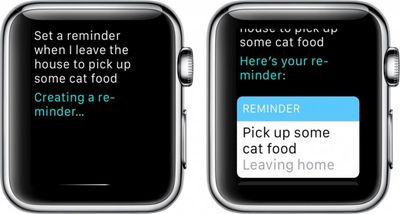
To create a reminder, just ask Siri. Say something like, "Set a reminder when I leave the house to get milk," or "Remind me to check the slow cooker at 4:00." The reminder will sync across your devices where you can later edit it if you need to.
With help from Siri, it is easy and convenient to create quick calendar events and reminders right on Apple Watch. Plus, since the Calendar app syncs across iOS and OS X devices, you can deal with your daily schedule the way you normally do and see your upcoming events with just a glance on Apple Watch.










































Top Rated Comments
Despite much of this information being available elsewhere, the Apple Watch is new enough -- and different enough -- that many of us are still working our way through use-cases and techniques. Your articles provide both guidance and a forum for peer-to-peer conversation.
Getting sick of MacRumors click and bait articles ('https://forums.macrumors.com/threads/getting-sick-of-macrumors-click-and-bait-articles.1892084/')