This article explains how to delete your Siri audio interaction history and opt out of sharing audio recordings with Apple on Macs.

In 2019, it was discovered that Apple hired contractors to listen to a small percentage of anonymized Siri recordings to evaluate the virtual assistant's responses with the purpose of improving accuracy and reliability.
The Guardian revealed that Apple employees working on Siri often heard confidential details while listening to the audio recordings. Apple was subsequently criticized for not making it clear to customers that some of their Siri recordings were being used to improve the service.
Soon after the report, Apple suspended its Siri grading practices and promised users that it would introduce tools in forthcoming updates that would allow them to opt out of sharing their audio recordings.
With the release of macOS Catalina 10.15.1 in October 2019, those new tools arrived. Apple now includes an option on Mac that allows users to delete their Siri and Dictation history and opt out of sharing audio recordings. The following steps show you how to do both.
How to Opt Out of Siri Audio Sharing on Mac
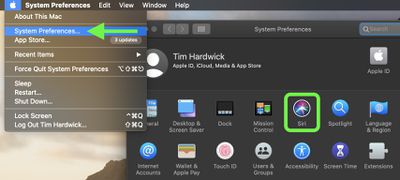
- Launch System Preferences from your Mac's Dock, from the Applications folder, or from the Apple menu bar ( -> System Preferences…).
- Select Siri in the preference panel.

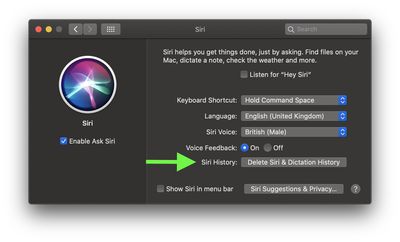
- Next to Siri History, click the Delete Siri & Dictation History button.
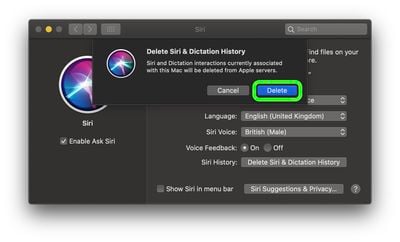
- Confirm that your want to delete the history associated with this Mac from Apple’s servers by clicking Delete.
Note that these options only apply to your Mac and not to any other devices signed into the same Apple account. For instructions on how to find the same options on iPhone and iPad, click here.
How to Delete Your Siri Audio History on Mac
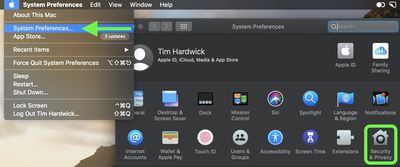
- Launch System Preferences from your Mac's Dock, from the Applications folder, or from the Apple menu bar ( -> System Preferences…).
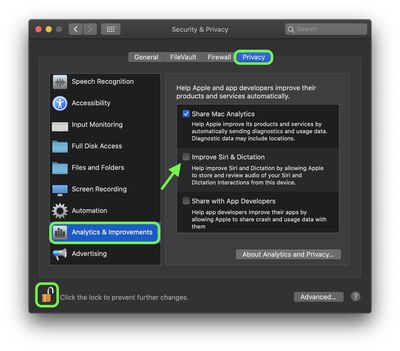
- Select Security & Privacy in the preference panel.
- Choose the Privacy tab.
- Select Analytics & Improvement from the sidebar.
- Click the padlock icon in the bottom-left corner of the window and authenticate with an admin account if prompted.
- Uncheck the box next to Improve Siri & Dictation to opt-out of Siri audio recordings being stored on Apple servers for review and improvement.
Note that these options only apply to your Mac and not to any other devices signed into the same Apple account. For instructions on how to find the same options on iPhone and iPad, click here.