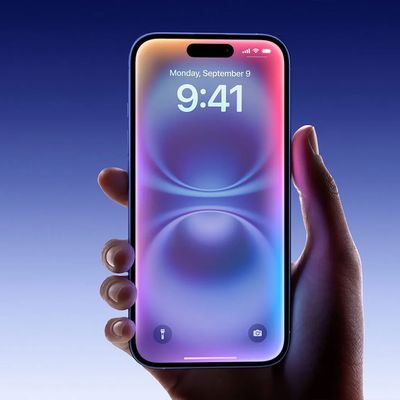
Siri is by no means universally loved by iPhone and iPad users, so it's a good thing that Apple provides a simple way to turn off the virtual assistant completely. Here's how it's done.

How to Disable Siri in iOS
- Launch the Settings app on your iPhone or iPad.
- Scroll down and tap Siri & Search.

- Under the Ask Siri section, tap the switches next to Listen for "Hey Siri" and Press Side Button for Siri so that both are toggled to the white OFF position.
- Confirm by tapping Turn Off Siri in the pop-up.

Note that when you turn off Siri on your device, the information Siri uses to respond to your requests is removed from Apple's servers. As such, if you choose to enable Siri later, it may take some time to resend this information.
How to Disable Siri in macOS
Mac users also have the ability to turn off Siri if they don't find the virtual assistant useful.
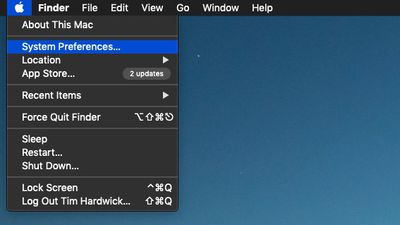
- Click the Apple () symbol in the menu bar at the top-left corner of the screen and select System Preferences....
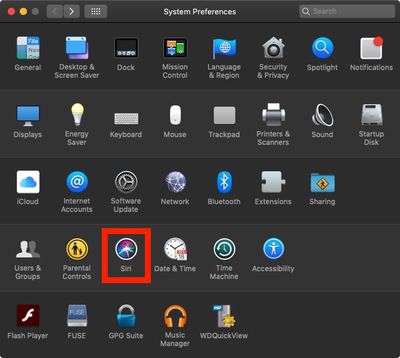
- Click the Siri icon in the preferences panel.
- Click to untick the checkbox next to Enable Ask Siri.
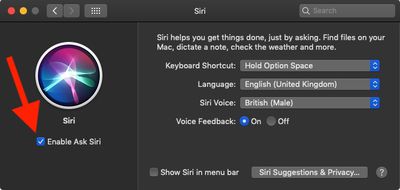
Like iOS, when you turn off Siri in macOS, the information the virtual assistant uses to respond to your requests is removed from Apple's servers. As a result, if you choose to enable Siri later on your Mac, it may take some time to resend this information.