How to Multitask on iPad With Slide Over - MacRumorsOpen MenuShow RoundupsShow Forums menuVisit ForumsOpen Sidebar
Skip to Content

How to Multitask on iPad With Slide Over

by

In iPadOS, Apple includes several multitasking options that let you work with more than one app on your iPad at the same time. This allows apps that support multitasking to be used in a few different ways. This article looks at Slide Over. Be sure to check out our separate Split View how-to guide by clicking the link. We've also provided a link for it at the end of this article.
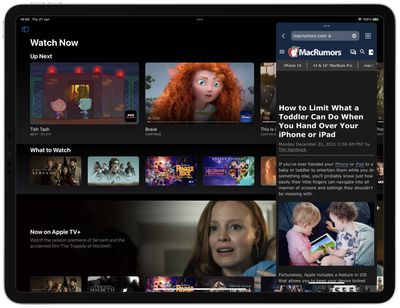
slide over

Slide Over in action

Recent feature additions to iPadOS make multitasking on ‌iPad‌ easier than ever, thanks largely to a new Multitasking menu that appears as three dots positioned centrally at the top of the screen when an app is open. Tapping the three dots reveals the following options: Fullscreen, Split View, and Slide Over.

Fullscreen is the default viewing mode with one app open. Split View, by contrast, is when two apps appear side by side on the screen, and you can resize the apps by dragging the divider that appears between them. The third option is Slide Over, in which one app appears over another in a smaller floating window that you can drag to the left or right-hand side of the screen. Let's look at how Slide Over works.

How to Open An App in Slide Over

While you’re using an app, you can switch it to a Slide Over window — a smaller window that slides in front of another app or window — and open another app behind it.

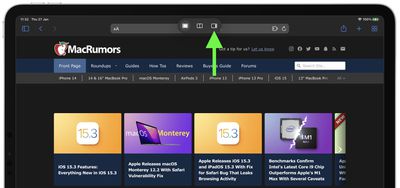
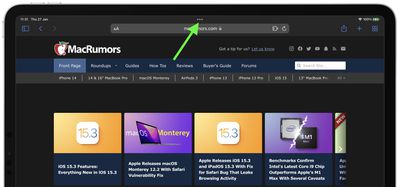
  1. While using an app, tap the Multitasking button (three dots) centered at the top of the screen to reveal three options.
    iPadOS

  2. Tap the Slide Over button (the third option) indicated by a frame that's partially filled in on the right.
    iPadOS

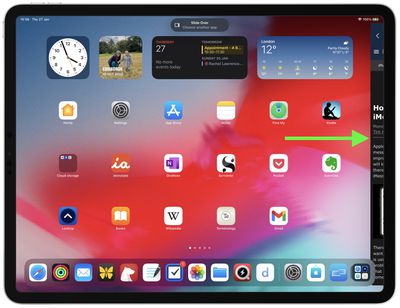
  3. The app you're using will move aside to reveal the Home screen and Dock. Tap another app on the Home screen or in the Dock that you want to open. The second app will open in fullscreen and the app you're already using will move to a smaller window that you can move to the right or left-hand side of your screen. iPadOS
How to Use the Dock to Invoke Slide Over

  1. Open an app on your ‌iPad‌.
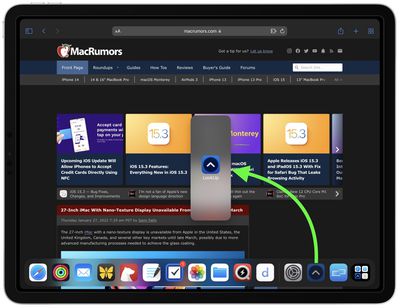
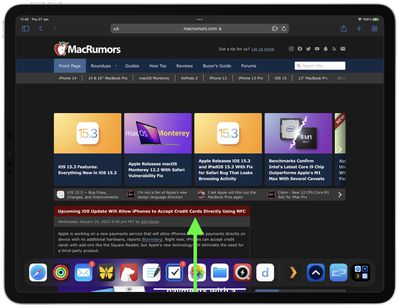
  2. Slide one finger up from the bottom edge of the screen until the Dock appears, then release.
    iPadOS

  3. Touch and hold another app in the Dock, then drag it up out of the Dock and let go of the app in the middle of the screen. The second app will appear in a Slide Over window.
    slide over

How to Switch Between Apps in Slide Over

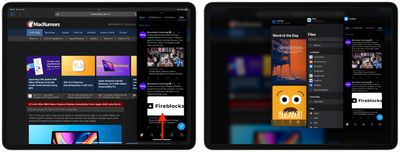
Swipe halfway up the screen from the bottom of the Slide Over window, pause, then lift your finger.
slide over

All the apps in Slide Over windows will appear on the screen, and you can swipe through them to find the one you want. Simply tap the one you want to view.

How to Adjust Slide Over Apps

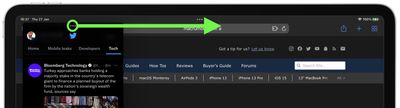
To move the Slide Over app, use the Multitasking button (three dots) to drag it to the left or right over the main app.
slide over

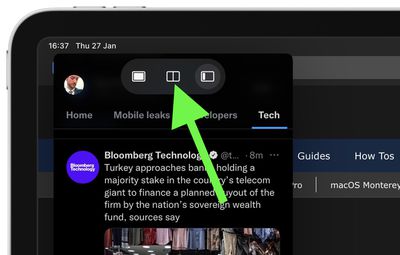
To turn a Slide Over app into a Split View app, tap the Multitasking button (three dots), then tap the Split View button (the frame divided equally in two). Alternately, touch and hold the Multitasking button, then drag the app to the left or right edge of the screen.
slide over

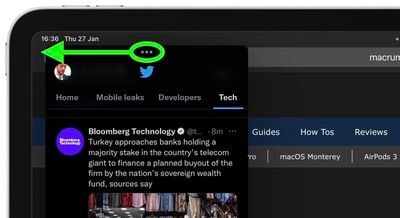
To hide a Slide Over app, touch and hold the Multitasking button, then swipe the app off the screen to the left or right.
slide over

How to Return to Fullscreen

When in Slide Over, you can remove one app and expand the other to go fullscreen. There are two ways you can do this.

  • Tap the Multitasking button (three dots) at the top of the app you want to use in fullscreen, then tap the filled frame button (first from left).
  • Touch and hold the Multitasking button (three dots) at the top of the app you want to use in fullscreen. Keep its top edge at the top of the screen, drag it to the center of the screen until its name and icon appears, then release.

Did you know that you can drag and drop between apps using Split View and Slide Over? Read our dedicated drag-and-drop how-to article to learn more, and don't forget to check out our dedicated Slide Over multitasking guide by clicking the link.

Tag: iPadOS

Popular Stories

Apple TV 4K HomeView HomePod Mini tweaked

New Apple TV 4K, HomeView, and HomePod Mini: 16 Details Just Leaked

Sunday October 11, 2026 12:56 pm PDT by
Just two days before Apple's "Welcome home" experience in New York, Bloomberg's Mark Gurman has leaked several details about the new products set to be unveiled, including an all-new smart home hub, a HomePod mini 2, and a new Apple TV 4K. Here is an all-in-one summary of the details shared by Gurman:Apple's home hub with a touch-enabled display will be named HomeView, seemingly confirming a ...

Apple HomeView lineup feature1

Apple Announces 'HomeView' Smart Home Hub

Tuesday October 13, 2026 6:00 am PDT by
Apple today announced the "HomeView," an all-new kind of smart home hub featuring a 7-inch Liquid Retina display and Siri AI. Apple's senior vice president of Worldwide Marketing Greg Joswiak said: Apple HomeView is designed to be shared by everyone in the home yet feel completely personal to each user. It recognizes your face to shift from a household screen to your own experience,...
Apple TV 4K 4th Generation feature4

New Apple TV 4K Announced With A19 Chip, Updated Siri Remote, More

Tuesday October 13, 2026 6:08 am PDT by
Apple today announced the fourth-generation Apple TV 4K, with key features including an A19 chip, Siri AI support, an updated Siri Remote that has Find My support with Precision Finding, built in far-field microphones, support for surround sound with four HomePods in front and rear pairs, and more. The A19 chip in the new Apple TV 4K delivers up to 50% faster CPU performance and up to twice...
Latest Stories
Apple Pledged $25 Million to Trump's White House Ballroom
2 minutes ago
Touchscreen MacBook Pro Could Launch on November 6
2 hours ago
New Withings Users Must Pay $99/Year for Apple Health Syncing
2 hours ago
Meta and Apple Bring Muse Spark Open AI Model to Mac Studio
3 hours ago
iPad Mini 8: Apple Has Tested Both 60Hz and 120Hz ProMotion Displays
3 hours ago
Apple TV 4K 2022 vs. 2026 Buyer's Guide: All Differences Compared
5 hours ago
Apple CEO John Ternus on Early Foldables: 'Kind of Cheap and Crappy'
6 hours ago
Greg Joswiak Says Apple Isn't Focused on Making AI for 'Lunatic Fringe'
6 hours ago
Amazon Offers $120 Discount on AirPods Max 2, $50 Off AirPods Pro 3
7 hours ago
Apple CEO John Ternus Featured on Cover of TIME Magazine: 'New Era'
7 hours ago
Apple Announces Deadline to 'Get Ready' to Pre-Order the iPhone Duo
8 hours ago
MKBHD is 'Not Convinced' About Apple's New HomeView, Here's Why
8 hours ago
Apple's Wall-Mounted HomeView Ships Without a Power Adapter
9 hours ago
Rare Apple-1 With Steve Jobs Letter Sells for $1.15 Million
9 hours ago
Apple Now Inviting Media to October 28 'Launch Experience'
10 hours ago
iPhone Duo's A20 Pro Chip Benchmarked Ahead of Launch
21 hours ago
10 HomeView Features You Might Have Missed
22 hours ago
Apple Becomes Second Company to Close Above $5 Trillion
22 hours ago
Which Apple Home Devices Get Siri AI, and When
23 hours ago
Apple's Long-Delayed HomeView Was Already Being Tested in 2024
1 day ago
Apple Intelligence Coming to China in December With iOS 27.3
1 day ago
Apple Invites App Updated With Two New Features
1 day ago
OpenAI Says Ex-Employee Showed Its Device Plans to Apple
1 day ago
Discover the Best Cases and Screen Protectors for Your New iPhone Duo
1 day ago
Apple Store Near Los Angeles Closed Due to 'Events Beyond Our Control'
1 day ago
No, HomePod Mini 1 Won't Support Siri AI as CNET Reported
1 day ago
iPhone Duo Compromises: Everything You Have to Give Up
1 day ago
Apple HomeView Has These 15 Apps, Some CarPlay Apps and Widgets Also Supported
1 day ago
iPhone Duo: Apple Charging $49 for New Cover Layer, $229 for Battery
1 day ago
iPhone Duo: Skipping AppleCare+ Could Be $1,499 Mistake
1 day ago

🔗 Related Apple News & Rumors

Stay updated with the latest Apple ecosystem news and verified rumors