In iPadOS, Apple includes several multitasking options that let you work with more than one app on your iPad at the same time. This allows apps that support multitasking to be used in a few different ways. This article looks at Split View, which makes two apps appear side by side in a split screen arrangement. Be sure to check out our separate Slide Over how-to guide by clicking the link. We've also provided the link at the end of this article.
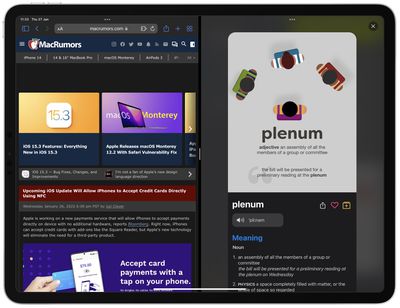
Recent feature additions to iPadOS make multitasking on iPad easier than ever, thanks largely to a new Multitasking menu that appears as three dots positioned centrally at the top of the screen when an app is open. Tapping the three dots reveals the following options: Fullscreen, Split View, and Slide Over.
Fullscreen is the default viewing mode with one app open. Split View, by contrast, is when two apps appear side by side on the screen, and you can resize the apps by dragging the divider that appears between them. Then there's Slide Over, in which one app appears over another in a smaller floating window that you can drag to the left or right-hand side of the screen. Let's look at how Split View works.
How to Use Split View on iPad
- Open an app on your iPad.
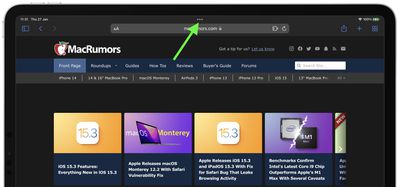
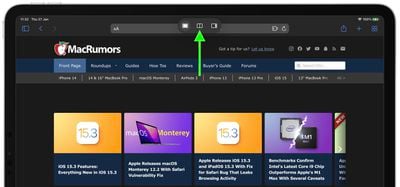
- Tap the Multitasking button (three dots) centered at the top of the screen to reveal three options.

- Tap the Split View button (the second option) indicated by a frame equally divided into two.
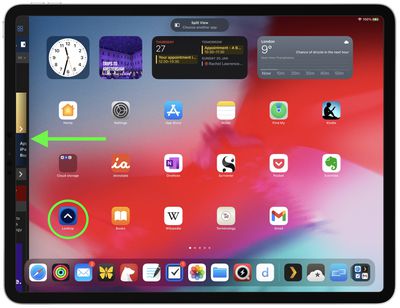
- The current app will move aside to reveal the Home screen. Tap another app on the Home screen or in the Dock that you want to view on the other half of the screen. The second app will appear side by side with the current app.
How to Use the Dock to Invoke Split View
- Open an app on your iPad.
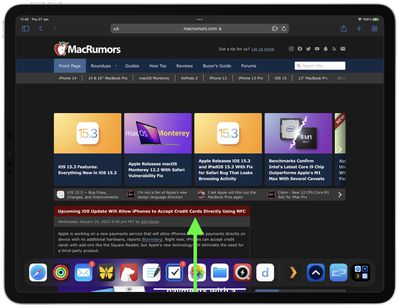
- Slide one finger up from the bottom edge of the screen until the Dock appears, then release.
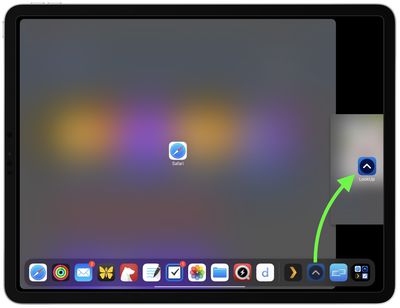
- Touch and hold another app in the Dock, then drag it up out of the Dock to the left or right edge of the screen. The second app will appear side by side with the current app.
How to Adjust Split View
To adjust the amount of screen real estate given over to either app in Split View, drag the app divider to the left or right.
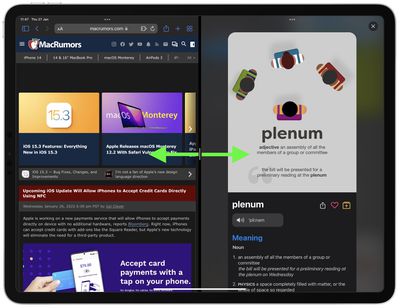
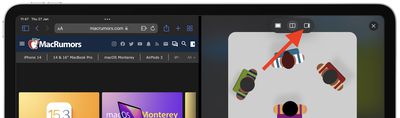
To turn a Split View app into a Slide Over app, tap the Multitasking button (three dots) at the top of the app in question, then tap the Slide Over button (the partially filled frame). Alternately, touch and hold the Multitasking button, then drag the app onto the other app.
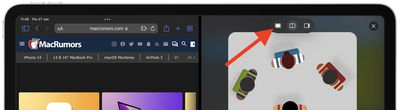
To close Split View, tap the Multitasking button (three dots) centered at the top of the app that you want to keep, then tap the Full Screen button (the fully filled frame). Alternately, drag the app divider over the app that you want to close.
How to Replace An App in Split View
When you have two apps open in Split View, it's possible to replace one of them with a different app. Here's how.
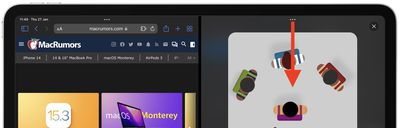
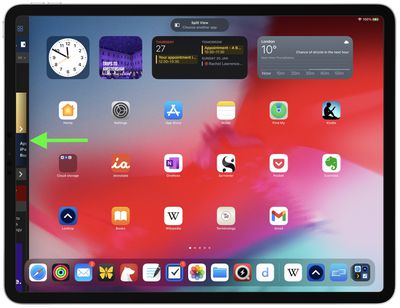
- At the top of the app you want to replace, swipe down from the Multitasking button (three dots). The app will drop down and the other open app will move to the side to reveal the Home screen.
- Tap the replacement app on your Home screen or in the Dock, and it will appear side by side with the existing open app in Split View.
How to Return to Fullscreen
When in Split View, you can remove one app and expand the other to go fullscreen. There are three ways you can do this.
- Drag the center divider to the left or right edge of the screen.
- Tap the Multitasking button (three dots) at the top of the app you want to use in fullscreen, then tap the filled frame button (first from left).
- Touch and hold the Multitasking button (three dots) at the top of the app you want to use in fullscreen. Keep its top edge at the top of the screen, drag it to the center of the screen until its name and icon appears, then release.
Did you know that you can drag and drop between apps using Split View and Slide Over? Read our dedicated drag-and-drop how-to article to learn more, and don't forget to check out our dedicated Slide Over multitasking guide by clicking the link.