Apple completely overhauled the Lock Screen in iOS 16, introducing all kinds of customization options that let you make your Lock Screen unique. You can choose widgets, customize the colors, and use emojis, photos, or built-in wallpapers for a one-of-a-kind look.
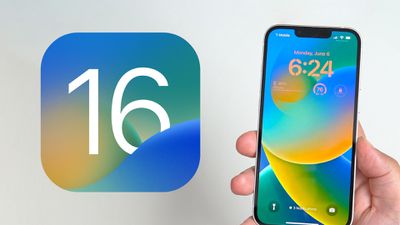
This guide walks through all of the changes Apple had made to the iPhone's Lock Screen in iOS 16, an update that is now available for all eligible iPhones.
Editing Your Lock Screen
If you're familiar with the widget and Home Screen editing interfaces, editing a Lock Screen in iOS 16 is much the same. You can get to all the controls to experiment with by unlocking your iPhone with Face ID or Touch ID, swiping downwards if you're not already on the Lock Screen, and then long pressing on the display.
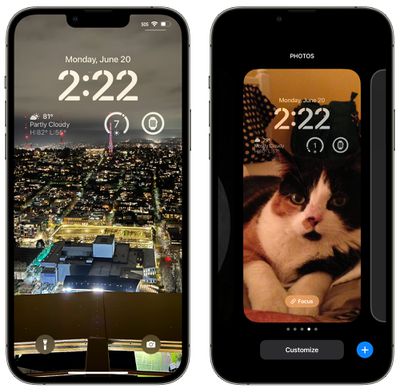
From there, you can tap on the "+" button to create a new Lock Screen or tap on the "Customize" option to customize the current Lock Screen. You can choose different wallpapers, colors, and widgets, which we'll go over below.
You can also swipe through your Lock Screens if you've already created multiples and want to change it. When you're done with all of your customizations, just swipe up or tap to exit out and get back to your newly individualized Lock Screen.
- How to Customize the Lock Screen
- How to Create a New iPhone Lock Screen
- How to Delete a Lock Screen Wallpaper
- How to Crop a Lock Screen Wallpaper
Wallpaper Options
Tapping on the "+" button when creating a new Lock Screen or customizing an existing one will bring you to the wallpaper interface first, where you can choose the wallpaper that you want to use.
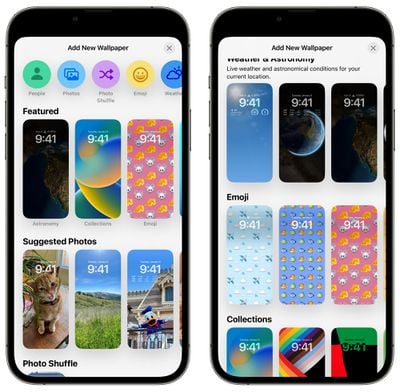
Apple has organized the different wallpapers into categories that you can select from the top of the interface or by scrolling down to see various options. There's even a "Featured" section that shows you some of the more popular wallpaper options that you might want to look into using.
People
As the name suggests, tapping on the "People" category will bring up images of people that you've photographed that will work well with a new depth effect that the Lock Screen supports. On select images, the time will go under the person or object in the photo to create a layered look, similar to how Portrait mode photos look on the Apple Watch.
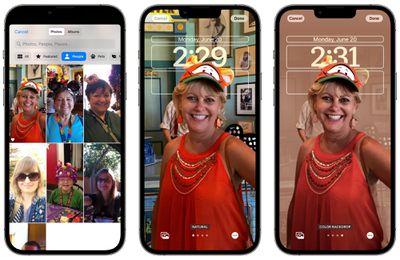
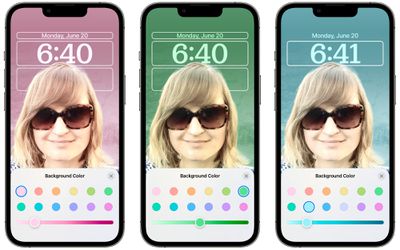
Once you choose a person to feature on your Lock Screen, you'll see how it will look with the time depth effect. You can opt to leave the photo natural or add Studio, Black and White, or customizable Color Backdrop options, which are available depending on the photo you're using.
If you don't like the depth effect, you can turn it off by tapping on the three dots at the bottom, and there's also an option to turn off the Perspective Zoom.
Photos and Photo Shuffle
The Photos category allows you to use any of your photos as a Lock Screen, with Apple selecting Featured images that will work with the layered time effect or that the iPhone thinks might look particularly good as a wallpaper. Photos can be customized with a black and white option.
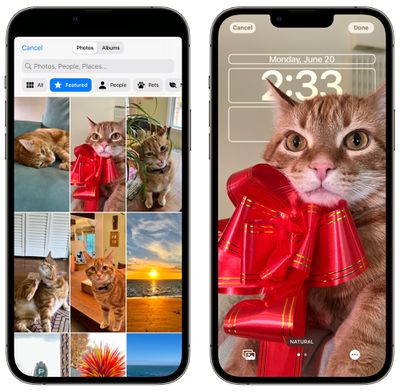
If you want to use multiple photos, you can choose the Photo Shuffle feature instead. With Photo Shuffle, you can have your iPhone's Lock Screen swap between photos. Apple lets you pick from Featured photos in categories that include People, Pets, Nature, and Urban, or you can select all of your photos you want to include manually.
With the Featured customization option, you can deselect any of the categories, or with the People category, choose which people you want to include. If you're using the manual option, you can choose as many or as few photos as you want.
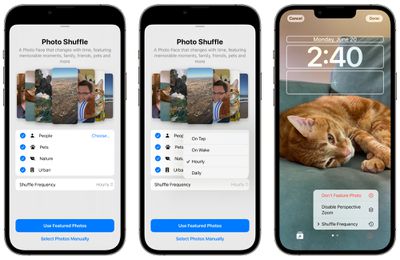
Photos can be set to change on tap, on wake, hourly, or daily, and if a photo you don't like comes up, you can long press, choose edit, and then select the "Don't Feature Photo" option.
- How to Set a Photo As Your Lock Screen Wallpaper
- How to Shuffle Between Photos on Your iPhone's Lock Screen
- How to Change Your Lock Screen's Photo Shuffle Frequency
Emoji
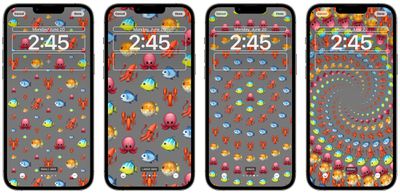
With the Emoji wallpaper option, you can select up to six of your favorite emoji to create a tiled background with those emoji featured. Some of the emoji will be shown larger, and some smaller, for an artistic looking wallpaper, but this can be changed.
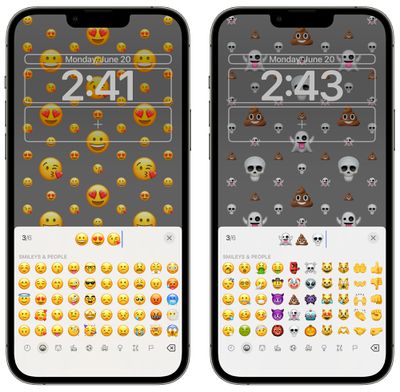
Apple lets you choose a small grid, medium grid, or large grid, with different emoji sizes. You can also opt for rings or spiral as a customization option.
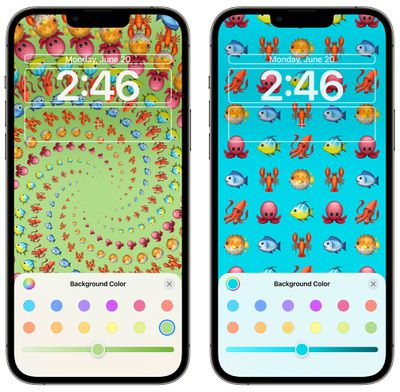
If you tap on the three dots, you can choose the color of the background behind the emoji, using a preselected color or choosing from a color wheel.
Weather
The Weather Lock Screen option shows the current weather in your area, similar to what you see in the Weather app itself. It shows live weather, so if it's cloudy, there are clouds. If it's raining, you'll see the rain animation.
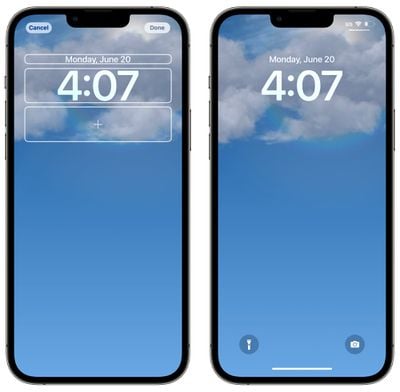
There are no adjustments available for the Weather Lock Screen, and it may not be available on older devices that can't support the animation.
Astronomy
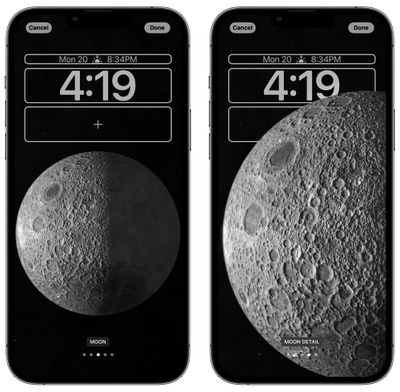
The Astronomy Lock Screen is similar to the Weather Lock Screen, in that it changes throughout the day based on the time and your location. There are several options, including the Earth and Earth Detail, which is a closer up view.
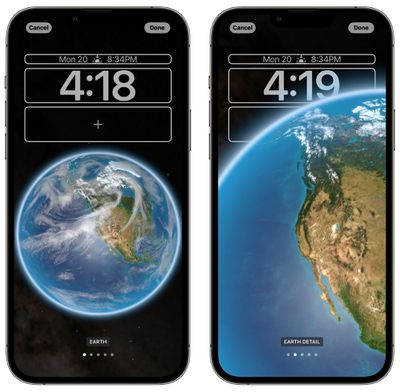
You can also select Moon, Moon Detail, or Solar System. The Astronomy Lock Screen is basically identical to the Astronomy Watch Face in watchOS 9. As with the Weather Lock Screen, there are no customization options for the wallpaper itself.
Color
The Color Lock Screen wallpaper lets you select a plain color for your background, though it will use a bit of a gradient, which can look nice depending on which color you've picked for the time.
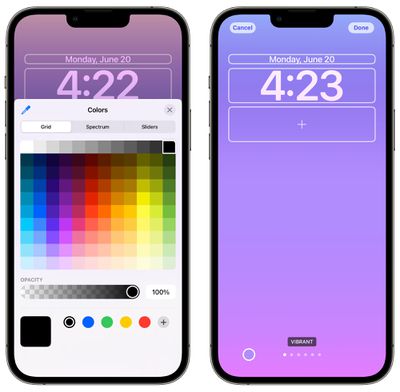
You can select from one of Apple's preset colors and adjust the hue, or you can choose any color from Grid, Spectrum, and Slider options. Opacity can be adjusted with any color that you select.
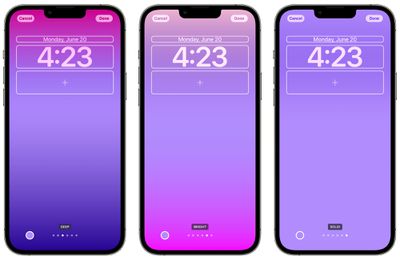
Color Lock Screen wallpapers can be adjusted with different gradient options. You can select Vibrant, Tone, Deep, Vapor, Bright, or Solid, all of which change the look. The Solid option is solid, but all of the others offer a slight color blend for a dynamic look.
Collections
Collections are a set of Apple-designed wallpapers that you can choose to use for your Lock Screen. Each Apple-created wallpaper has a unique look that's designed for the iOS 16 Lock Screen, interacting in fun ways with the time.
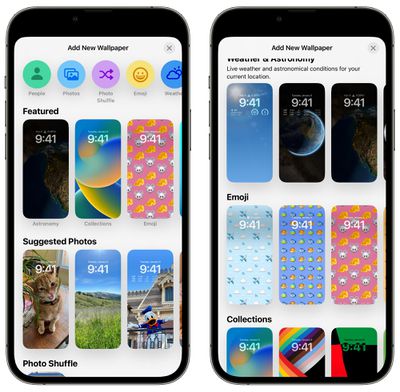
The Collection wallpapers come in unique colors that match some Apple Watch faces, such as Pride and Unity, but there are also iOS 16-exclusive designs to choose from. Some of the wallpapers can be customized with different color options, such as the rainbow stripe and the bokeh, and several are slightly animated.
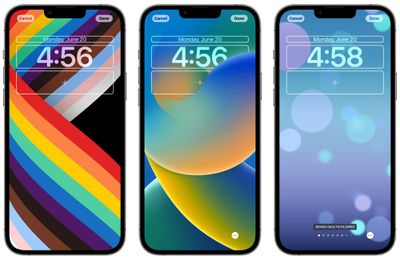
The Bokeh face has dots that shift around, and the Pride face animates when swapping between the Lock Screen and the Home Screen.
Time Customization
After you choose a Lock Screen wallpaper, you can customize everything else on the Lock Screen, including the font and color of the time that's displayed. On any Lock Screen wallpaper, you tap on customize and then tap on the box that's around the time to change the design.
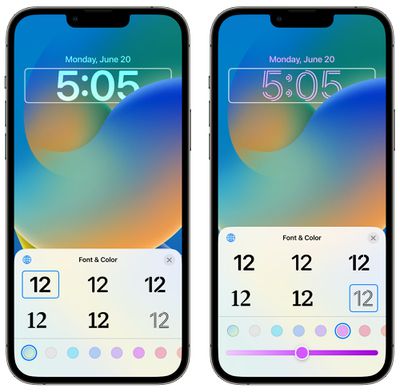
You can choose from several different fonts, and depending on the Lock Screen, a selection of colors. Most Lock Screens support any color, but there are a few of the Apple-designed options that are less customizable.
As with most of the color options, you can choose from preselected colors or use the color wheel to pick any color that you like.
After you've selected your preferred design for the time, you can tap on the "x" to finish customizing your Lock Screen.
- How to Change the Clock Style on Your iPhone Lock Screen
- How to Change the Lock Screen Clock to Arabic Indic How to Change the Lock Screen Clock to Arabic Numerals
- How to Change the Lock Screen Clock to Devanagari
>
Tints and Styles
On any Photo background, you can use the customization options to change the tint. After entering the customization interface, swipe left or right through the available options to change the style.
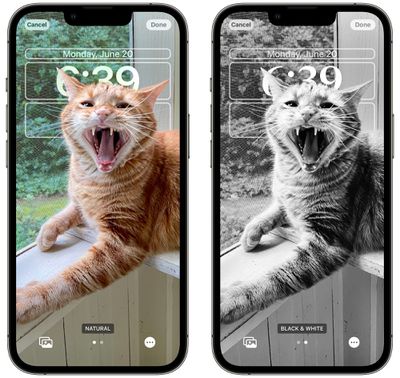
On most photos, you can select from black and white or natural, but on images with people, you can also opt for Studio lighting (emphasizes the person and fades out the background), black and white, or colored backdrop, with the backdrop color customizable.
Widgets
The wallpaper customization options are nice for a one-of-a-kind look for your Lock Screen, but what really sets iOS 16 apart is the option to add widgets to your Lock Screen.
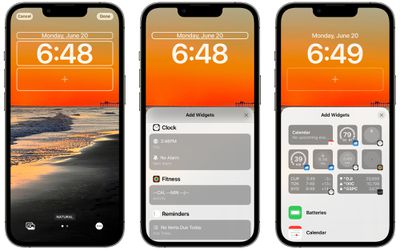
In the customization interface, whether creating a new Lock Screen or customizing an existing Lock Screen, there are two separate widget boxes that you can edit. You can change the widget above the time, and add up to four different widget boxes below.
The widget interfaces are not as complex as the widgets available in the Today view and the Home Screen, but are instead more subtle versions that blend in with the rest of your Lock Screen setup.
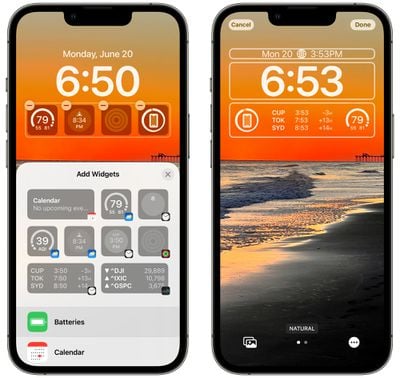
You can add four single block widgets, two larger block widgets, or choose one single block widget and two smaller block widgets. You can also opt to use no widgets if you prefer a cleaner look.
- How to Add Widgets to Your iPhone Lock Screen
- How to Show Upcoming Calendar Events on Your iPhone Lock Screen
- How to Show the Weather Forecast on Your iPhone Lock Screen
- How to Display iPhone Battery Percentage on Your Lock Screen
Widgets You Can Add Above the Time
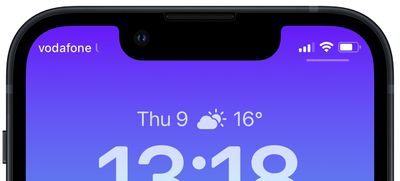
You can add a widget next to the date above the digital clock on the Lock Screen, and many of these widgets display a single data point, using text and symbols, right next to the date. Apple's built-in widget options are outlined below.
- Calendar - Day of the week, date, month or next event
- Clock - City time zone or next alarm
- Fitness - Activity stats (move calories, exercise minutes, stand hours)
- Reminders - Due today
- Stocks - Single stock with up/down symbol
- Weather - Moon events, sun events, conditions, location, rain, air quality, UV index, wind
Widgets You Can Add Below the Time
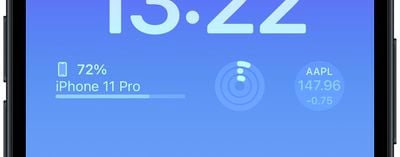
The widget box below the time holds a greater breadth of widget options that can display more information.
Batteries
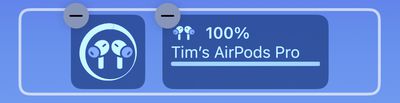
The Batteries widget comes in both square and rectangular versions showing the iPhone's battery status. If you connect AirPods, their battery life is shown instead.
If you use two battery widgets, they will display the battery level for the same device, which may be a bug that Apple will address at a later date.
Calendar
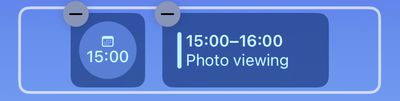
The Calendar widget comes in three formats. You can track the current date as a square widget (though the date is already automatically listed above the time). You can also track the next upcoming event's time or use a larger widget to show both the event name and its time.
Clock
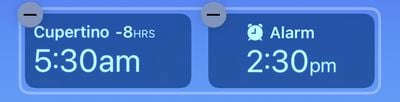
Three clock widgets let you view a clock for a city to check the time at that location, and these are available in one rectangular and two square varieties. There's also a world clock to view the time in up to three cities around the world, and two versions that display the next alarm.
Fitness
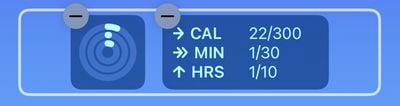
One Fitness widget displays the Activity rings graphic, while a larger readout shows your Activity ring stats (move, exercise, stand).
Home
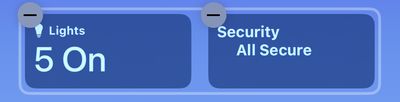
For the Home app, two widgets display any indoor climate sensors, one displays any lights and switches, and another informs you of any security issues. You can also monitor a specific security accessory, or view a home summary (security, climate, and lights).
News
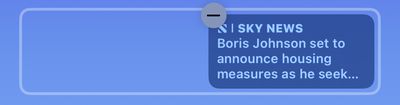
A single larger widget provides today's top news story.
Reminders
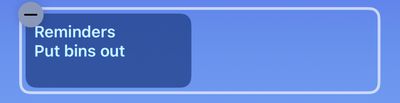
A single larger widget offers quick access to one of your Reminders lists, and displays the next due reminder.
Stocks
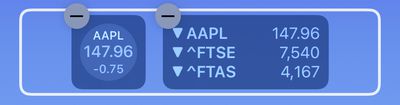
One smaller and one larger widget let you view price quotes and track performance of a symbol throughout the day. There's also a larger widget that displays three stocks.
Weather
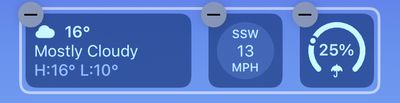
Eight optional weather widgets are available for moon events, sun events, conditions, location, rain, air quality, UV index, and wind. Only the current weather conditions and moon events come in the larger widget format.
Third Party Widgets
Additional widgets will be available in the future as there is an API that will allow developers to create widgets.
Subtler Notifications
Because of the new Lock Screen design with widgets, notifications now come in from the bottom of the display, rather than the top. This makes for a more subtle notification that does not interfere with the widgets you have set up.
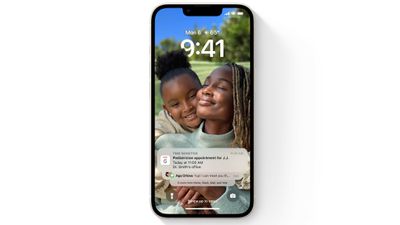
You can swipe upward from the bottom of the display to see more of your notifications, and then swipe back down to hide them away.
- How to Change Notifications Layout on Your Lock Screen
- How to Hide Notifications on Your iPhone Lock Screen
Live Activities
Apple is introducing a new kind of notification called Live Activities, which you can track right from the Lock Screen. With Live Activities, you can do things like track the progress of a food delivery, Uber ride, or sports game.
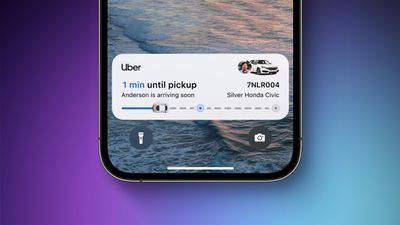
Live Activities show up at the bottom of the display, and you can keep an eye on the progress of whatever you're tracking without unlocking your iPhone.
Live Activities will not be available when iOS 16 launches, and will instead be coming in an update later this year.
Multiple Lock Screens
Lock Screens in iOS 16 are a lot like Watch Faces on the Apple Watch. You can set up a bunch of them, and swap between them with a swipe.
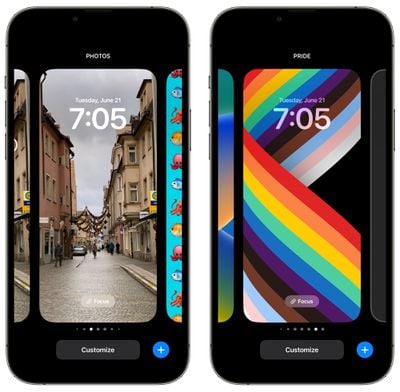
Just long press on the screen after unlocking to get to the Lock Screen customization interface and swipe left or right to go through the different Lock Screens that you've created.
Lock Screens and Focus Mode
Each separate Lock Screen that you create can be linked to a different Focus mode in iOS 16. To do this, open up the Lock Screen interface by long pressing on an unlocked iPhone's Lock Screen, scroll to the Lock Screen of your choice, and then tap on "Focus" to choose which Focus mode to associate the Lock Screen with.
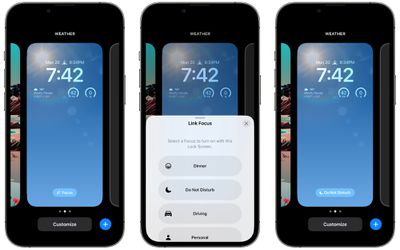
After that, the Lock Screen will have a little icon at the bottom that lets you know which Focus it is linked to.
- How to Set a Unique Lock Screen for Your Focus Mode
- How to Automatically Switch to a Lock Screen at a Set Time
- How to Automatically Switch Lock Screens at a Set Location
Setting a Separate Lock Screen and Home Screen Wallpaper
When using the new Lock Screen customization options, by default, iOS 16 changes both your Lock Screen and your Home Screen to the wallpaper that you select.
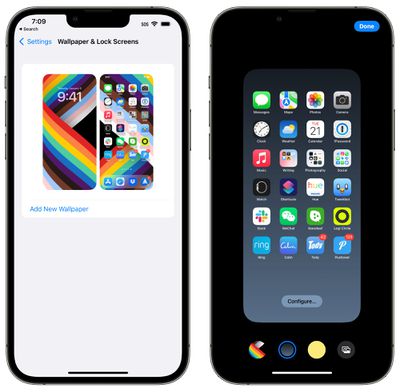
If you want to have different wallpapers for both your Home Screen and Lock Screen, set up the Lock Screen and then follow these steps:
- Open up the Settings app.
- Scroll down and tap on Wallpaper.
- Tap on the Home Screen icon to customize the Home Screen Wallpaper.
You can choose a solid color or pick a photo, allowing the Home Screen to use a different background from the Lock Screen.
Guide Feedback
Have questions about the iOS 16 Lock Screen, know of a feature we left out, or want to offer feedback on this guide? Send us an email here.

/https://forums.macrumors.com/attachments/2023187/)