With the release of macOS 12.3, Macs provide support for two separate features called Sidecar and Universal Control that allow Macs and iPads to be used together, but in different ways. This article explains the difference between them and shows you how to use both features in concert, provided your setup allows for it. Keep reading to learn more.


Got a tip for us?Let us know
Subscribe to the MacRumors YouTube channel for more videos.
With Universal Control in macOS 12.3 and iPadOS 15.4, if you have a Mac and an iPad next to each other, or even multiple Macs and iPads, you can use the keyboard and cursor on one device across all of them. So, for example, if you have a MacBook Pro and an iPad on your desk, the MacBook Pro's trackpad can be used over on the iPad just by swiping across, and the Mac's keyboard will become the iPad's input device. The same is also true of the iPad if you have a keyboard attached to it.
Sidecar works differently. Announced in 2019 as part of macOS Catalina, Sidecar is designed to let you use an iPad as a secondary display for your Mac. Up to one iPad can be used to either mirror the content on your Mac's display or turn it into a secondary display for extra screen real estate in macOS.
Note that while Universal Control lets you use your Mac's keyboard and trackpad to navigate your iPad, it functions over two different operating systems – macOS and iPadOS. It does not extend your Mac's display to the iPad, it simply allows the keyboard and mouse/trackpad of one device to be used to control one or more other devices. If you want your Mac's content displayed on a nearby iPad, you'll need to use Sidecar.
With all that said, however, provided you have enough iPads and Macs, you can in fact use Sidecar and Universal Control at the same time and enjoy the best of both worlds. For example, you could connect your Mac to one iPad via Sidecar for some extra macOS screen space, and on the other side of your Mac you could control a second iPad or Mac using your main Mac's keyboard and trackpad. You can even switch between Sidecar and Universal Control on the same iPad, by swiping up on the Sidecar "app" to reveal your iPad's Home Screen with active mouse/trackpad support and Sidecar minimized in the Dock.. The following steps show you how to set up the two features together.
- On your Mac, click the Apple () symbol in the menu bar and select System Preferences....
- Select Displays in the preferences panel.
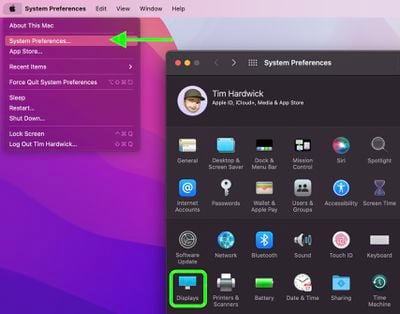
- If you haven't used Universal Control before, click Universal Control... and make sure the boxes are checked for the functions you want to enable. (See our separate guide to setting up Universal Control for more.) Otherwise, click Add Display.

- In the dropdown that appears, you'll see any nearby devices signed into the same Apple ID as your Mac. Click a device listed under "Link Keyboard and Mouse" to use it in Universal Control mode.
- Click Add Display again, and in the same dropdown, this time click an iPad or other device listed under "Mirror or extend to" to connect your Mac to it in Sidecar mode.
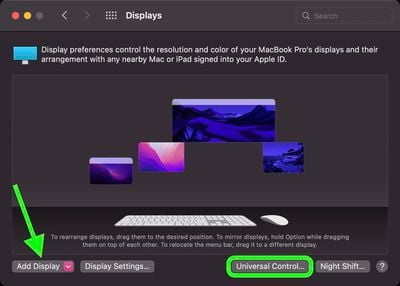
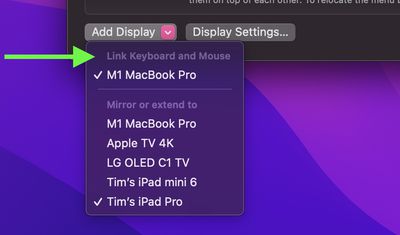
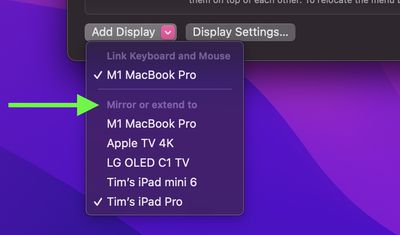
That's all there is to it. You should now have your Mac linked to other nearby Macs and/or iPads via Universal Control while also using an additional iPad as extended display space via Sidecar.
Using the Displays preference pane, you can now arrange the display of your iPad in Sidecar mode alongside the displays of any devices that are linked via Universal Control. For additional help working with Universal Control, be sure to check out our dedicated guide and additional troubleshooting guide.
Related Forum: macOS Monterey
Popular Stories
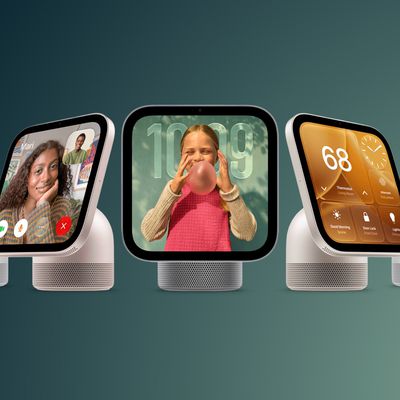
Apple Announces 'HomeView' Smart Home Hub
Apple today announced the "HomeView," an all-new kind of smart home hub featuring a 7-inch Liquid Retina display and Siri AI.
Apple's senior vice president of Worldwide Marketing Greg Joswiak said:
Apple HomeView is designed to be shared by everyone in the home yet feel completely personal to each user. It recognizes your face to shift from a household screen to your own experience,...
Read Full Article • 663 comments
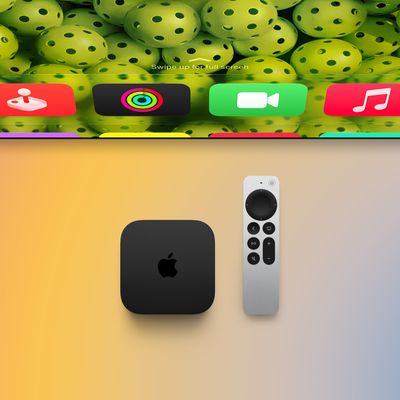
New Apple TV 4K Announced With A19 Chip, Updated Siri Remote, More
Apple today announced the fourth-generation Apple TV 4K, with key features including an A19 chip, Siri AI support, an updated Siri Remote that has Find My support with Precision Finding, built in far-field microphones, support for surround sound with four HomePods in front and rear pairs, and more.
The A19 chip in the new Apple TV 4K delivers up to 50% faster CPU performance and up to twice...
RIP, homeOS
MacRumors was first to reveal the name "HomeView" last week, after discovering a trademark filing from a secretive shell company that we correctly suspected was linked to Apple.
Apple was likely behind a "homeOS" trademark filing as well, but the company ultimately decided to stick with generic "HomeView software" naming, just like it refers to the HomePod's operating system as "HomePod...