iOS 14: How to Use the App Library on iPhone - MacRumorsOpen MenuShow RoundupsShow Forums menuVisit ForumsOpen Sidebar
Skip to Content

iOS 14: How to Use the App Library on iPhone

by

In iOS 14, Apple introduced some big changes to the Home Screen, including new widgets and an App Library. The latter feature is designed to organize large collections of apps and make them easier to access. Keep reading to learn how it works.
app library
The App Library offers a new way to manage your apps by using automatically generated app categories and a new searchable alphabetical list view. It may not be immediately obvious how to find the App Library, but that's because it lives beyond the last screen of apps.

How to Access the iOS App Library

  1. On the ‌Home Screen‌ of your iPhone, swipe left to your last screen of apps.
  2. Swipe left once more to bring up the App Library.
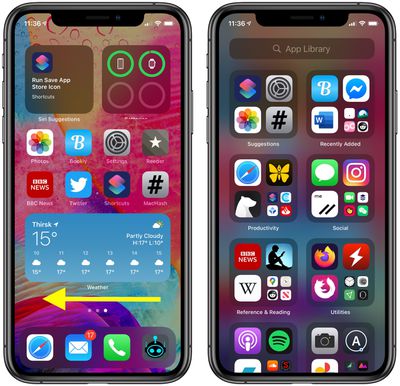
app library

How to Use the App Library

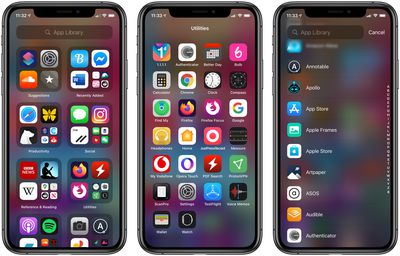
With the App Library open, you'll see two columns containing auto-generated categories of apps. You can tap an individual app to open it, or tap the group of four smaller app icons to reveal all the apps in that category.
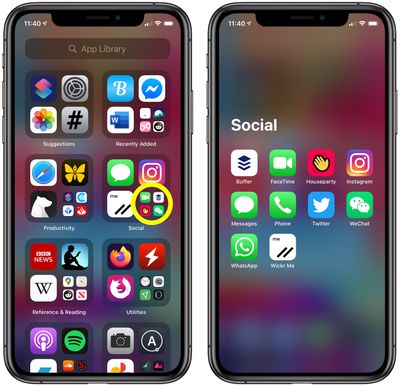
app library

To delete individual apps, you can long press on a category name or a blank space to enable jiggle mode, then tap the small x in the corner of the app you want to remove. To add an app to your ‌Home Screen‌, long press on it and select Add to Home Screen.

How to Use the App Library List View

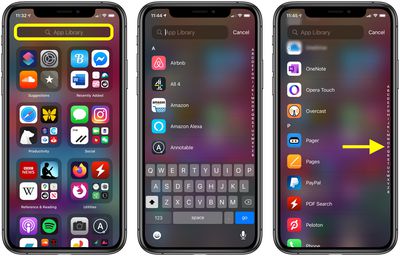
The App Library also incorporates a list view that you can use to find apps installed on your device.

  1. Tap the App Library search bar at the top of the screen. Alternately, swipe down on the screen.
  2. Type in the name of an app to filter the alphabetical list, or scroll down through the list with your finger to find what you're looking for. You can also swipe up and down the letters of the alphabet on the right of the screen for faster navigation through the list.
  3. Tap an app to launch it.

app library

If you like using the App Library, you can hide pages of apps on your ‌Home Screen‌ to get to it in fewer swipes. Click here to learn how.
Related Forum: iOS 14

Popular Stories

Four iPhone 18 Pro Colors Mock Feature

iPhone 18 Pro and iPhone Ultra: Pre-Orders and Release Date

Thursday July 30, 2026 6:12 am PDT by
Apple has yet to reveal when the iPhone 18 Pro and iPhone Ultra will be announced and released, but the dates usually follow a familiar pattern. Labor Day is September 7 this year. The last time the holiday fell on that day was in 2020, but the iPhone event that year was delayed until October due to the COVID-19 pandemic. So, the last time Labor Day was on September 7 in a normal year was in ...

Apple Event Logo

Apple Working on All-New Operating System

Wednesday July 29, 2026 11:39 am PDT by
Apple is developing an all-new operating system that is essentially a mix of tvOS, watchOS, and iOS, according to Bloomberg's Mark Gurman. In a report this week, he said the operating system will feature a grid of icons, widgets, and apps, along with customizable clock faces. The new software platform is intended for Apple's long-rumored smart home hub. With built-in facial recognition,...
Dynamic Island iPhone 18 Pro Feature

iPhone 18 Pro: Twelve Changes Coming to Apple's Next Flagship

Thursday July 30, 2026 3:43 am PDT by
We're less than two months out from the launch of Apple's premium next-generation smartphone lineup, and while we're not expecting a dramatic change in terms of functionality, there are still several enhancements rumored to be coming to the iPhone 18 Pro and iPhone 18 Pro Max. One thing worth noting is that Apple is reportedly planning a major change to its iPhone release cycle this year,...

🔗 Related Apple News & Rumors

Stay updated with the latest Apple ecosystem news and verified rumors