How to Erase an M1 Mac - MacRumorsOpen MenuShow RoundupsShow Forums menuVisit ForumsOpen Sidebar
Skip to Content

How to Erase an M1 Mac

by

This article explains how to erase (or format) the built-in startup disk of a Mac with Apple silicon. Note that erasing your Mac permanently deletes all files on it, so follow the backup advice carefully. If you plan to give away, sell, or trade in a Mac, erasing your Mac should be the final step.
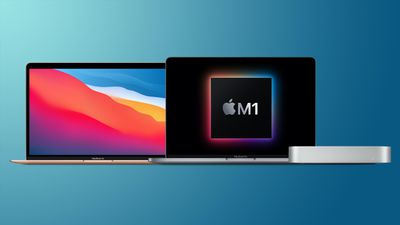
mac mini macbook pro macbook air m1

First, Back Up Your Data

Before you do anything, you should back up the files on your Mac. You could do this manually by copying across files onto an external drive. If you use iCloud, your photos, mail, contacts, documents, and so on should be automatically backed up in cloud storage.

hero timemachineHowever, we highly recommend that you take the time to perform a Time Machine backup of your system using an external drive. That way, the same backup volume can be used by Apple's Migration Assistant during a macOS installation to quickly transfer your applications, files and settings from the old Mac to a new one.

Check out our dedicated guide on how to back up your Mac using Time Machine.

Unlink your Apps

There are certain apps that will need to be manually unlinked from your Mac before you say goodbye to it. Some third-party apps require licenses that only work on a limited number of computers, so think about any licenses you may have purchased.

apple music logo
Similarly, you should de-authorize your iTunes account on the Mac, as this removes its access to content that you bought from the iTunes Store, iBooks Store, or App Store, including things like music, movies, TV shows, apps, and books.

To learn how to de-authorize your iTunes account, check out our dedicated guide.

Sign Out of iCloud

It's also important to disable Find My Mac and sign out of ‌iCloud‌ in macOS. That way you'll know for sure there isn't anything lingering on your Mac that links your Apple ID to this machine. The following steps show you how.

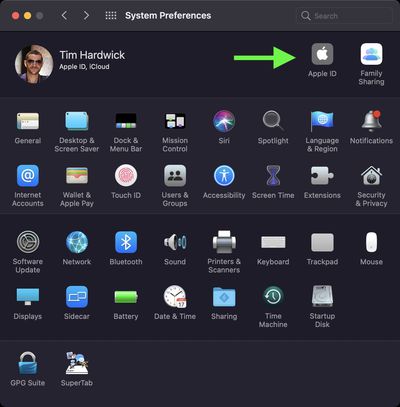
  1. Click the Apple () symbol in the top left corner of your Mac's screen and select System Preferences....
    Mac-preferences

  2. Click Apple ID in the preference pane.

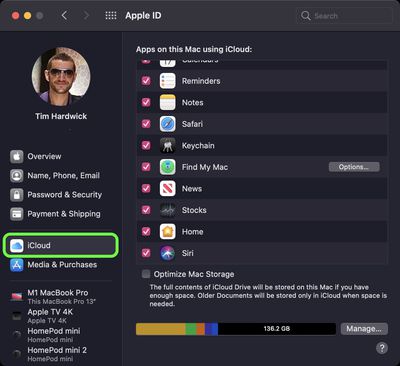
  3. Select iCloud in the sidebar, then uncheck all the boxes in the list to remove copies of the related data on this Mac.
    iCloud Mac

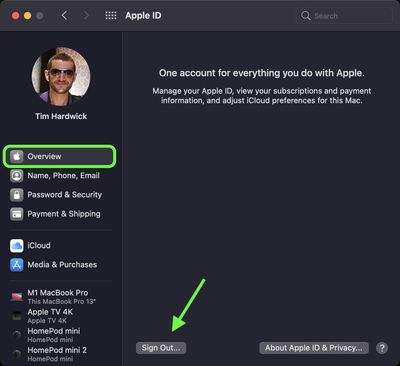
  4. Select Overview in the sidebar, then click Sign Out... to sign out of ‌iCloud‌ completely.
    iCloud Mac

How to Erase Your Apple Silicon Mac

Note that the following steps will cause Bluetooth devices to disconnect from your Mac, so connect your Bluetooth keyboard, mouse, or trackpad with a USB cable if possible.

  1. If your Mac is turned on, power it off by clicking the Apple symbol () in the top-left corner of the menu bar and selecting Shut Down... -> Shut Down. To start up again in macOS Recovery, turn on your Mac and continue to press and hold the power button until you see the startup options window.
  2. Select Options, then click Continue.
    m1 mac startup options

  3. If prompted, select a user, then click Next and enter the password.
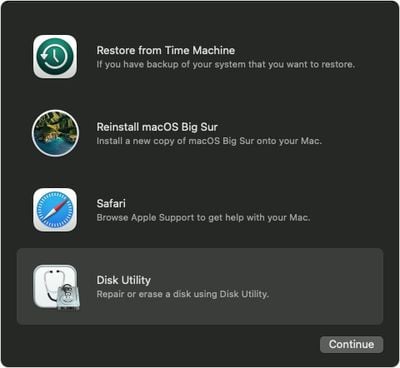
  4. From the utilities window, select Disk Utility and click Continue.
    macos big sur recovery disk

  5. Under the "Internal" section of the Disk Utility sidebar, make sure that you see the volume called Macintosh HD. If you don't see it there and you didn't change the name of the system disk yourself, choose Apple menu  > Shut Down, then unplug all nonessential devices from your Mac and try again.
    disk-utility

  6. If you previously used Disk Utility to create internal volumes on Macintosh HD, select each additional internal volume in the sidebar, then click the delete volume (–) button in the toolbar to delete that volume.
  7. Select Macintosh HD in the sidebar.
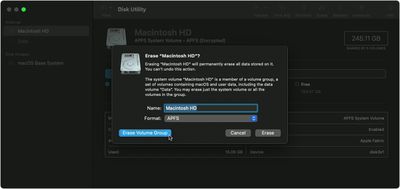
  8. Click the Erase button in the toolbar, then choose another name if desired and format the disk as APFS.
  9. Click Erase Volume Group.
    recovery Mac

  10. Enter your ‌Apple ID‌ if prompted to do so.
  11. Click Erase Mac and Restart to confirm the action.
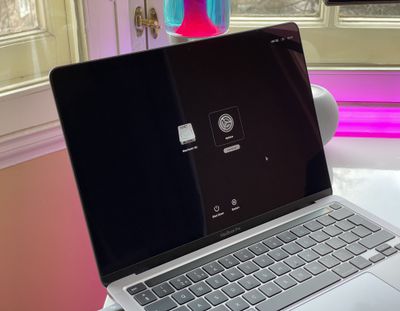
If you're parting ways with your Mac, you're all done. If you're holding on to it and want to start anew, follow the onscreen instructions when your Mac restarts to choose your language. Your Mac will attempt to activate using an internet connection. You can select a Wi-Fi network using the Wi-Fi menu in the menu bar. Alternatively, attach a network cable to your Mac.

After your Mac activates, click Exit to Recovery Utilities, then select Reinstall macOS in the utilities window and follow the onscreen instructions to reinstall macOS.


Popular Stories

m6 a20 pro chips

iPhone 18 Pro: Everything M6 Tells Us About the A20 Chip

Saturday September 5, 2026 9:00 am PDT by
Apple announced the M6 chip last week, just ahead of its September iPhone event, providing the clearest indication yet of what the A20 will bring to the iPhone 18 lineup. Apple silicon generations share much of their architecture across the A-series and the M-series, so a new A-series chip normally functions as a partial preview of the M-series chip that follows it. This year the order...

a20 pro chip

Apple Unveils A20 Pro as First 2nm Smartphone Chip

Wednesday September 9, 2026 10:22 am PDT by
Apple today revealed the A20 Pro chip in the iPhone 18 Pro and iPhone 18 Pro Max, built on a brand new architecture using 2nm process technology. Apple described the A20 Pro as "an exceptional chip that sets a new bar for mobile computing." The chip has a 6-core CPU design with two new super cores that Apple says are up to 20% faster, calling them "desktop class" and "the fastest in any...
Home Hub Command Center with Dome Base Feature

Apple Smart Home Hub to Feature iMac G4-Style Design

Wednesday September 30, 2026 4:36 am PDT by
Apple's long-rumored smart home hub will have an iMac G4-style design and a host of unique features, Bloomberg's Mark Gurman reports. The smart home hub is said to feature a square 6-inch display, with variants that can be placed on a countertop or mounted on a wall. It features a single FaceTime camera on the front, with microphones and speakers in its connected base. Gurman described the...
Latest Stories
Early Prime Big Deal Days: Best Discounts on Accessories, TVs, and More at Amazon
13 minutes ago
MacBook Pro With OLED Touch Screen Rumored to Launch in October or November
1 hour ago
Apple's All-New Home Hub Rumored to Launch in These Four Colors
2 hours ago
iPhone 18 Pro Aperture Control Goes Fully Manual in Halide 3.2
3 hours ago
Apple Stores Receive 'Do Not Open' Boxes Ahead of Smart Home Products Launch
4 hours ago
iPhone 18 Pro Sales Jump in China Ahead of iPhone Duo Launch
4 hours ago
Apple TV Still Down for Some Users Following Apple Services Outage
5 hours ago
PSA: Apple Mail on Mac May Stop Syncing Microsoft 365 Accounts Today
5 hours ago
Apple's Smart Home Hub: Everything We Know So Far
16 hours ago
Apple's Home Hub Borrows From the iPhone Duo's StandBy Mode
17 hours ago
Apple Invites App Updated With Three New Features
21 hours ago
Apple Event on October 13?
22 hours ago
Apple Watch SE 3 vs. Series 12 Buyer's Guide: Which Should You Buy?
1 day ago
iPad Mini 8 to Offer These 10 New Features
1 day ago
DoorDash Unveils AI Food Ordering Through Apple's Messages App
1 day ago
Amazon Takes Up to $150 Off Select M5 MacBook Air Models
1 day ago
Apple Still Plans to Release a New Full-Sized HomePod
1 day ago
Apple Working to Expand HomeKit
1 day ago
Apple Smart Home Hub to Feature iMac G4-Style Design
1 day ago
Three New Apple Smart Home Products Coming on October 13
1 day ago
Apple Pay Now Available in India With Axis Bank Cards
2 days ago
OpenAI Launches Always-On 'Dots' Agents to Rival Meta's Muse
2 days ago
AirPods 5 Teardown: Batteries Removable, Case Still Tough
2 days ago
iPhone 18 Pro Owners Complain of Speaker Crackling or Popping
2 days ago
You Can 'Get Ready' for iPhone Duo Pre-Orders on October 12
2 days ago
Apple Pay Reportedly Launching in India Today
2 days ago
Apple Releases New AirPods Beta Firmware
2 days ago
Apple Shares New Guide for Using iOS 27 Parental Controls
2 days ago
Apple Creator Studio and Final Cut Camera Get New Features
2 days ago
Apple Explains Why It Removed ICE Tracking Apps Last Year
2 days ago

🔗 Related Apple News & Rumors

Stay updated with the latest Apple ecosystem news and verified rumors