

How to Back Up Your Mac Using Time Machine - MacRumorsOpen MenuShow RoundupsShow Forums menuVisit ForumsOpen Sidebar
Skip to Content

How to Back Up Your Mac Using Time Machine

by

Time Machine iconFinding a reliable backup solution for the Mac that runs in the background and isn't a drain on system resources was once considered a challenging prospect.

With the arrival of OS X 10.5 Leopard, Apple changed that preconception by introducing its native backup solution, called Time Machine. This article explains the benefits of using Time Machine and runs you through the setup and restore process.

Benefits of Using Time Machine

Time Machine has won over many Mac users due to its automated scheduling and intuitive recovery process, along with its ability to run in the background without affecting overall system performance.

The application achieves this by making an initial full backup of your Mac's system disk and then stacking subsequent changes to the volume in a chronological hierarchy. Hourly backups, daily backups and weekly backups occur automatically, while the oldest backups are overwritten with new ones as the external backup disk reaches full capacity.

This creates a layered snapshot system that's reflected in Time Machine's navigable timeline and makes the recovery of individual files and folders a simple affair.
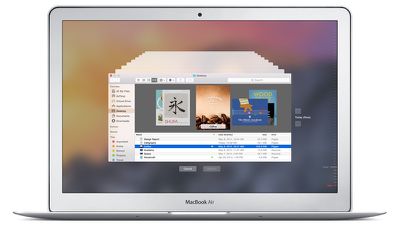
Time Machine on a MacBook Air
Another big plus with Apple's solution is that a Time Machine backup can be used in Recovery Mode to restore your Mac to its original state if the worst happens and your drive fails.

Likewise, the same backup volume can be used by Apple's Migration Assistant during an OS X installation to quickly transfer your applications, files and settings from an old Mac to a new one.

If you're using a Mac notebook running OS X Lion or later and you move away from the backup disk, Time Machine will save daily backups to your Mac's startup disk and even manage these local snapshots to ensure you still have storage space available.
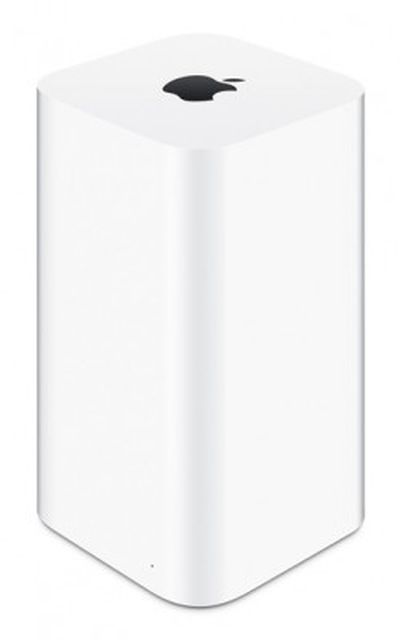
Time Capsule

What You Need

Apple's AirPort Time Capsule (from $299) is a Wi-Fi base station with a built-in backup disk, making it an ideal wireless solution for Time Machine since it avoids the need to keep an external hard drive physically connected to your Mac.

You can also use an external drive connected over a network, so long as it supports Apple File Protocol (AFP) file sharing. Otherwise, any hard drive that connects via USB, Thunderbolt or FireWire and uses a Mac filesystem format will do the job.

Bear in mind that the initial backup takes time, so you may want to set up Time Machine in the evening and leave your Mac on overnight for the process to complete.

Setting up Time Machine

When you connect an external hard drive to your Mac, a prompt may appear asking if you want to use it as a Time Machine backup disk. If you'd prefer to secure your backups with a password, check the "Encrypt Backup Disk" option, then click "Use as Backup Disk".
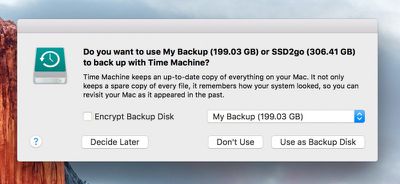
Time Machine query dialog

If the dialog prompt doesn't appear, follow these steps:

  1. Open Time Machine's settings by selecting System Preferences from the top-left Apple menu in the menu bar and clicking the Time Machine icon in the preference pane.
  2. Turn on the Time Machine slider and tick the "Show Time Machine in menu bar" option if it isn't already selected.
  3. To exclude specific items from your backups, click "Options…" and use the + button to select the files or folders in question. Here you can also choose whether to back up when your Mac's running on battery power and whether or not to be notified when old backups get deleted. Click Save when you're done.
  4. Click "Select Backup Disk…" and choose the drive you'd like to use from the list. Finally, tick the box if you want to Encrypt backups and then click "Use Disk".
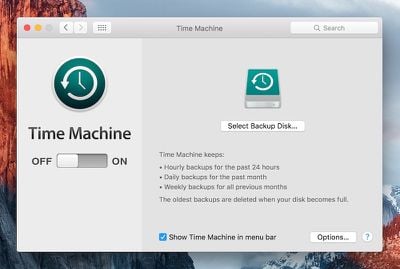
Time Machine preference pane

And that's it. The chosen volume will be formatted and the initial backup begins a couple of minutes later. Time Machine looks after the rest.

Using Multiple Backup Disks

Of course, using one backup disk may prove impractical if you often move your Mac between two locations. Fortunately, Time Machine supports multiple backups and will automatically rotate backups between disks, so there's nothing to stop you from keeping one in both places.

To add another backup disk to Time Machine, simply wait for the initial backup to complete on the first disk and then repeat step 4. Time Machine will ask if you want to use this new volume instead or to take turns backing up between the two disks. Select "Use Both".
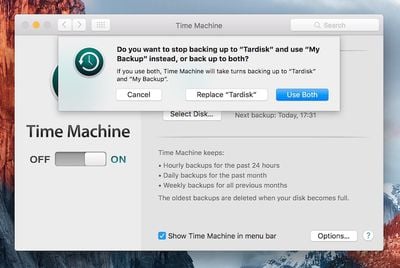
Time Machine Use Both Disks

Restoring From a Backup

To restore individual files and folders from your desktop, follow these steps:

  1. Enter Time Machine by selecting the option from the Time Machine icon on the OS X menu bar.

  2. In the screen that appears you'll see a Finder window and several more receding into the distance; select a date from the timeline right of the screen or click the up/down arrows to navigate the backup snapshots and locate the deleted item (or an earlier version of an item) you want to recover.

  3. Select the relevant item in the snapshot window, click Restore, and Time Machine will copy the file or folder to its original location on your Mac's startup disk.
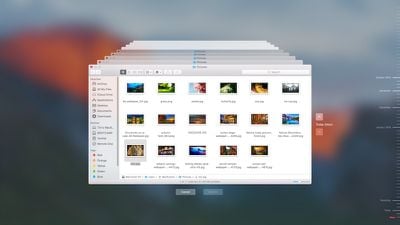
Time Machine screen
If you're using multiple backup disks and want to restore an item from another backup volume, return to the desktop, hold down the Option key and click on the Time Machine icon in the menu bar. Select the option that appears to "Browse Other Backup Disks…" and choose the attached volume in question.

Finally, to restore your startup disk wholesale in the event of a disaster, restart your Mac and hold down the Command and R keys to enter Recovery Mode. Select the option to "Restore your Mac from a Time Machine backup" from the OS X Utilities window and follow the steps on screen.

Alternatives to Time Machine

If you'd prefer more scheduling flexibility than Time Machine offers or you want to back up to a bootable clone disk, check out third-party apps like SuperDuper! ($27.95) and Carbon Copy Cloner ($39.99).

Alternatively, CrashPlan offers a free off-site backup solution as well as a cloud-based option for as little as $5 a month.


Top Rated Comments

141 months ago
Great article. Ignore the condescending comments. Some people are new and learning... "just search for it" is a terrible attitude
Score: 9 Votes (Like | Disagree)
JeffyTheQuik Avatar
141 months ago
This is nice for those new to Macs, or those that have forgotten to do so. This kind of thing would have been nice to have when I entered the Mac waters back in 2008.

Thank you!
Score: 4 Votes (Like | Disagree)
Crosscreek Avatar
141 months ago
SuperDuper runs every night on my Mac so I always have a fresh bootable copy from external WD drive.
Score: 4 Votes (Like | Disagree)
Weaselboy Avatar
141 months ago
If you're using a Mac notebook running OS X Yosemite or later and you move away from the backup disk, Time Machine will save daily backups to your Mac's startup disk and even manage these local snapshots to ensure you still have storage space available.
Just a correction Tim, local snapshots came out with Lion. http://pondini.org/TM/30.html

Well written article. Thank you.
Score: 4 Votes (Like | Disagree)
glenthompson Avatar
141 months ago
This doesn't offer any way of backing up the hard drive to itself, does it?

I mean... surely that would be more useful than nothing, wouldn't it?
Pretty much this is a useless approach. The only thing it would protect you against is accidental deletion or overwriting of a file. Almost any other disaster scenario would leave you without a backup. Think fire, theft, flood, etc.


Best practice for backups is to have at least 3 copies of your data with one of those copies being off-site.
Score: 2 Votes (Like | Disagree)
WigWag Workshop Avatar
140 months ago
I appreciate these articles, very helpful to the new folks.
Score: 1 Votes (Like | Disagree)

Popular Stories

iPhone Duo Display Cracking

Apple Alerts Stores to iPhone Duo's Display Cracking Issue

Friday October 30, 2026 3:20 pm PDT by
In a memo shared with Apple Stores and Apple Authorized Service Providers this week, and later obtained by MacRumors, Apple provided technicians with guidance on how to diagnose and address the iPhone Duo's inner display cracking issue. If a customer reports the issue, Apple advised technicians to inspect the iPhone Duo and repair or replace it in accordance with their standard procedures....
iPad mini OLED feature 1

Apple Executive Comments on New iPad Mini Lacking 120Hz Display

Thursday October 29, 2026 1:47 pm PDT by
While the new iPad mini has an OLED display, the device does not support ProMotion, meaning the display's refresh rate is limited to 60Hz instead of 120Hz. ProMotion support would have allowed for the iPad mini's refresh rate to automatically adjust from 10Hz to 120Hz depending on the content being displayed, but evidently Apple has kept the feature exclusive to the iPad Pro among iPad...
Pinched iPad Mini

Apple Avoids Showing Pinched Fingers on iPad Mini Page in South Korea

Thursday October 29, 2026 11:52 am PDT by
In the U.S. and most other countries, Apple's website shows the new iPad mini being held by pinched fingers, but this is not the case in South Korea. The new iPad mini shown with pinched fingers on Apple's website in the U.S. On its South Korean website, Apple simply shows an image of the iPad mini on its own. The new iPad mini shown without pinched fingers on Apple's website in South Korea ...
Latest Stories
Apple Watch Ultra 4 Hits All-Time Low Price With Amazon's $99 Discount
13 hours ago
Reminder: Apple's Big Discount on Beats 360 Ear Cushions Ends Today
13 hours ago
Here's a New Tour of Apple's HomeView Software
13 hours ago
Apple Reveals New iPad Mini's Battery Capacity
15 hours ago
Top Stories: Apple's Big MacBook Pro, iPad mini and iMac Updates
16 hours ago
'Pluribus' Season 2 Reportedly Starts Production Today
22 hours ago
iPhone 18 Pro Sales Surge in China, Offsetting Decline in U.S. and Japan
23 hours ago
HomeView Software 27.2: Wallpapers, Control Center, and More
1 day ago
Apple Alerts Stores to iPhone Duo's Display Cracking Issue
1 day ago
iOS 27.3 Will Enable These Apple Intelligence Features in China
1 day ago
Apple Says iOS 27.3 Beta Coming Next Week
1 day ago
Apple's Flash Storage Suppliers Are Finally 'Getting Their Revenge'
1 day ago
14 New Things Your iPhone Can Do in iOS 27.2
1 day ago
iPhone Duo Review: One Week Later
1 day ago
Samsung Mocks iPhone Duo Display Cracks in New Ad Campaign
2 days ago
The MacRumors Show: OLED MacBook Pro, iPad Mini 8, and More
2 days ago
MacBook Pro With Touch Display: 15 More Details Revealed
2 days ago
Russia Places Apple on State Surveillance Registry
2 days ago
Halloween Weekend Brings Discounts on Apple Accessories and Pre-Orders
2 days ago
Apple Has Released More Than 25 New Products in the Past Two Months
2 days ago
Local Code Launches as Free, Private AI Assistant Tool for Mac
2 days ago
Apple Acquires Ascend.io
2 days ago
HomePod Mini 2 Launches Today: All the New Features
2 days ago
AirTag 2 4-Pack Drops to New Low Price of $69.99
2 days ago
Rian Johnson's iPhone Camera App Goes Viral
2 days ago
Where Did All the iPhone Duos Go? Mostly to Apple's Stores
2 days ago
Apple's Touchscreen MacBook Pro Could Ship 1.5M Units in 2027
2 days ago
New Apple TV 4K and iPad Mini: RAM Amounts Revealed
2 days ago
Apple Executive Comments on New iPad Mini Lacking 120Hz Display
2 days ago
Here's a Hands-On Look at HomePod Mini 2's New Two-Tone Colors
2 days ago

🔗 Related Apple News & Rumors

Stay updated with the latest Apple ecosystem news and verified rumors










































