

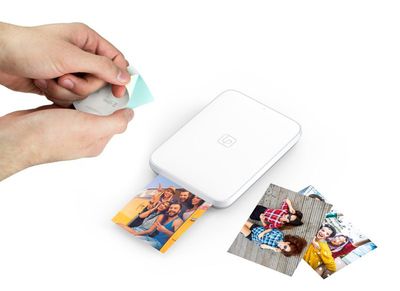
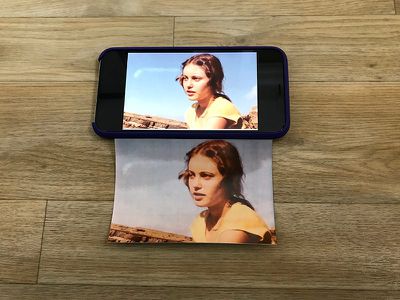
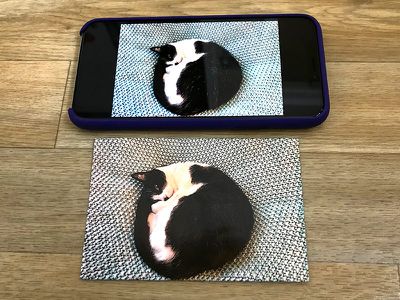
Lifeprint, a company known for its iPhone-compatible ZINK photo printer, recently introduced a new, larger photo printer that's able to print images that are 3 by 4.5 inches instead of 2 by 3 inches, the normal standard size for mini printers designed for the iPhone.
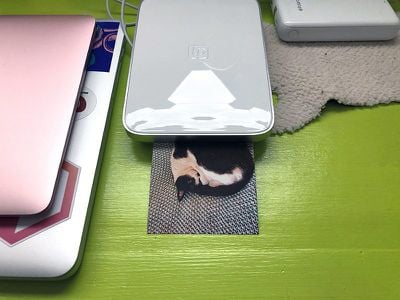
The new Lifeprint 3x4.5 Hyperphoto Printer for iPhone, priced at $150, is an Apple exclusive that's designed to give customers a quick and easy way to instantly print their iPhone photos. Lifeprint asked me to check out the new 3x4.5 printer, and while I loved the larger image size, there are some drawbacks to be aware of before deciding to purchase one.
Design
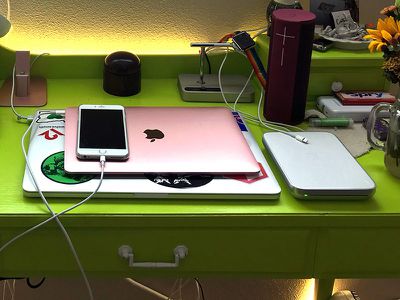
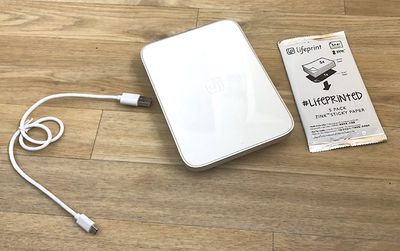
The new Lifeprint printer is similar to a large hard drive or an iPad mini, and it's a little over an inch thick, so not quite as portable as the original version, but also not a space hog like a traditional printer. I can easily fit it into my backpack for use while on the go, but it's not pocketable like the ZIP.
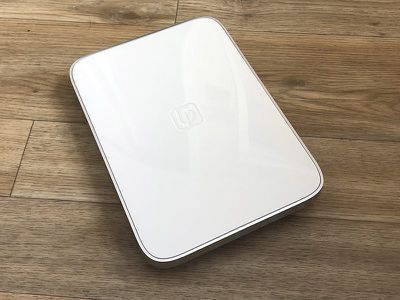
It's constructed from plastic, with a silver plastic at the bottom and a glossy white plastic at the top, which matches the aesthetic of the iPhone. It's lightweight, but it doesn't feel like a cheap product.
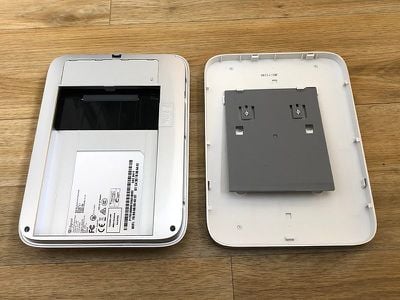
The Lifeprint printer has a top that slides off, which is where the printer paper and the printing internals are located. When you need to add more printer paper, you'll need to slide the top off, put the paper in facedown, and then slide the top back on. It's a simple process.
At one side, there's a slot where the printed photos come out, and at the other side, there's a microUSB charging port, which is how the Lifeprint charges. The battery is rechargeable, so this printer is fully portable and does not need a constant power connection.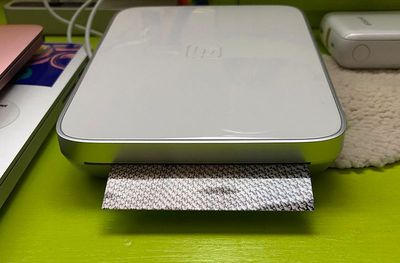
Aside from the slot for the paper and the charging port, there's a slot where you can plug in a locking cable and a power button on the left side to turn it on.
Setup
Setting up the Lifeprint was simple aside from the account creation process, which required everything from my phone number to my birth date. Pairing essentially consisted of charging the printer via micro-USB cable, turning it on, downloading the app, and connecting it to my phone using the traditional Bluetooth interface in the Settings app.
As mentioned above, when setting the printer up, you'll need to slip the top off and add in the paper. It's a simple process, though, and you really just need to slide the lid down at the arrow and then slide it back on.
ZINK Paper
Lifeprint is a ZINK photo printer, like many of the smaller iPhone photo printers on the market, which means it uses ZINK paper. ZINK stands for zero ink, because there's no ink involved, and thus there are no expensive color cartridges to buy. ZINK is thermal paper that works when heat is applied via the Lifeprint printer.
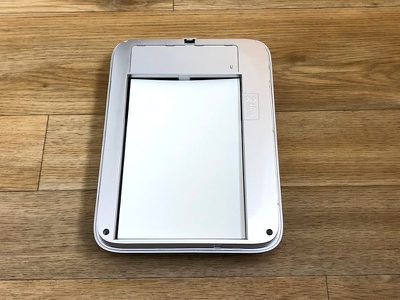
ZINK paper is nice because there's no ink involved, it's fast, there's no smearing or fading, and it's sticky on the back so you can turn all of your photos into stickers.
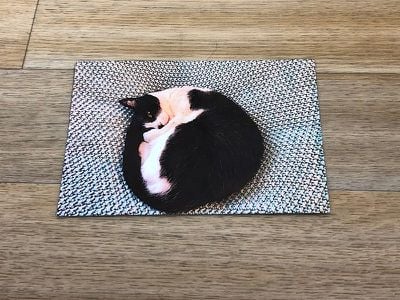
On the downside, though, ZINK paper is expensive, and that's the one major thing to be aware of when purchasing the new Lifeprint printer or a similar device. It's $50 for a 40 pack of the new larger photo paper, which translates to more than $1 per picture. That's not terrible if you're used to polaroids or developing film, both of which are also expensive, but it's a shock for those of us who are used to digital-only formats.
App
To print photos on the Lifeprint printer, you have to use the Lifeprint app. The app is also used for setting up the printer and pairing it to your iPhone. The Lifeprint app is okay but could stand to be improved. It's a little bit slow, buggy, and sometimes prone to crashing.
When opening the Lifeprint app, it pulls in all of your Camera roll photos, which you can then select to print. You can also take a photo directly in the app, and there are built in editing tools you can use before printing to spruce up the quality of your photo or add stickers, labels, meme text, artful blur, and other effects.
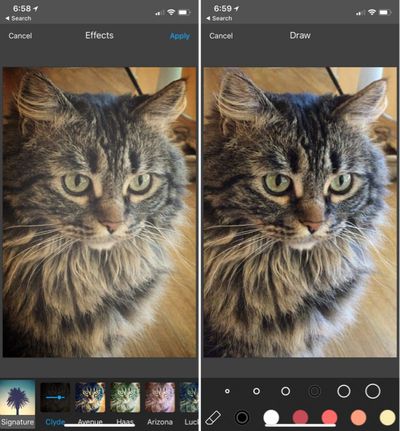
The editing tools are fine and will work for simple editing jobs, but they're limited in scope and you'll probably be better off editing your photos with a third-party photo editing app before porting them into the Lifeprint app. If you don't want to hassle with that, the Lifeprint app is fine on its own.
You can also import photos from popular social networking apps like Facebook, Twitter, and Instagram.
Once you've selected a photo to print, sending it to the printer is as simple as tapping the print icon in the upper right hand side of the app.
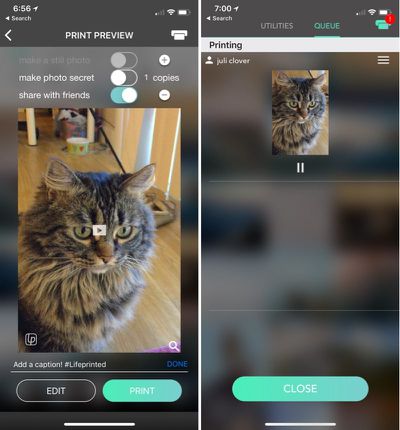
I had some specific frustrations with the Lifeprint app. When I went to print a Live Photo, for example, the Lifeprint app would pull it in as a video clip with the focus set to the beginning of the clip, which is not typically the clear part of the Live Photo.
It ignored the main photo part of the Live Photo, so each and every Live Photo required me to look for and select the ideal clip, a process I wish was better optimized.
Another source of annoyance was the app's built in social networking features. The Lifeprint app creates a profile for you and adds each photo you print to that profile, and if you don't uncheck "share with friends" each time you print, the photos you print are uploaded to that profile.
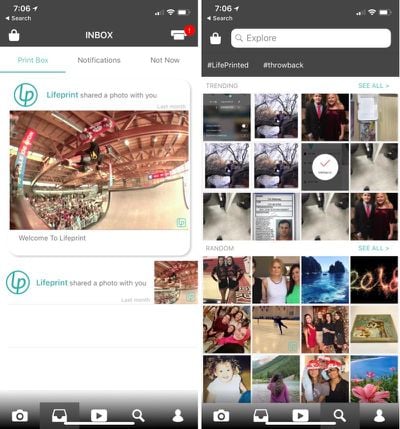
I don't want to join a social network for my printer, I don't want all my printed photos uploaded to a profile, and I don't want to see other people's printed photos in the "Inbox" and "Explore" feeds that are also available in the app.
I'm sure these features are useful to some people, but there should be an opt-out option for people who just want a printer, not a slow-to-load social network filled with photos from strangers.
Augmented Reality Features
Lifeprint bills its printer as an augmented reality printer because you can print a still photo of a video or a Live Photo and then scan the print with the Lifeprint app to see the original source material, something that Lifeprint calls a "Hyperphoto."
So, for example, you can print a video featuring your cat, give that photo to your friend, and then your friend can scan it with the Lifeprint app to see the original video overlaid on top of the photo.
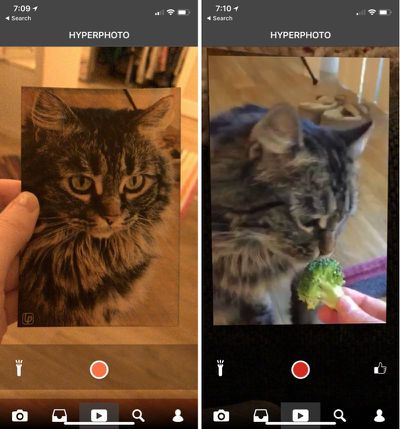
Lifeprint claims that this is like the magical animated photos in the Harry Potter movies, and that's not an inaccurate claim, but I have a hard time believing people are using this feature on a regular basis.
To watch the video, the person on the receiving end of the photo has to go to the App Store, download the Lifeprint app, open the app, allow permission for it to access the camera, and then scan the photo. That's a lot of hassle when I could just send the video directly to someone.







































Top Rated Comments
1. Why do you want a printer?
2. Why do you want a travel printer?
3. Why do you want to print 4 inches?
4. What do you do with a printed photo?
5. Why not just use a service such as those offered by walmart and pay 9 cents a photo?
I could just imagine a scenario where you and your children go to visit Granny at her home, or care home.
Granny is over the moon to see you and her grandchildren.
How nice it would be to capture a shot of your gran, with perhaps her grandchild next to her at a photo, and be able to print it out on the spot, and hand it to gran as a keepsake, after you have left and gran is alone again.
Just one scenario, but whilst there are 100 scenarios one would never need such a thing.
They are situations, where the ability to physically hand someone a photo, then and there, could be useful.
I don't want one, but I'm glad such a product exists for those who have a use.