Text Shortcuts You Should Be Using on iPhone and Mac - MacRumorsOpen MenuShow RoundupsShow Forums menuVisit ForumsOpen Sidebar
Skip to Content

Text Shortcuts You Should Be Using on iPhone and Mac

by

Apple's autocorrect on iPhone and iPad always aims to help when you're typing a message, but it's by no means perfect, and some of the replacements it continually spews out can be frustrating. Fortunately, Apple's software includes a feature called Text Replacement that allows you to specify what word or phrase replaces the specific text you type in.
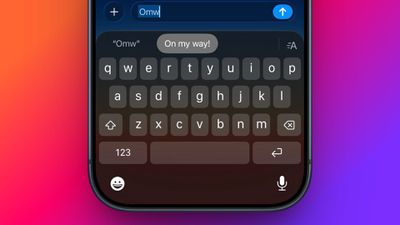
On my way
Even if you haven't set up Text Replacement, you can try it out with Apple's pre-set example: In any app that accepts text input, type "Omw" followed by a space, and it will change to "On my way!" automatically.

The following steps guide you through the process of setting up your own handy shortcut phrases with text replacements on both iOS devices and Mac.

How to Set Up Text Replacement on iPhone

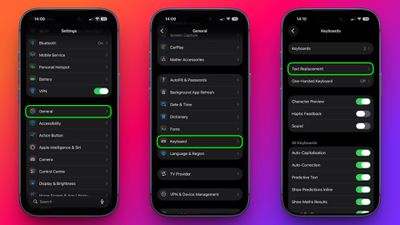
  1. Launch the Settings app on your iPhone or iPad.
  2. Tap General ➝ Keyboard.
  3. Tap Text Replacement.
    settings

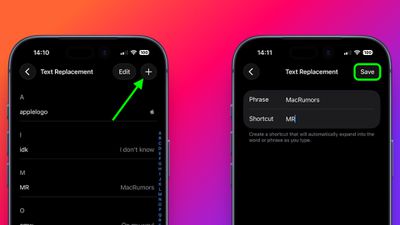
  4. Tap the plus (+) button in the top-right corner of the screen.
  5. On the next screen, fill in the "Phrase" field with the text you want to appear every time you type your shortcut.
  6. In the "Shortcut" field, input the text of your choice that you want to be replaced by the phrase above.
  7. Tap Save in the top-right corner to finish.
    settings

How to Set Up Text Replacement on Mac

The following steps work on Macs running macOS Ventura and later.

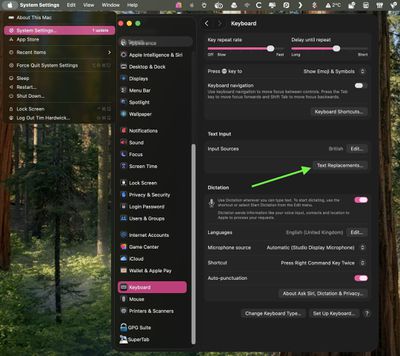
  1. On your Mac, click the  logo in the top-left corner of the menu bar at the top of the screen and select System Settings....
  2. Scroll down and select Keyboard in the sidebar.
  3. Under "Text Input," click Text Replacements....
    settings

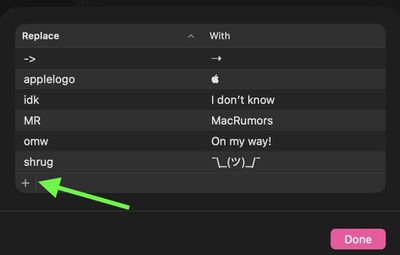
  4. Click the + button to add a text replacement.
    settings

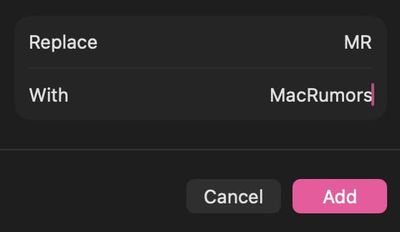
  5. In the "Replace" column, enter the text that you want replaced with something else.
  6. In the "With" column, type the replacement text that you want it to change to.
    settings

If you're using the same Apple account across all of your Apple devices, any Text Replacements that you add on your Mac will be automatically synced to your iPhone and/or iPad, and vice versa.


Top Rated Comments

JonneyGee Avatar
24 weeks ago
A few tips from mine:

1. Don’t use real words for shortcuts or you won’t be able to type that word easily anymore (you have to tap the x on the replacement suggestion, and it’s a pain to do regularly). Instead of “shrug,” I simply use “shr,” because I’ll rarely type that without the “ug” afterward.

2. Make them as short as possible. Most of mine are 3 letters. I use “apl” for the Apple logo. It’s a lot faster to type than “applelogo.”

3. Save things like your address, email address, and the name of your city. It saves so much time.

4. I also have lots of special characters saved. For example: ←, →, ↑, ↓, ≠.

5. I also have some links I send fairly frequently.
Score: 16 Votes (Like | Disagree)
adrianlondon Avatar
24 weeks ago

@@ is my email. Had it for years.
Me too; I just wish Apple didn't decide that it needed a space after it, so I always have to backspace each time I enter it.

(Same with every text shortcut of course, but usually it's useful 😁)
Score: 7 Votes (Like | Disagree)
WarmWinterHat Avatar
24 weeks ago
@@ is my email. Had it for years.
Score: 6 Votes (Like | Disagree)
sejoki Avatar
24 weeks ago

@@ is my email. Had it for years.
I've had that since text replacements were possible. I'm sometimes even surprised it's still active because I'm not used to setting something up once and it remaining the same for 10 years.
Score: 5 Votes (Like | Disagree)
24 weeks ago
I teach music, so I have `fhlat` substitute in for `♭` and `shsharp` for `♯` on all my devices. On my Mac, I have more involved ones through TextExpander, but having these as a baseline on my phone and iPad are both great.
Score: 5 Votes (Like | Disagree)
tonywalker23 Avatar
24 weeks ago
and after losing a bunch of mine for no reason thanks to iCloud… I learned you can import and export the shortcuts. while in the window, select the replacements you want and right click and you will see an import/export option that results in a plist file.


Attachment Image
Score: 4 Votes (Like | Disagree)

Popular Stories

Apple Event Logo

Apple Working on All-New Operating System

Wednesday July 29, 2026 11:39 am PDT by
Apple is developing an all-new operating system that is essentially a mix of tvOS, watchOS, and iOS, according to Bloomberg's Mark Gurman. In a report this week, he said the operating system will feature a grid of icons, widgets, and apps, along with customizable clock faces. The new software platform is intended for Apple's long-rumored smart home hub. With built-in facial recognition,...
imac video apple feature

Apple Made Its Second-Biggest Acquisition Ever This Year

Wednesday July 29, 2026 12:03 pm PDT by
Apple this year acquired Israeli startup Q.ai for close to $2 billion, according to the Financial Times. That would make this Apple's second-biggest acquisition ever, after it paid $3 billion for the popular headphone maker Beats in 2014. This is also the largest known Apple acquisition since the company purchased Intel's smartphone modem business and patents for $1 billion in 2019. Q.ai...
Dynamic Island iPhone 18 Pro Feature

iPhone 18 Pro: Twelve Changes Coming to Apple's Next Flagship

Thursday July 30, 2026 3:43 am PDT by
We're less than two months out from the launch of Apple's premium next-generation smartphone lineup, and while we're not expecting a dramatic change in terms of functionality, there are still several enhancements rumored to be coming to the iPhone 18 Pro and iPhone 18 Pro Max. One thing worth noting is that Apple is reportedly planning a major change to its iPhone release cycle this year,...

🔗 Related Apple News & Rumors

Stay updated with the latest Apple ecosystem news and verified rumors