In iOS 11, Apple introduced animated emoji characters called Animoji, which are designed to mimic your facial expressions. Later in iOS 12, Animoji grew to encompass Memoji, which are customizable humanoid Animoji characters that you can design to look just like you.

Memoji and Animoji are limited to Apple's iPhones with TrueDepth technology, but in iOS 13, Apple added several different Animoji and Memoji stickers that can be used on all Apple devices with an A9 chip or later. And in iOS 14, Apple added new Memoji customization options, including the ability to select new hair styles, headwear, or masks, and more age options.
Animoji/Memoji stickers let you express yourself using an existing character or a custom-made character that looks like you, using classic emoji-like poses and faces, such as heart eyes, brain exploding, shushing face, laughing with tears, crying, shrugging, face palm, and more. Keep reading to learn how to use them when sending Messages.
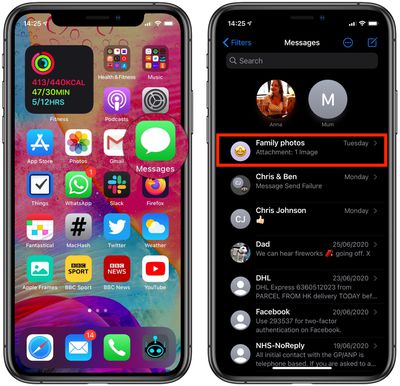
- Launch the Messages app on your iPhone or iPad.
- Tap the New Message icon in the top-right of the screen, or select an existing message thread that you want to use to send an Animoji/Memoji sticker.

- If you're sending a new message, enter a contact in the To: field.
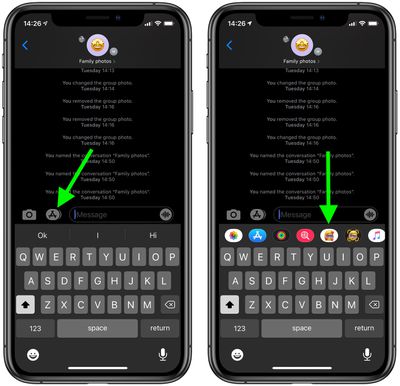
- If you don't see the apps row above the keyboard, tap the App Store icon beside the message field, which appears at the top of the onscreen keyboard.
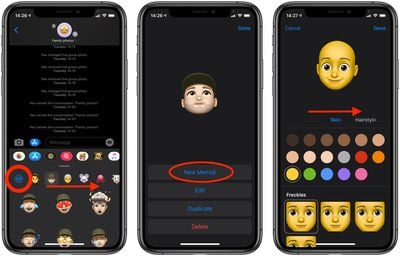
- Tap the icon consisting of a Memoji face surrounded by hearts.
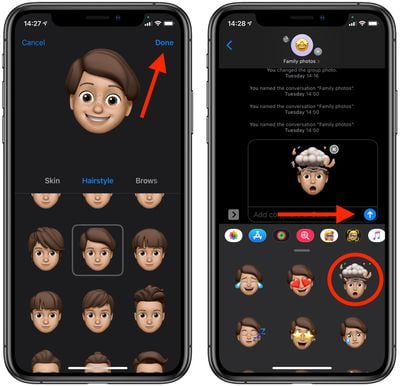
- You'll see a horizontally scrolling list of faces including Animoji and any Memoji you've created. Tap a face to access a selection of pre-defined stickers – select one to send as a message, add a comment if desired and then tap the Send button.
- Alternately, tap the ellipsis (three dots) icon to create a new Memoji or edit and existing one.
- Tap New Memoji if this is your first.
- From here, you can create your lookalike in digital form by choosing from a gallery of facial features and characteristics. When you're happy with your Memoji, tap Done in the top-right corner of the screen.
- Choose a pose from your newly generated Memoji sticker gallery to send as a message, add a comment if desired and then tap the Send button.
Note that Memoji and Animoji stickers are accessible not only in the Messages app, but also in other places like Mail and Notes through the emoji icon on the iOS virtual keyboard.