Auto-Populate iPhone Home Screen With Your Most Used Apps - MacRumorsOpen MenuShow RoundupsShow Forums menuVisit ForumsOpen Sidebar
Skip to Content

Auto-Populate iPhone Home Screen With Your Most Used Apps

by

Do you find yourself frequently scrolling through multiple Home Screen pages on your iPhone to get to the apps you access most often? If so, chances are you've already filled up the first page with some of your favorite apps. But what if you could automatically make all of your most-used apps appear on page one? With the Siri Suggestions widget, you can.
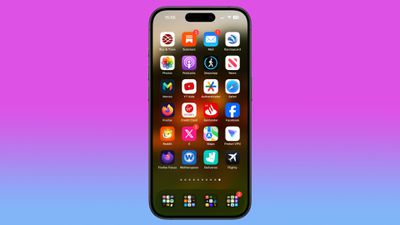
siri suggested apps iphone home screen
The Siri Suggestions widget intelligently recommends apps based on your usage patterns. By populating your Home Screen with multiple instances of this widget, you can ensure that the apps you need most are always just a tap away. Read on to learn how it's done.

  1. With your iPhone unlocked, swipe to a Home Screen page with at least two free rows available.
  2. Press and hold the empty space on the Home Screen until the apps start to jiggle.
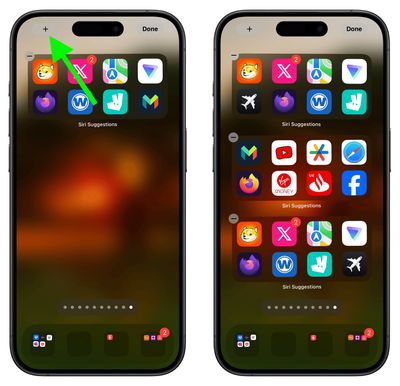
  3. Tap the "+" button in the top-left corner of the screen to access the widget gallery.
  4. Search for "Siri Suggestions" in the widget gallery or scroll through the list to find it.
  5. Tap the Siri Suggestions widget option, then choose the first option showing two rows of apps by tapping Add Widget.
    siri suggestions

  6. Drag the widget to a fresh new page containing no other apps.
  7. Add another instance of the Siri Suggestions widget by tapping the "+" button in the top-left corner of the screen again, then selecting it in the widget gallery, just like you did for the first one.
  8. Add a third Siri Suggestions widget in the same way.
    siri suggestions

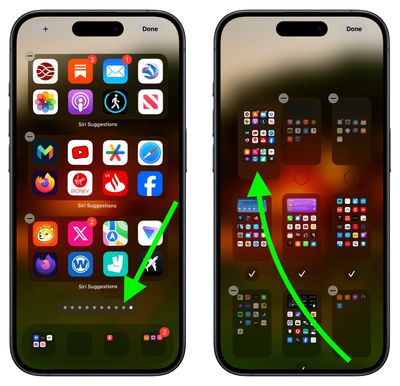
  9. Next, tap the row of dots representing your ‌Home Screen‌ pages.
  10. In the ‌Home Screen‌ grid that appears, touch and drag the page of widgets you just made and move it so that it's the first Home Screen page (the one you see when you unlock your iPhone). The others will move to make way in response to your drag action.
  11. Tap Done in the top-right corner of the screen when you're happy with the new arrangement, then tap Done again to exit jiggle mode.
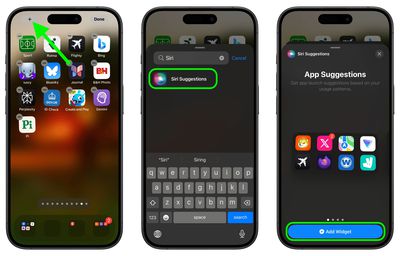
    Home Screen pages

Don't worry if the widgets first show the same suggested apps as each other – this will correct itself when you swipe away from the page and return to it. That's all there is to it. By following the above steps, you will have quick access to your most-used apps, even if your habits change, ensuring your Home Screen is both dynamic and tailored to your needs.


Top Rated Comments

Apple Mac Daz Avatar
26 months ago
No thx I arrange my apps thats convenient for me, having it auto change would be confusing when you don’t know where your apps are
Score: 30 Votes (Like | Disagree)
26 months ago
Destroy muscle memory with these 8 simple steps!

Static layout for most used apps seems best.

Swipe down and search for everything else. Every time I see someone hunting around for an app on their phone I tell them “swipe down…search”. It’s very quick and easy after you know about the action.
Score: 29 Votes (Like | Disagree)
vegetassj4 Avatar
26 months ago
I have mine set to make random suggestions. This way I am sure to use all of the useless apps I have downlaoded over the years. oooooh...Pocket Frogs....


Score: 9 Votes (Like | Disagree)
Radeon85 Avatar
26 months ago
Looks like an absolute mess to me, I have 325 apps all organised into 21 folders over 1.5 screens and it looks far cleaner than that.

If you want to quickly access your most used apps, then just pull the screen down to show the top 8 siri suggestions.
Score: 8 Votes (Like | Disagree)
26 months ago
What would Steve Jobs say? I'm sure it would not be printable. Life's too short to waste time doing all this.
Score: 6 Votes (Like | Disagree)
Abazigal Avatar
26 months ago
I have been using this setup since widgets came to iOS with iOS 14? 1 stack of 3 medium widgets, plus two rows of Siri widgets. Hide everything else (meaning only 1 homescreen) and if I want to find some other app, either spotlight or App Library.

There does seem to be some intelligence here. For example, Siri will know when I am at a supermarket and surface the loyalty app I use to earn points and make payment. It’s not very consistent though.
Score: 6 Votes (Like | Disagree)

Popular Stories

Apple Event Logo

Apple Working on All-New Operating System

Wednesday July 29, 2026 11:39 am PDT by
Apple is developing an all-new operating system that is essentially a mix of tvOS, watchOS, and iOS, according to Bloomberg's Mark Gurman. In a report this week, he said the operating system will feature a grid of icons, widgets, and apps, along with customizable clock faces. The new software platform is intended for Apple's long-rumored smart home hub. With built-in facial recognition,...
imac video apple feature

Apple Made Its Second-Biggest Acquisition Ever This Year

Wednesday July 29, 2026 12:03 pm PDT by
Apple this year acquired Israeli startup Q.ai for close to $2 billion, according to the Financial Times. That would make this Apple's second-biggest acquisition ever, after it paid $3 billion for the popular headphone maker Beats in 2014. This is also the largest known Apple acquisition since the company purchased Intel's smartphone modem business and patents for $1 billion in 2019. Q.ai...
Dynamic Island iPhone 18 Pro Feature

iPhone 18 Pro: Twelve Changes Coming to Apple's Next Flagship

Thursday July 30, 2026 3:43 am PDT by
We're less than two months out from the launch of Apple's premium next-generation smartphone lineup, and while we're not expecting a dramatic change in terms of functionality, there are still several enhancements rumored to be coming to the iPhone 18 Pro and iPhone 18 Pro Max. One thing worth noting is that Apple is reportedly planning a major change to its iPhone release cycle this year,...

🔗 Related Apple News & Rumors

Stay updated with the latest Apple ecosystem news and verified rumors