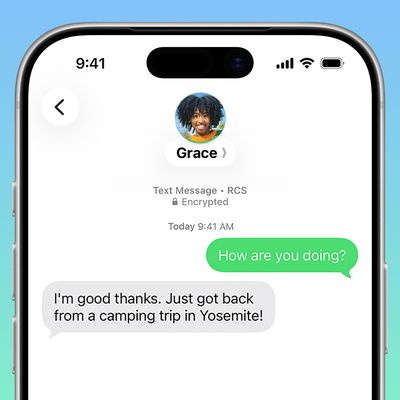
 Apple's Messages app offers one of the most convenient ways of having a text-based conversation with your contacts on iPhone and iPad, but messages aren't the only things you can send and receive. Apple's iMessage service enables all manner of files and attachments to be shared, such as photos, links, documents, audio messages, and more.
Files that are sent to you can of course be accessed directly from within a message thread, but you don't have to go scrolling through hundreds of messages to find that file that was sent to you a while ago. Apple also provides a way to see every file that has been sent to you in a chat thread in one easily accessible location, where you can also save those files for later reference if you wish.
Follow the steps below to save files and attachments that have been sent to you over Messages.
- Launch the native Messages app on your iPhone or iPad.
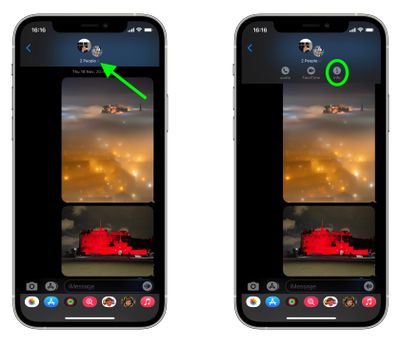
- Open a conversation, then tap the contact bubble(s) at the top of the screen.
- From the menu that expands, tap the info button (the "i" icon) to view more information about the conversation.

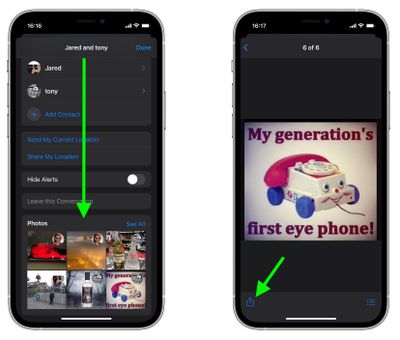
- Scroll down to the attachment sections, where you'll find all the files that have been sent to you in the course of the conversation. (These sections are conveniently subdivided into file types, such as Photos and Documents.) Tap See All if necessary, then tap the file that you're interested in to view it.
- Now, select the Actions icon (the square with an arrow pointing out) in the bottom-left corner of the screen.
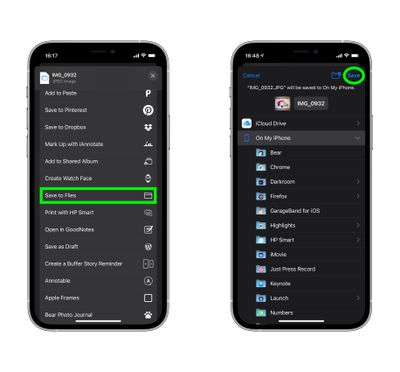
- Scroll down to the Actions menu and select Save to Files to navigate to a folder on your iCloud Drive or your device.
- Finally, tap Save in the top-right corner of the screen to save the file in your chosen location.
That's all there is to it. Of course, the Actions menu includes other options that you might prefer to use depending on the file type. If it's a photo you want to save, you might choose Add to Album to save it to your iCloud Photos, for example. The choice is yours.