Migrate Your Notes From Evernote to Apple Notes - MacRumorsOpen MenuShow RoundupsShow Forums menuVisit ForumsOpen Sidebar
Skip to Content

Migrate Your Notes From Evernote to Apple Notes

by

Apple's stock Notes app has come a long way since it first appeared on Mac, with password protection, tables, and document scanning being just a few of the top features it has gained in recent years. These and other improvements offer compelling reasons to migrate from a rival note-taking platform, especially if you've been paying for the privilege.

evernote
Evernote users in particular may feel they now have extra motivation to make the switch. Evernote recently said it is going to limit new and existing free users to a maximum of just 50 notes and one notebook starting December 4, 2024.

Whatever your reasons for migrating platforms, you can do so by following these steps. Note that the export file that Evernote spits out will also work with other note-taking apps like OneNote and Bear, which offer similar import options to the Apple Notes method described below. Also bear in mind that Evernote has a 100 notes selection limit, so you may need to export several files to take account of all of your notes.

How to Migrate From Evernote to Apple Notes

  1. Launch Evernote on your Mac.
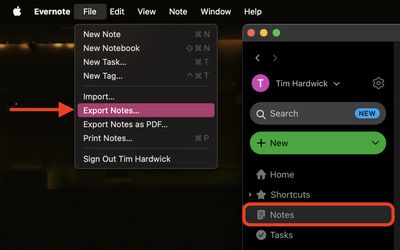
  2. In the sidebar, click Notes.
    how to migrate from evernote to apple notes 1

  3. Select Edit -> Select All from the menu bar. This will select 100 notes maximum.
  4. Select File -> Export Notes... from the menu bar.
    evernote

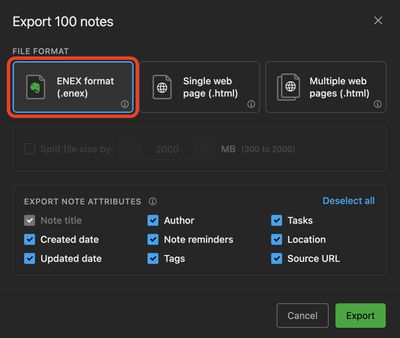
  5. In the Export dialog, make sure Evernote ENEX (.enex) is selected as the File Format, and check the boxes to include the note attributes relevant to you.
  6. Click Export.
    evernote

  7. Give the export file a name, then click Save.
  8. Next, launch Apple's Notes app.
  9. Select File -> Import to Notes from the menu bar.
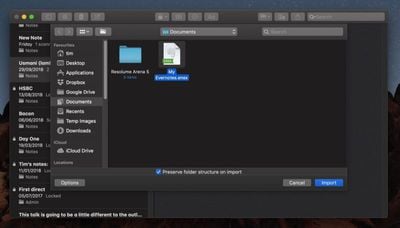
  10. Navigate to the .enex file that you just exported from Evernote.
    how to migrate from evernote to apple notes 3

  11. Check the box next to Preserve folder structure on import if needed, and then click Import.

  12. Click Import.

That's all there is to it. Your Evernotes will appear automatically in the Notes app.

Top Rated Comments

100 months ago
Naive question: what if you’ve only ever used Evernote on iOS?
My guess is that installing the Mac version of Evernote would sync up all your notes from your iOS version and then you could export from there?
Score: 5 Votes (Like | Disagree)
FoxyKaye Avatar
38 months ago

So, I was an Evernote user since about 2009. Started paying when I needed to sync 3 devices (Mac, iPhone, iPad).
Got an email this week with EverNote announcing they were jacking up the yearly rate to $129 ($141 after taxes!) $76 to $141? WHAT!?!?! That was the end for me.

Anyway, exporting worked fine.

One caveat, EverNote only allows 50 notes to be exported at a time. Nice trick.
I was able to select a bunch. The 50 note hard limit selected and exported the 50 notes.
Luckily, they stay selected, so I carefully scrolled down and Shift-clicked to select the next batch.
Same thing. It exported 50 and those remained selected.
It took maybe 20 minutes to export about 400 notes.

Importing was a snap. Folder structure remains intact.
Another resurrection on this thread: I've been a consistent Evernote user since 2012, though I'd intermittently used it for several years prior. Endured the whole "You Have To Pay Us To Edit The Home Screen" drama (which, I didn't, because it was a "feature" I didn't want), and kept a legacy subscription plan active for "offline," access and syncing to three devices as @gojira mentions. I noticed I was coming up on my subscription renewal this month, and decided enough is enough.

Migrated a dozen Notebooks out of Evernote one at a time in ENEX format, and they each came in as a folder in Notes called "Imported Notes," that I renamed to the title of my existing Evernote notebook. Everything came over pretty much intact with a few formatting bugs for checklists/unordered lists. Didn't hit the 50 note export limit, but I wonder if it was because I was creating ENEX files directly on my laptop? <shrug>

The whole process took under an hour, I re-shared a few key folders with my wife, and we're both up and running.

Wow, I loved Evernote when it was first released, but agree with many others that the app has since lost its way.
Score: 4 Votes (Like | Disagree)
100 months ago
Naive question: what if you’ve only ever used Evernote on iOS?
Just download the Mac client and sync. It’s a cloud-based product.
[doublepost=1540569880][/doublepost]
Apple's stock Notes app has come a long way since it first appeared on Mac, with password protection ('https://www.macrumors.com/how-to/password-protect-notes-ios-os-x/'), tables, and document scanning ('https://www.macrumors.com/how-to/ios-11-document-scanner-notes/') being just a few of the top features it has gained in recent years. These and other improvements offer compelling reasons to migrate from a rival note-taking platform, especially if you've been paying for the privilege.

migrate from evernote to apple notes image

Evernote users in particular may feel they now have extra motivation to make the switch. Last month, rumors that Evernote was struggling to keep afloat were bolstered by reports ('https://www.macrumors.com/2018/09/05/evernote-slashes-subscription-rate/') of a flurry of key departures at the company, with one source even claiming the company was in a "death spiral" because of its inability to attract new users.

Whatever your reasons for migrating platforms, you can do so by following these simple steps. Note that the export file that Evernote spits out will also work with other note-taking apps like OneNote and Bear, which offer similar import options to the Apple Notes method described below.

How to Migrate From Evernote to Apple Notes
[LIST=1]
* Launch Evernote on your Mac.
* In the sidebar, click All Notes.
migrate from evernote to apple notes image

Select Edit -> Select All from the menu bar.
* Select File -> Export Notes... from the menu bar.
* In the Save dialog, make sure Evernote XML (.enex) is selected in the Format dropdown and give the export file an identifiable name.
migrate from evernote to apple notes image

Click Save.
* Launch Apple's Notes app.

* Select File -> Import to Notes from the menu bar.
* Navigate to the .enex file that you just exported from Evernote.
migrate from evernote to apple notes image

Check the box next to Preserve folder structure on import if needed, and then click Import.
Click Import Notes.


Article Link: How to Migrate Your Notes From Evernote to Apple Notes ('https://www.macrumors.com/how-to/migrate-from-evernote-to-apple-notes/')
Apple's stock Notes app has come a long way since it first appeared on Mac, with password protection ('https://www.macrumors.com/how-to/password-protect-notes-ios-os-x/'), tables, and document scanning ('https://www.macrumors.com/how-to/ios-11-document-scanner-notes/') being just a few of the top features it has gained in recent years. These and other improvements offer compelling reasons to migrate from a rival note-taking platform, especially if you've been paying for the privilege.

migrate from evernote to apple notes image

Evernote users in particular may feel they now have extra motivation to make the switch. Last month, rumors that Evernote was struggling to keep afloat were bolstered by reports ('https://www.macrumors.com/2018/09/05/evernote-slashes-subscription-rate/') of a flurry of key departures at the company, with one source even claiming the company was in a "death spiral" because of its inability to attract new users.

Whatever your reasons for migrating platforms, you can do so by following these simple steps. Note that the export file that Evernote spits out will also work with other note-taking apps like OneNote and Bear, which offer similar import options to the Apple Notes method described below.

How to Migrate From Evernote to Apple Notes
[LIST=1]
* Launch Evernote on your Mac.
* In the sidebar, click All Notes.
migrate from evernote to apple notes image

Select Edit -> Select All from the menu bar.
* Select File -> Export Notes... from the menu bar.
* In the Save dialog, make sure Evernote XML (.enex) is selected in the Format dropdown and give the export file an identifiable name.
migrate from evernote to apple notes image

Click Save.
* Launch Apple's Notes app.

* Select File -> Import to Notes from the menu bar.

* Navigate to the .enex file that you just exported from Evernote.
migrate from evernote to apple notes image

Check the box next to Preserve folder structure on import if needed, and then click Import.
Click Import Notes.


Article Link: How to Migrate Your Notes From Evernote to Apple Notes ('https://www.macrumors.com/how-to/migrate-from-evernote-to-apple-notes/')
The whole “Evernote is going to die” flurry of articles a couple months back was a great example of Silicon Valley groupthink and did hurt the company far more than any of the departures did. It has a large paying user base and it’s doing alright (pays the bills with its income as companies should).

There are other reasons for concern with Evernote but they are not the ones that have been reported.
Score: 3 Votes (Like | Disagree)
MareLuce Avatar
19 months ago
@NervousFish2 thank you for taking the time to document that, especially the tip about tagging before exporting from Evernote
Score: 2 Votes (Like | Disagree)
NervousFish2 Avatar
19 months ago

Question: When you say, "search within a folder," can you define this more? I've got Notes organized in multiple folders, and when I search for content from the main search bar, it will pull results from multiple folders concurrently, including a folder I have as shared with my spouse. Are you meaning, isolate your search within a particular folder? That I haven't seen Notes do, but I also haven't tried.
Yes, that's the issue exactly. I can't figure out how to limit my search to a specific/particular folder. It seems like it should be a basic feature!
Score: 2 Votes (Like | Disagree)
NervousFish2 Avatar
25 months ago

Evernote offered to bump my sub from $49 USD to $99 at my next renewal, so after 15 years I guess I am done.

The export->import process worked perfectly for me, including all pictures and such. Was a little bit of a PITA to select 100 notes at a time, but doable.
Don't select notes. Select individual notebooks. If you do that, the note limit doesn't apply (or didn't for me at least)
Score: 2 Votes (Like | Disagree)

Popular Stories

iOS 27 and Notes Feature

iOS 27 Adds Four New Features to Notes App, Including Markdown Copy-and-Paste

Wednesday June 17, 2026 10:11 am PDT by
The upcoming iOS 27 update that Apple unveiled last week includes some new features and enhancements for Apple's Notes app on the iPhone. iOS 27 is currently available as a developer beta, with a public beta to follow in July. The update is expected to be released to all users in September. Below, we have outlined four additions to Apple's Notes app on iOS 27. Siri AI On the iPhone...
American Express Gold Apple Pay Feature

American Express Announces New Apple Pay Feature

Tuesday June 30, 2026 10:27 am PDT by
American Express today announced that you can now redeem Membership Rewards points when checking out with Apple Pay on the web and in apps on the iPhone and iPad. When checking out with Apple Pay on iOS 18 or iPadOS 18 or later, tap on your eligible American Express card (Platinum, Gold, Green, and others) and select the Membership Rewards points option. You can use points to cover all or...
Apple Acquires Award Winning App Play Feature

Apple Acquires Award-Winning App 'Play'

Monday June 29, 2026 7:39 am PDT by
In February, Apple notified the European Commission that it would be acquiring certain assets from and have the right to hire certain employees from Rabbit 3 Times, the company behind the award-winning app design tool Play. The notification was published on the European Commission's website this week, following a four-month waiting period. Play was a Mac and iPhone app that allowed designers ...

🔗 Related Apple News & Rumors

Stay updated with the latest Apple ecosystem news and verified rumors