macOS: How to Manage Multiple Open Safari Tabs - MacRumorsOpen MenuShow RoundupsShow Forums menuVisit ForumsOpen Sidebar
Skip to Content

macOS: How to Manage Multiple Open Safari Tabs

by

Browser tabs in Safari are a great way to visit multiple webpages in the same browsing session without having to close any of them, which makes them particularly useful for cross-referencing and researching things online.
safari icon blue banner
But all too often, the number of tabs you have open can get out of control. This makes navigating them tricky and it can also sap system resources, so to avoid being overwhelmed by open tabs, try the following Safari tips to better manage them.

1. Bookmark All Open Tabs
safari

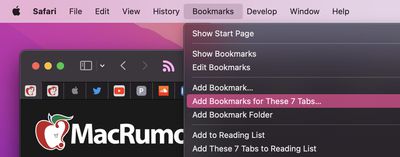
If the browser tabs you have open are related and you plan to regularly revisit them, it's worth bookmarking them together in their own bookmark folder. To do so, simply select Bookmarks -> Add Bookmarks for These X Tabs... (X being the number of open tabs).

You'll then be invited to create a name for the bookmark folder and select where you want it to be kept amongst your other bookmarks, which you can access at any time by selecting Bookmarks -> Show Bookmarks in the menu bar.

Note that you can perform a similar action to add all open tabs to your Reading List for later perusal, even when you're offline. (Bookmarks -> Add These X Tabs to Reading List.)

2. Use Tab Groups
safari

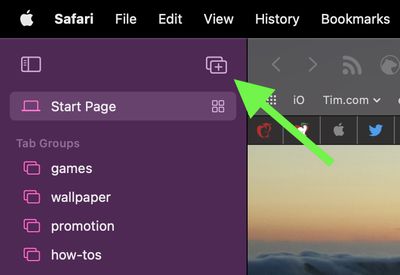
In macOS Monterey, Tab Groups are a neat way to save and manage related tabs without having to have those tabs active and taking up space. If you're planning a trip, for example, you can save all of your tabs into a "Vacation" group, accessing them when needed and leaving your device free for other content when you're not doing active planning.

To create a new Tab Group, click the Show Sidebar icon next to the traffic lights, then select New Tab Group. Alternately, click the down arrow next to the Show Sidebar icon and select either New Empty Tab Group or New Tab Group With X Tabs, "X" being the number of tabs currently open.

Any Tab Groups you create are listed in the sidebar for easy switching. You can also select groups by clicking the down arrow next to the Show Sidebar icon. Any tabs that are opened when a Tab Group is selected will automatically be included in that group. For more tips on working with Tab Groups, check out our dedicated how-to.

3. Change Safari's Tab Layout
safari

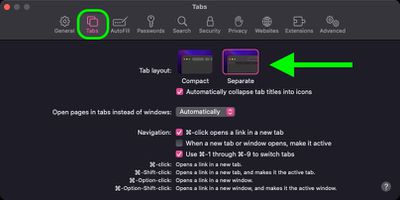
Safari offers two tab layouts: Compact and Separate. Compact is a more unified Safari design that does away with the dedicated URL and search interface and makes any individual tab able to be used for navigation input.

The problem with the Compact layout is that it severely limits space for multiple open tabs. In this regard, the Separate layout is more preferable, as it positions the URL/search bar at the top of the Safari window, with your tabs arranged below it.

If you're not already using the Separate tab layout, you can switch to it easily enough by selecting Safari -> Preferences... in the menu bar. Click the Tabs menu in the preference pane and select Tab Layout: Separate to remove the compact tab bar that merges everything together.

4. Rearrange Open Tabs
safari

Sometimes you may have several open tabs from a handful of websites that you tend to visit but which are mixed up with other tabs from different places across the web.

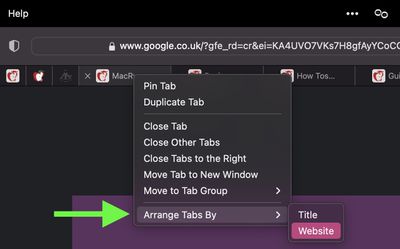
In such cases, it can be useful to rearrange your tabs so that tabs from the same website are lined up next to each other, allowing you to easily review what you've read and dispense with any redundant tabs that were hiding between them.

To sort your tabs according to website, or title if you prefer, simply right-click any tab and select Arrange Tabs By -> Website or Title from the dropdown menu.

5. Pin Tabs
safari

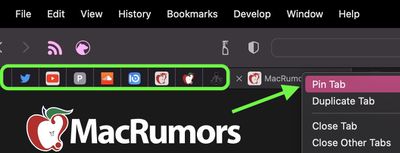
Safari's pinned tabs feature lets you better organize your tabs, especially if find you have too many open at the same time. It's particularly useful if you have certain websites that you tend to visit frequently throughout the day.

The neat thing about pinned tabs is that they stay in place, even when you open a new Safari window or quit and reopen Safari. And when you click a link to another website from a pinned tab, the other website opens in a new tab, ensuring your pinned tab always shows the website you pinned.

To pin a tab, drag the tab to the leftmost side of the tab bar, and when the tab shrinks to show just the website's favicon, simply drop it in place. You can also select Window -> Pin Tab from the menu bar, or right-click (Ctrl-click) a tab, then choose Pin Tab from the contextual menu.

If you have multiple pinned tabs, you can rearrange them in the Tabs bar by dragging them with your cursor. To unpin a website tab, just drag the pinned tab to the right side of the tab bar and it will expand to become a normal tab again.

6. Kill Them All
safari

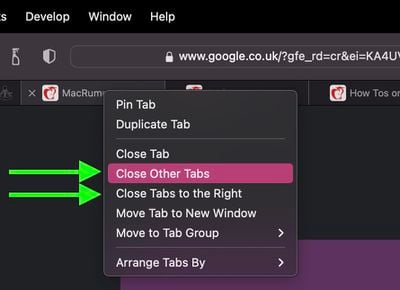
If you're done with all your other open tabs because you've found what you were looking for, then you can close all open tabs except the currently active one. Alternately, you can opt to close all open tabs to the right of the one you're currently viewing. Simply right-click the currently active tab and select Close Other Tabs or Close Tabs to the Right.


Tag: Safari

Popular Stories

Switch to Safari

Apple Explains Why Chrome Users Should 'Switch to Safari'

Tuesday October 13, 2026 5:29 am PDT by
Apple has launched a new "Switch to Safari" marketing campaign that encourages Chrome users to switch to Safari as their web browser of choice on the Mac. "Safari is a more powerful and private browser than Chrome," says Apple. Apple has a new "Switch to Safari" page on its website that outlines more than 10 reasons that Chrome users should switch to Safari, including faster performance...

Apple TV 4K HomeView HomePod Mini tweaked

New Apple TV 4K, HomeView, and HomePod Mini: 16 Details Just Leaked

Sunday October 11, 2026 12:56 pm PDT by
Just two days before Apple's "Welcome home" experience in New York, Bloomberg's Mark Gurman has leaked several details about the new products set to be unveiled, including an all-new smart home hub, a HomePod mini 2, and a new Apple TV 4K. Here is an all-in-one summary of the details shared by Gurman:Apple's home hub with a touch-enabled display will be named HomeView, seemingly confirming a ...
Apple HomeView lineup feature1

Apple Announces 'HomeView' Smart Home Hub

Tuesday October 13, 2026 6:00 am PDT by
Apple today announced the "HomeView," an all-new kind of smart home hub featuring a 7-inch Liquid Retina display and Siri AI. Apple's senior vice president of Worldwide Marketing Greg Joswiak said: Apple HomeView is designed to be shared by everyone in the home yet feel completely personal to each user. It recognizes your face to shift from a household screen to your own experience,...
Latest Stories
Apple Pledged $25 Million to Trump's White House Ballroom
2 minutes ago
Touchscreen MacBook Pro Could Launch on November 6
2 hours ago
New Withings Users Must Pay $99/Year for Apple Health Syncing
2 hours ago
Meta and Apple Bring Muse Spark Open AI Model to Mac Studio
3 hours ago
iPad Mini 8: Apple Has Tested Both 60Hz and 120Hz ProMotion Displays
3 hours ago
Apple TV 4K 2022 vs. 2026 Buyer's Guide: All Differences Compared
5 hours ago
Apple CEO John Ternus on Early Foldables: 'Kind of Cheap and Crappy'
6 hours ago
Greg Joswiak Says Apple Isn't Focused on Making AI for 'Lunatic Fringe'
6 hours ago
Amazon Offers $120 Discount on AirPods Max 2, $50 Off AirPods Pro 3
7 hours ago
Apple CEO John Ternus Featured on Cover of TIME Magazine: 'New Era'
7 hours ago
Apple Announces Deadline to 'Get Ready' to Pre-Order the iPhone Duo
8 hours ago
MKBHD is 'Not Convinced' About Apple's New HomeView, Here's Why
8 hours ago
Apple's Wall-Mounted HomeView Ships Without a Power Adapter
9 hours ago
Rare Apple-1 With Steve Jobs Letter Sells for $1.15 Million
9 hours ago
Apple Now Inviting Media to October 28 'Launch Experience'
10 hours ago
iPhone Duo's A20 Pro Chip Benchmarked Ahead of Launch
21 hours ago
10 HomeView Features You Might Have Missed
22 hours ago
Apple Becomes Second Company to Close Above $5 Trillion
22 hours ago
Which Apple Home Devices Get Siri AI, and When
23 hours ago
Apple's Long-Delayed HomeView Was Already Being Tested in 2024
1 day ago
Apple Intelligence Coming to China in December With iOS 27.3
1 day ago
Apple Invites App Updated With Two New Features
1 day ago
OpenAI Says Ex-Employee Showed Its Device Plans to Apple
1 day ago
Discover the Best Cases and Screen Protectors for Your New iPhone Duo
1 day ago
Apple Store Near Los Angeles Closed Due to 'Events Beyond Our Control'
1 day ago
No, HomePod Mini 1 Won't Support Siri AI as CNET Reported
1 day ago
iPhone Duo Compromises: Everything You Have to Give Up
1 day ago
Apple HomeView Has These 15 Apps, Some CarPlay Apps and Widgets Also Supported
1 day ago
iPhone Duo: Apple Charging $49 for New Cover Layer, $229 for Battery
1 day ago
iPhone Duo: Skipping AppleCare+ Could Be $1,499 Mistake
1 day ago

🔗 Related Apple News & Rumors

Stay updated with the latest Apple ecosystem news and verified rumors