

In iOS 10, the simple Messages app you're familiar with has transformed from a bare bones texting platform into a fun, interactive communication service that takes advantage of games, apps, drawings, stickers, message effects, and more.
Following in the footsteps of apps like Facebook and Line, Apple is delving into stickers in a big way, giving iOS users new ways of expressing themselves. Like the real thing, Stickers in iOS can be stuck onto messages or images, or sent by themselves, and they can be resized, rotated, and stuck to other stickers for fun layering effects.
Installing Sticker Packs
Sticker packs can be installed as standalone applications through the iMessage App Store or they can be downloaded as add-ons to full iOS apps, but either way, getting them onto your device uses these steps.
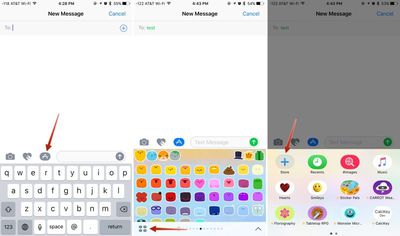
- Open an existing conversation thread in Messages or start a new conversation.
- Tap on the App Store icon next to the conversation box and then tap on the four dots to open your app drawer, which houses all installed apps.
- Tap the "+" icon to access the iMessage App Store.
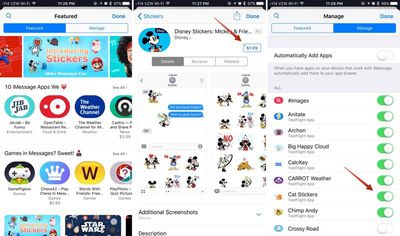
- In the "Featured" section, tap "Get" or and then "Install" to download a sticker pack, or tap on the purchase price to buy an pack that costs money. Passwords and Touch ID authentication are required, just as in the standard App Store.
- Tap on the "Manage" tab to install sticker packs (or other apps) that are available as iOS add-ons. Installation is done by setting the toggle to on (green), while removing an a sticker pack is done by turning the toggle off.

- OPTIONAL: In the "Manage" tab, toggle on "Automatically Add Apps" to let all iOS apps that have an iMessage component install in Messages automatically.
- Click "Done." The newly installed sticker pack is now available in your app drawer. Access it by opening the app drawer (four dots icon) or swiping left or right through your installed apps.
Sticker Basics
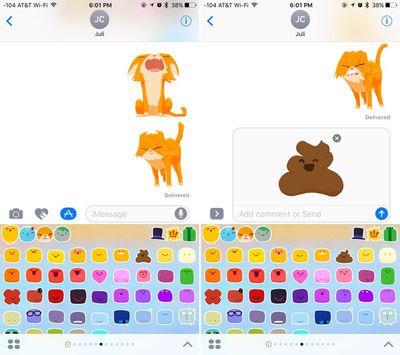
Stickers are displayed in place of the iOS keyboard, just like emoji. Sending a sticker to someone is as simple as tapping it, which puts it in the message field. From there, tap the up arrow to send a sticker. It's simple, and essentially the same process as sending a standard text message or an emoji.
Layering, Resizing, and Rotating Stickers
The neat thing about stickers is that they can be layered over incoming text messages, photos, GIFs, or other stickers, so you can use them to react to content your friends send you.
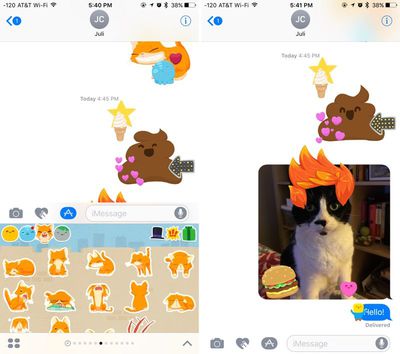
Stickers must be placed on an incoming chat bubble of some sort and can't be placed randomly in the messages field, and stickers can only be added to other stickers after the first sticker has been sent, so it's not possible to layer multiple stickers together when composing a message.
To layer:
- Navigate to the sticker pack you want to use.
- Select a sticker. Instead of tapping it, place a finger on the sticker and drag it up to the messages window.
- Drag the sticker to where you want to place it on a message bubble, photo, or existing sticker.
You can put as many stickers as you like on a photo or an existing sticker, so you and your friends can take turns embellishing photos and creating sticker collages. Stickers from different sticker packs can be mixed together in one field — just swipe between packs to change stickers.
Stickers can be resized or rotated before they're placed, a feature that's especially useful when you want to accent a photo. To make stickers bigger or smaller, as you drag them up to the messages field to place them somewhere, add another finger to the screen and use pinch gesture to expand or contract them.
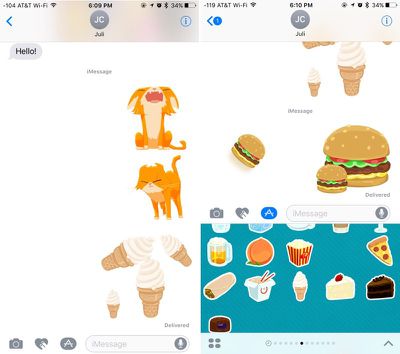
Rotating stickers is done in the same way. As you hold a sticker above the screen before placing it, use two fingers to twist it around, changing its orientation. Make sure not to let go when rotating or resizing, as removing your finger releases the sticker and it can no longer be edited.
Managing and Deleting Stickers
There are several gestures that can be used to manage your stickers. A single tap will display a sticker full screen, as will a 3D Touch press on the iPhone 6s and later.
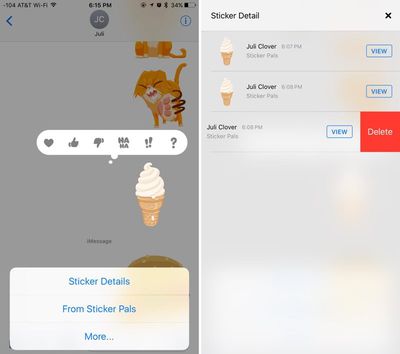
Use a long press on a sticker to bring up your message reaction menu and a set of management options. This menu displays where a sticker is from so you can download the sticker pack from the iMessage App Store if it's not already installed, and it has tools for deleting layered stickers. To delete:
- Long press on a layered sticker or a sticker that's been placed on an incoming message or photo.
- Choose the "Sticker Detail" option. All stickers that have been placed on a particular photo, message, or initial sticker will be displayed.
- On the sticker you want to delete, swipe to the left and choose then tap the "Delete" button.
- The sticker is removed from your device and from the device of the person you were communicating with and you're now free to add additional stickers.
Sticker Compatibility
Stickers are only going to display appropriately on devices running iOS 10 and macOS Sierra, so sending stickers to friends who are using Android devices or older versions of iOS won't work quite the same. On these devices, stickers are simply displayed as an image or GIF might be displayed and all layering is ignored.
Sticker packs can be created using Xcode with no coding experience required, so not only are developers going to be coming out with sticker packs, but artists can make them too. Expect to see hundreds of available sticker packs in the near future in addition to the built-in Hearts, Smileys, Hands, and Classic Mac stickers made available by Apple.














Top Rated Comments
I'm fine with receiving it, but I want to send text messages and pictures and nothing else. How do I remove the apps button, the drawing button, and the voice button?
I don't think I'm at all alone in this. My wife, who uses Snapchat, doesn't want all this crap in her messaging app. If someone using snapchat doesn't want it, I can't imagine who does.
I feel like Apple risks losing a lot of people who will shift over to Skype or WeChat or something, just so they can have a simpler messaging experience.