In iOS 10, the Messages app is gaining Digital Touch, a communication feature that was previously limited to watchOS. With Digital Touch, you can send friends and family drawings, heartbeats, fireballs, kisses, and more, all with just a few taps.


Got a tip for us?Let us know
Sketches, taps, and other Digital Touch messages created on your iPhone are also viewable on the Apple Watch and vice versa, giving you plenty of ways to express yourself. Here's how to use the new feature.
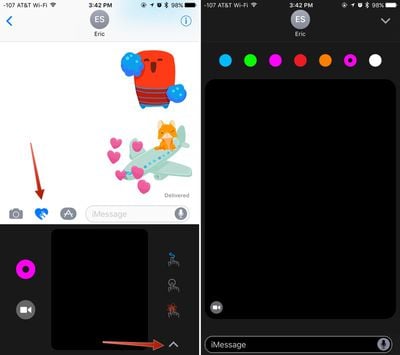
Accessing Digital Touch
- Open the Messages app.
- Open an existing conversation or start a new one.
- Tap the icon that looks like two fingers over a heart.
- Tap on the arrow on the right hand side to expand the Digital Touch window.
You can send taps and drawings by using the smaller Digital Touch interface that replaces the keyboard, but there's more screen real estate to work with when it's expanded to the size of the full iPhone display.
The Digital Touch interface supports several tap-based gestures to send various taps and icons, plus it allows for drawing with a finger and annotating short videos with the included video tool.
Drawing
To draw with Digital Touch, just start sketching in the black Digital Touch box, visible both in standard view mode and full screen mode. When using the standard view, tap the small circle on the left side of the screen to see the different color options. In full screen mode, the colors are all available at the top.
TIP: To access custom colors, long press on any of the color swatches. It'll bring up a color wheel with custom color options for more personalized drawings.
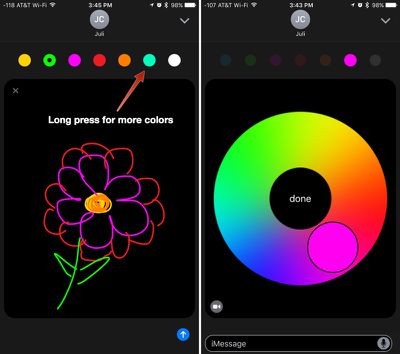
On the Apple Watch, Digital Touch drawings are sent as soon as your finger is removed from the screen for a few seconds, but on the iPhone and the iPad, you can take your time because drawings aren't sent until you tap the send arrow.
The person who receives your Digital Touch drawing will see it drawn out in real time, just as you sketched it. If you make a flower, for example, it'll play like a video, showing each petal drawn in succession.
When you receive a Digital Touch drawing in Messages, tap it and you can see it full screen.
Annotating Photos and Videos
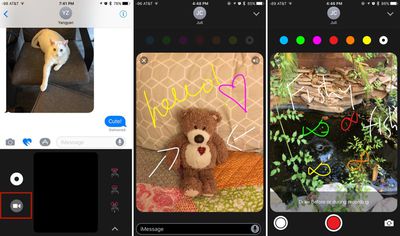
A Digital Touch feature unique to the iPhone and the iPad is the ability to snap photos or record short 10 second videos that can be annotated using Digital Touch sketching tools. Here's how:
- In the Digital Touch interface, tap on the Camera icon.
- Choose the front-facing or rear-facing camera by pressing the smaller camera icon on the bottom right of the screen. The front-facing camera is the default.
- Tap the red button to start recording. While the video is recording, you can use the Digital Touch tools to draw on top of it.

- Alternatively, if you want to draw on the screen before you start recording, simple start sketching with a finger. When finished, tap record and your video will record with your drawing on top.
- To take a photo, press the white button instead of the red button, and then draw on top of it as you would for a video.
- In addition to drawing on photos and videos, use tap gestures to add taps, heartbeats, kisses, and more.
- Press the blue arrow to send your finished photo or video.
Taps, Kisses, and Heartbeats
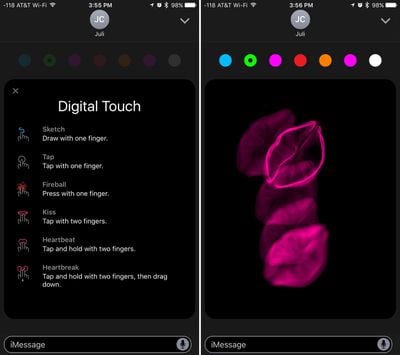
There are several different Digital Touch gestures, each with a different effect. You can send kisses, heartbeats, taps, fireballs, and more. Below is a list of the gestures and their effects.
- Single finger on the screen - Starts a drawing.
- Single finger tap - Sends circular "taps" in the selected color. One tap sends one circle, and you can send multiples.
- Single finger press - Sends a fireball. Hold down longer for a longer lasting fireball animation.
- Two finger tap - Sends a kiss. Tap multiple times to send multiple kisses.
- Two finger tap and hold - Sends a beating heart.
- Two finger tap and hold, then a downward drag - Sends a heart that beats and then breaks in two.
Sending Digital Touch content can only be done on an iPhone running iOS 10 or an Apple Watch running watchOS 2 or 3, but it can be viewed on iOS devices running older versions of the operating system and on Macs in the Mac Messages app.
You can combine all of the photo, sketching, and gesture tools in Digital Touch to create unique multimedia messages to share with friends and family and make communicating more fun.
As a side note, Digital Touch messages are temporary. They will be deleted after a few minutes unless you tap on "Keep" in the messages window to permanently save them.
Related Forum: iOS 10
Popular Stories

Apple Smart Home Hub to Feature iMac G4-Style Design
Apple's long-rumored smart home hub will have an iMac G4-style design and a host of unique features, Bloomberg's Mark Gurman reports.
The smart home hub is said to feature a square 6-inch display, with variants that can be placed on a countertop or mounted on a wall. It features a single FaceTime camera on the front, with microphones and speakers in its connected base. Gurman described the...

Three New Apple Smart Home Products Coming on October 13
Apple plans to introduce a series of new smart home products on Tuesday, October 13, according to Bloomberg's Mark Gurman.
Apple reportedly plans to debut its long-awaited smart home hub device, a new HomePod mini, and a new Apple TV on the date. The new HomePod mini and Apple TV are set to retain their existing designs, but tout faster chips to support Siri AI. The new HomePod mini will...
New Apple TV 4K Leaked
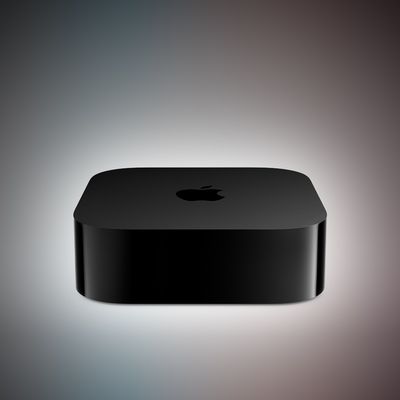
MacRumors contributor Aaron Perris has uncovered an image file from Apple for an unreleased Apple TV 4K, suggesting that a new model will finally be released soon. The image is specifically for an "Apple TV 4K (4th generation)" model.
Apple TV 4K (4th generation) image (on a gradient)
The image reveals that the Apple TV will have the same external design as the current model, with all of its...











































Top Rated Comments