How to Use iMessage Contact Key Verification on iPhone - MacRumorsOpen MenuShow RoundupsShow Forums menuVisit ForumsOpen Sidebar
Skip to Content

How to Use iMessage Contact Key Verification on iPhone

by

In iOS 17.2 and later, Apple includes a Contact Key Verification feature that aims to enhance your messaging security on an iPhone. This article explains why you might want to use the feature and includes practical steps to enable it on your device.
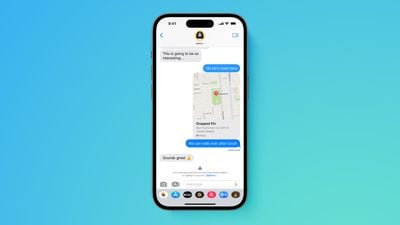
Apple advanced security iMessage Contact Key Verification screen Feature

Why Use Contact Key Verification?

Contact Key Verification was designed by Apple to ensure that iMessage conversations are more secure and that the person you are communicating with is genuinely who they claim to be. This method of verification is especially useful for ensuring the integrity of communications in situations where confidentiality is crucial.

In such scenarios, Contact Key Verification introduces the following benefits:

  • Enhanced Security: Provides an extra layer of protection against sophisticated cyber threats, ensuring you're only messaging those you intend to.
  • Automatic Verification Alerts: Offers automatic alerts and the ability to compare unique codes in real-time to verify identities in the Messages app.
  • Public Verification Code: Allows you to share a Public Verification Code on social media or save others' codes, enhancing trust in your communications.

Enable Contact Key Verification

Before attempting to use Contact Key Verification, make sure your devices are using iOS 17.2, iPadOS 17.2, watchOS 9.2, and macOS 14.2, or later, and are passcode or password protected.

You will also need to be signed into iCloud and iMessage with the same Apple ID and you have two-factor authentication turned on for your ‌Apple ID‌. Lastly, anyone you are trying to verify will need to be in your contacts.

  1. Open the Settings app on your iPhone.
  2. Tap on your ‌Apple ID‌ located near the top.
  3. Scroll down to locate and select the Contact Key Verification option.
  4. Toggle the switch next to Verification in iMessage to activate Contact Key Verification.
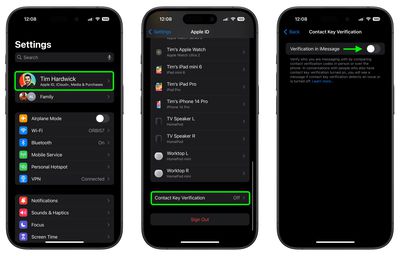
settings

After following these steps, you'll encounter a splash screen that explains more about the feature. You might also need to update other devices linked to your ‌Apple ID‌. If you have a device that can't be updated, you need to sign out of iMessage on that device before you can turn on this feature.

Verifying Your Own Identity for Others

  1. In Settings, go to your ‌Apple ID‌ and select Contact Key Verification. Here, you'll find an option to Show Public Verification Code.
  2. Tap Copy Verification Code to copy your unique code.
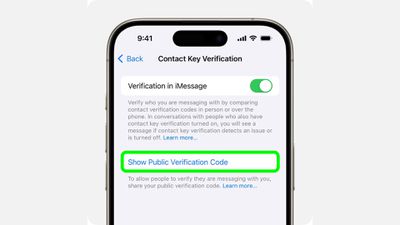
settings

You can now share this code directly with individuals or share it publicly online. This allows others to verify that they are indeed communicating with you, and not someone else masquerading as you.

Verifying the Identity of Others

  1. Open a conversation in Messages, tap the person's name at the top, and then select Verify Contact near the bottom of the menu.
  2. Both you and the other person will see a six-digit code generated on your devices. Compare these codes to ensure they match.
  3. If the codes match, select Mark as Verified, then tap Update. This will associate the verification code with the person's contact card, and a checkmark will appear next to their name in Messages.
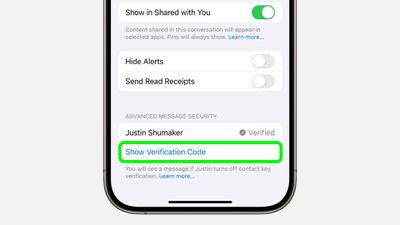
messages

If you have iMessage Contact Key Verification turned on but your contact doesn't, you'll see their name and "Verification Off." To use iMessage Contact Key Verification, ask them to turn it on. If you've already verified the contact, you'll see a checkmark by the contact's name. You'll also see a checkmark by their name at the top of the Messages thread.

Additional Steps for Public Verification Codes

For a higher level of security, you and your contacts can generate a verification code in Messages, then save each other's Public Verification Codes in Contacts. This is useful when you want to verify each other simultaneously, or if the Public Verification Code you received doesn't match the one your contact shares with you.

  1. At the top of the iMessage conversation, select their name. You can also select a contact from the Contacts app.
  2. Select Info, then select Edit.
  3. In the "verification code" field, type or paste the Public Verification Code that your contact shared. If you don't see the "verification code" field, you might have to select the Add (+) button, select More Fields, then select "verification code."

If their Public Verification Code matches and is verified by iMessage Contact Key Verification, a checkmark will show in their Contact Card and next to their name in iMessage conversations.

If their Public Verification Code doesn't match the code stored on Apple servers or isn't verified, a checkmark won't show. Before you continue messaging, you might want to check that you entered the code correctly or make sure that you're messaging the right person.

If You Receive a Contact Key Verification Alert

If you receive an alert from iMessage Contact Key Verification, this indicates a need to confirm the identity of the person you're communicating with. This could be due to several reasons, such as a change in their device or security settings.

To address the alert, pause your conversation to securely verify the contact, either through a direct comparison of verification codes or another trusted method. It's crucial to take these alerts seriously, as they are designed to protect the integrity of your communications. For detailed instructions and responses to specific alert types, refer to Apple's Support page.


Popular Stories

doordash

DoorDash Unveils AI Food Ordering Through Apple's Messages App

Wednesday September 30, 2026 7:24 am PDT by
DoorDash is inviting U.S. customers to join a waitlist for an AI assistant that can take food orders through Apple's Messages app (via Bloomberg). The phone number used in the conversation connects the request to a customer's DoorDash account. The assistant can use previous purchases and preferences to help put together an order, then use a saved payment method at checkout. Customers can...
Home Hub Command Center with Dome Base Feature

Apple Smart Home Hub to Feature iMac G4-Style Design

Wednesday September 30, 2026 4:36 am PDT by
Apple's long-rumored smart home hub will have an iMac G4-style design and a host of unique features, Bloomberg's Mark Gurman reports. The smart home hub is said to feature a square 6-inch display, with variants that can be placed on a countertop or mounted on a wall. It features a single FaceTime camera on the front, with microphones and speakers in its connected base. Gurman described the...


HomePod minis on gradient feature 1 1

Three New Apple Smart Home Products Coming on October 13

Wednesday September 30, 2026 4:04 am PDT by
Apple plans to introduce a series of new smart home products on Tuesday, October 13, according to Bloomberg's Mark Gurman. Apple reportedly plans to debut its long-awaited smart home hub device, a new HomePod mini, and a new Apple TV on the date. The new HomePod mini and Apple TV are set to retain their existing designs, but tout faster chips to support Siri AI. The new HomePod mini will...
Latest Stories
Apple's Smart Home Hub: Everything We Know So Far
10 hours ago
Apple's Home Hub Borrows From the iPhone Duo's StandBy Mode
11 hours ago
Apple Invites App Updated With Three New Features
15 hours ago
Apple Event on October 13?
16 hours ago
Apple Watch SE 3 vs. Series 12 Buyer's Guide: Which Should You Buy?
18 hours ago
iPad Mini 8 to Offer These 10 New Features
18 hours ago
DoorDash Unveils AI Food Ordering Through Apple's Messages App
20 hours ago
Amazon Takes Up to $150 Off Select M5 MacBook Air Models
20 hours ago
Apple Still Plans to Release a New Full-Sized HomePod
21 hours ago
Apple Working to Expand HomeKit
22 hours ago
Apple Smart Home Hub to Feature iMac G4-Style Design
22 hours ago
Three New Apple Smart Home Products Coming on October 13
23 hours ago
Apple Pay Now Available in India With Axis Bank Cards
1 day ago
OpenAI Launches Always-On 'Dots' Agents to Rival Meta's Muse
1 day ago
AirPods 5 Teardown: Batteries Removable, Case Still Tough
2 days ago
iPhone 18 Pro Owners Complain of Speaker Crackling or Popping
2 days ago
You Can 'Get Ready' for iPhone Duo Pre-Orders on October 12
2 days ago
Apple Pay Reportedly Launching in India Today
2 days ago
Apple Releases New AirPods Beta Firmware
2 days ago
Apple Shares New Guide for Using iOS 27 Parental Controls
2 days ago
Apple Creator Studio and Final Cut Camera Get New Features
2 days ago
Apple Explains Why It Removed ICE Tracking Apps Last Year
2 days ago
Amazon Expands $779.99 Apple Watch Ultra 4 Deal to More Models
2 days ago
Switch Siri AI for ChatGPT on Your Mac
2 days ago
Apple Says Emergency SOS via Satellite Now Available in Norway
2 days ago
AppleCare Guide: Is it Worth Paying For?
2 days ago
Apple Reportedly Planned to Replace 5,000 Support Employees With AI
2 days ago
Apple Planning to Launch Products Faster and More Often
2 days ago
Amazon Discounting New Mac Mini and Mac Studio Alongside Early Prime Day Deals on Monitors
2 days ago
New Apple TV 4K Hinted at in Support Document
2 days ago

🔗 Related Apple News & Rumors

Stay updated with the latest Apple ecosystem news and verified rumors