iOS 14 Favorites Widget: How to Make a Replacement With Shortcuts - MacRumorsOpen MenuShow RoundupsShow Forums menuVisit ForumsOpen Sidebar
Skip to Content

iOS 14 Favorites Widget: How to Make a Replacement With Shortcuts

by

In iOS 14, Apple overhauled widgets and introduced an option for adding widgets to the Home Screen, but in the process, a well-loved Favorites widget that existed in iOS 13 was removed.
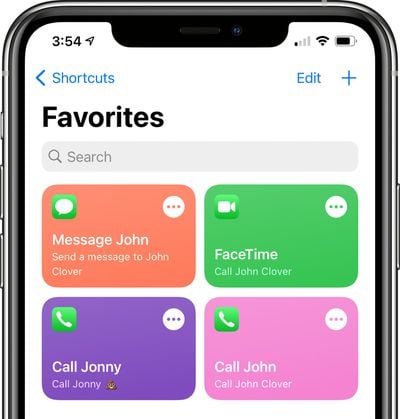
shortcutsfavorites
The Favorites widget allowed users to set certain contacts and contact methods as favorites that were easily accessible, so you could, for example, add a favorite option for messaging Eric or calling Dan, with those actions executed with a tap on the widget.

Why the Favorites widget was removed is a mystery and it could be a simple oversight with Apple planning to reintroduce it later, but for now, those who relied on the widget can recreate its functionality with Shortcuts. It takes some effort, but it may be worth the time investment if you often relied on your Favorites.

Creating a Favorites Shortcut

Making a shortcut that replicates the behavior of the Favorites widget isn't too tough, but if you want multiple favorite options, you'll need to create a separate shortcut for each one in the Shortcuts app.

  1. Open the Shortcuts app.
  2. Tap on the "← Shortcuts" label in the upper left hand corner.
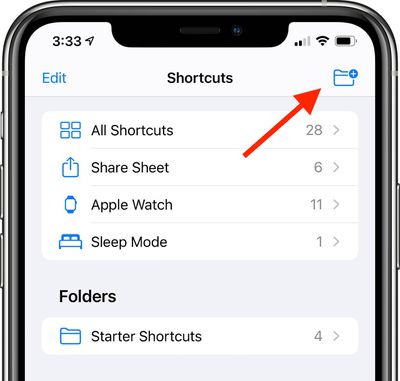
  3. Tap on the folder icon in the top right to create a new folder. Your favorites shortcuts need to be in a folder if you want to use them with the Shortcuts widget. shortcutfoldersetup arrow
  4. Name the folder ("Favorites" in our case) and choose an icon.
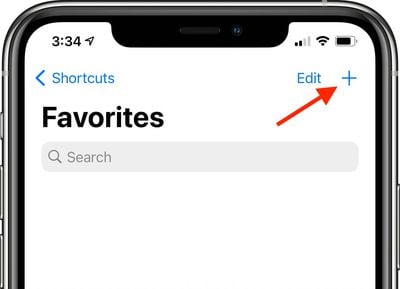
  5. Tap on the new folder ("Favorites") and then tap the "+" icon to start creating shortcuts. shortcutsfavoritefolder arrow
After this step, there are slightly different Shortcut creation methods that can be used to create quick contact options for calling, FaceTiming, and messaging someone.

Making a Shortcut to Call Someone

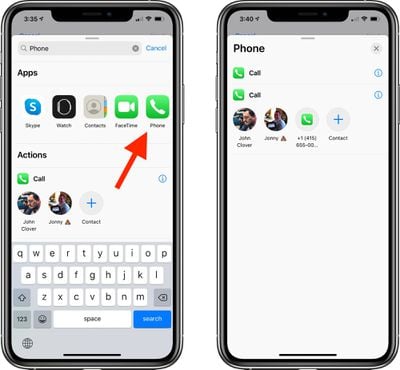
  1. Tap Add Action and then search for "Phone" or "Call."
  2. Tap the Phone app. callshortcutsetup arrow
  3. Tap on one of the suggested contacts that Shortcuts offers or tap on the "+" button to select a different contact.
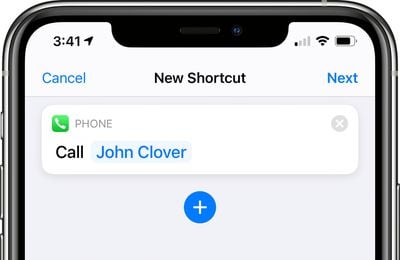
  4. Make sure the Shortcut you've created says Call [Contact Name]. phonecallcontactselection
  5. Tap Next.
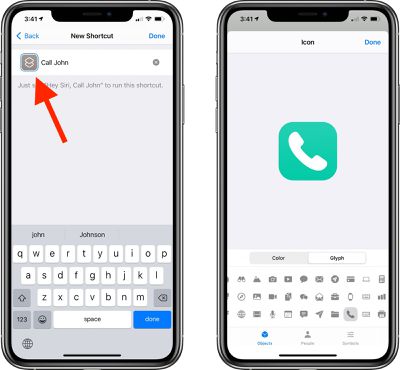
  6. Give the Shortcut a name. ("Call John" in our case)
  7. Tap the icon to the left to the name to select both a color and an icon for your Shortcut. shortcutphonecallcustom arrow
  8. Tap "Done."

After you tap Done, your shortcut to make a phone call to one of your contacts will be listed in the appropriate folder in the Shortcuts app. To activate it, just tap it and it will automatically call the intended person. Repeat these steps for anyone you want to create a call shortcut for.

Making a Shortcut to FaceTime Someone

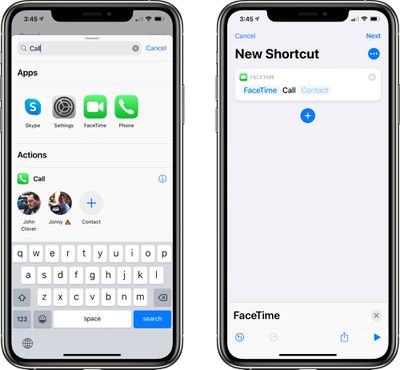
  1. Tap Add Action and then search for "FaceTime" or "Call."
  2. Tap the ‌FaceTime‌ app to get to the Shortcut editing options. facetimeshortcutsetup
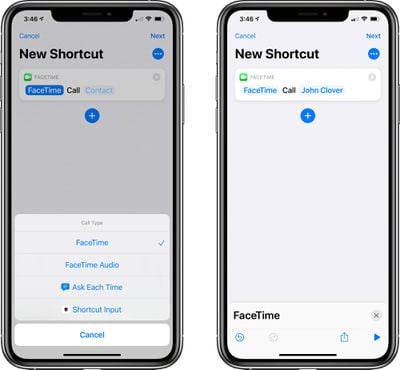
  3. Tap on "‌FaceTime‌" to select either standard ‌FaceTime‌ or ‌FaceTime‌ Audio. facetimeshortcutoptions
  4. Tap on the [Contact] blank to select a contact from the list.
  5. Make sure the Shortcut you've created says ‌FaceTime‌ [Contact Name].
  6. Tap Next.
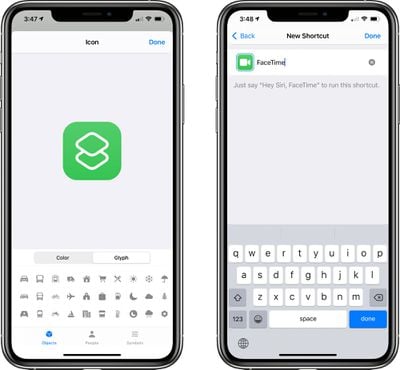
  7. Give the Shortcut a name. facetimeshortcutcustomization
  8. Tap the icon next to the name to select both a color and an icon for your Shortcut.
  9. Tap "Done."

When you tap this Shortcut, it will initiate a ‌FaceTime‌ call to the person that was added as the contact.

Making a Shortcut to Message Someone

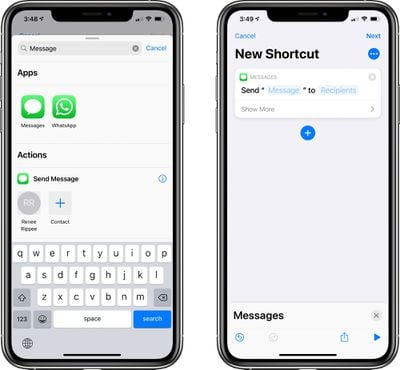
  1. Tap Add Action and then search for "Messages."messagesshortcutsetup
  2. Tap on "Send Message."
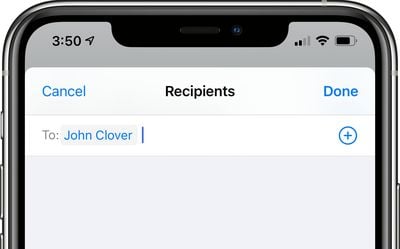
  3. Tap on the [Recipients] blank to select a contact.
  4. Type in the name of the person you want to be able to message. messagesrecipientselect
  5. Make sure the Shortcut you've created says Send "Message" to [Contact].
  6. Tap Next.
  7. Give the Shortcut a name.
  8. Tap the icon next to the name to select both a color and an icon for your Shortcut.
  9. Tap "Done."

Tapping the finished Shortcut will open up the Messages app with a compose window for the person who you added as your target contact. Note that if you want to send a message to more than one person, just type in multiple names at the part where you're entering the name of your contact.

Adding the Shortcuts Favorites Widget to Your Home Screen

Once you've created all your shortcuts for quickly sending a message, calling, or FaceTiming your contacts, you're ready to add a widget that can be accessed from the widget interface or right from the ‌Home Screen‌.

  1. Go to the iPhone's ‌Home Screen‌.
  2. Swipe over to where you want to place your new Favorite Widget.
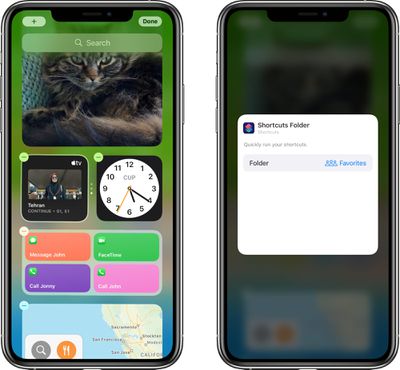
  3. Press and hold on the ‌Home Screen‌ to enter "Jiggle" Mode, and then tap the "+" button in the upper left hand corner. shortcutswidgetsetup
  4. Search for Shortcuts and tap the icon.
  5. Choose the widget you want. If you made a single favorites Shortcut, tap the single option. If you have two to four, tap the size with four, and choose eight if you have more.
  6. Tap Add Widget.
  7. Tap on the widget to customize it. shortcutsfolderselect
  8. Tap on the folder where you put all your favorites shortcuts.
  9. Tap out of the interface and tap "Done."
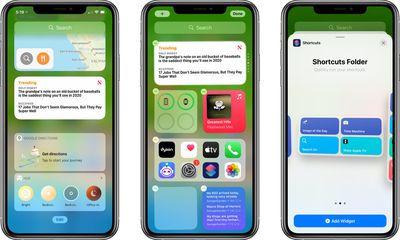
That's all there is to it. Once the Shortcuts widget is set up with the appropriate folder that contains all of your contact shortcuts, a tap on any one of the widget options will initiate the action right from the widget interface, just like the prior favorites widget.
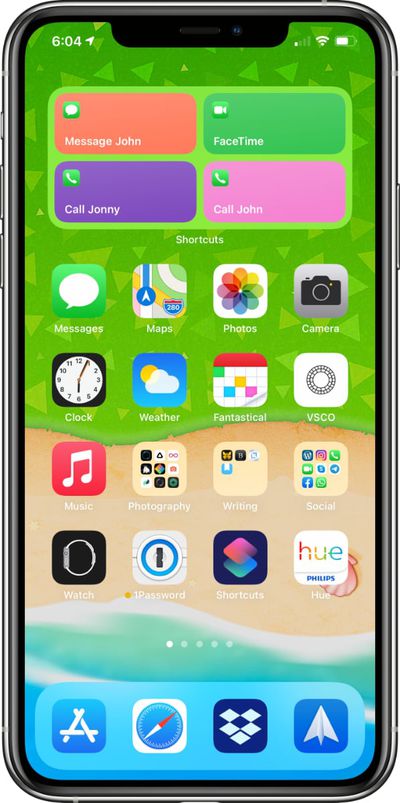
favoriteswidgethomescreen
Note that the Shortcuts widget has limited space when it comes to names, so you may need to shorten some of the Shortcut names you've created to make it clear who's going to be contacted if you have multiples.

If you need more detailed instructions on adding widgets, see our dedicated Widgets how to.

Favorites Still in the Contacts App

Just to be clear, it's the Favorites widget that's been removed, not the Favorites functionality in its entirety. You can still create and access your previously made favorite options in the Phone app under the "Favorites" tab if that's easier than making a whole bunch of Shortcuts.
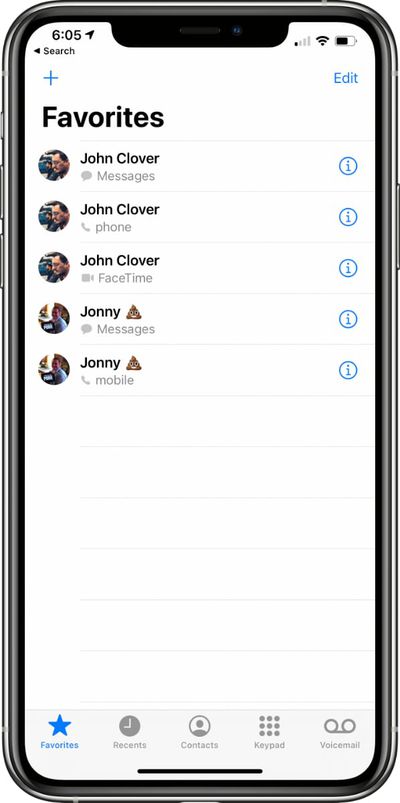
favoritesapp
For more on how to make use of widgets and the new ‌Home Screen‌ changes in iOS 14, make sure to check out our widget how to and our Home Screen guide.
Top Rated Comments

oldmacs Avatar
79 months ago
It would be great if apple could stop randomly removing things - they still haven’t made a replacement for the find my friends widget that disappeared in iOS 13 :(
Score: 7 Votes (Like | Disagree)
79 months ago

I pick up my iPhone and hold the power button and say "Ha Siri, call John or message John. Why do I need widgets for this? Serious question.
Not everyone cares to talk to their phone to issue commands.
Score: 2 Votes (Like | Disagree)
Dreamboy Avatar
79 months ago
Removing the widgets from the 3DTouch app menus is the worst thing Apple has made to iOS in years. I used this shortcuts all the time to call favorites, check stocks, weather, most used chats in WhatsApp...

This didn’t take any space on the home screen and was easily accessible. Now there’s no way to do many simple things and the new widget system seems much worst. I really see iOS 14 as a downgrade from iOS 13.


Score: 2 Votes (Like | Disagree)
JM Avatar
79 months ago
If anyone wants to get real jiggy-wit-it, you can add some lines of code in there to ask you who you want to call/text so you can have multiple people within one shortcut button.

Here we go, actually. You can set up multiple people just by hitting the plus button in the "speed dial" shortcut (under Quick Shortcuts, under Gallery)


Attachment Image
Score: 2 Votes (Like | Disagree)
79 months ago
I can't believe that there isn't a way to create a widget that just pulls the info directly from the Favorites you have saved in the Phone app, so that it updates automatically if you make a change in the Favorites in the Phone app? Maybe with the scripting? Weird?
Score: 1 Votes (Like | Disagree)
79 months ago

Search ‘phone’ in the widgets search box or look under Apps>Contacts for the 'Phone Number' action.

I've now added a list so I can choose multiple contact options from a single popup:


Result:


Thanks, I figured that out later.

My weird workaround also works, just using the Calculator as input if you paste in the correct number.
Score: 1 Votes (Like | Disagree)

Popular Stories

Apple HomeView lineup feature5

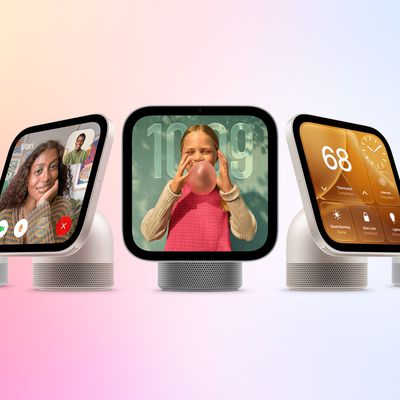
Apple HomeView Has These 15 Apps, Some CarPlay Apps and Widgets Also Supported

Wednesday October 14, 2026 9:03 am PDT by
Apple's tech specs page for its all-new HomeView smart home hub contains a list of all of the built-in Apple apps available on the device. While it has no App Store, the HomeView can also display CarPlay-enabled audio and video apps from a paired iPhone. This includes Audiobooks, Apple Music Classical, Apple News, and Apple TV, along with third-party apps such as Spotify, according to WIRED. ...
iPhone Duo Hinge Feature 4

iPhone Duo Can Run Automations When You Open or Close It

Sunday October 25, 2026 3:26 pm PDT by
The iPhone Duo includes a new Shortcuts automation trigger that runs actions when the device is opened or closed. YouTuber Stephen Robles highlighted the trigger, which is called "Opened or Closed" and can be found under the Display automations category. It was first spotted in September by code sleuth pdfu in the iPhone Duo simulator. One possible use case is making the Duo switch to a...
iPhone Duo Display Cracking

Apple Alerts Stores to iPhone Duo's Display Cracking Issue

Friday October 30, 2026 3:20 pm PDT by
In a memo shared with Apple Stores and Apple Authorized Service Providers this week, and later obtained by MacRumors, Apple provided technicians with guidance on how to diagnose and address the iPhone Duo's inner display cracking issue. If a customer reports the issue, Apple advised technicians to inspect the iPhone Duo and repair or replace it in accordance with their standard procedures....
Latest Stories
Apple Watch Ultra 4 Hits All-Time Low Price With Amazon's $99 Discount
10 hours ago
Reminder: Apple's Big Discount on Beats 360 Ear Cushions Ends Today
10 hours ago
Here's a New Tour of Apple's HomeView Software
10 hours ago
Apple Reveals New iPad Mini's Battery Capacity
11 hours ago
Top Stories: Apple's Big MacBook Pro, iPad mini and iMac Updates
13 hours ago
'Pluribus' Season 2 Reportedly Starts Production Today
19 hours ago
iPhone 18 Pro Sales Surge in China, Offsetting Decline in U.S. and Japan
20 hours ago
HomeView Software 27.2: Wallpapers, Control Center, and More
1 day ago
Apple Alerts Stores to iPhone Duo's Display Cracking Issue
1 day ago
iOS 27.3 Will Enable These Apple Intelligence Features in China
1 day ago
Apple Says iOS 27.3 Beta Coming Next Week
1 day ago
Apple's Flash Storage Suppliers Are Finally 'Getting Their Revenge'
1 day ago
14 New Things Your iPhone Can Do in iOS 27.2
1 day ago
iPhone Duo Review: One Week Later
1 day ago
Samsung Mocks iPhone Duo Display Cracks in New Ad Campaign
1 day ago
The MacRumors Show: OLED MacBook Pro, iPad Mini 8, and More
1 day ago
MacBook Pro With Touch Display: 15 More Details Revealed
1 day ago
Russia Places Apple on State Surveillance Registry
1 day ago
Halloween Weekend Brings Discounts on Apple Accessories and Pre-Orders
1 day ago
Apple Has Released More Than 25 New Products in the Past Two Months
1 day ago
Local Code Launches as Free, Private AI Assistant Tool for Mac
2 days ago
Apple Acquires Ascend.io
2 days ago
HomePod Mini 2 Launches Today: All the New Features
2 days ago
AirTag 2 4-Pack Drops to New Low Price of $69.99
2 days ago
Rian Johnson's iPhone Camera App Goes Viral
2 days ago
Where Did All the iPhone Duos Go? Mostly to Apple's Stores
2 days ago
Apple's Touchscreen MacBook Pro Could Ship 1.5M Units in 2027
2 days ago
New Apple TV 4K and iPad Mini: RAM Amounts Revealed
2 days ago
Apple Executive Comments on New iPad Mini Lacking 120Hz Display
2 days ago
Here's a Hands-On Look at HomePod Mini 2's New Two-Tone Colors
2 days ago

🔗 Related Apple News & Rumors

Stay updated with the latest Apple ecosystem news and verified rumors