

One thing that makes Apple Watch stand out from other smart watches is the app ecosystem. Since there are already more than a million iPhone apps in the App Store, there were already plenty of developers ready to get to work building companions for the wrist worn device. When the Apple Watch launched, there were already 3,500 apps available, and that number grows on a day-by-day basis.
One of the best ways to customize your Apple Watch to fit your needs is to download all the apps you want and to organize them for easy access. We've got a tutorial that covers downloading apps from your iPhone, installing them on your Apple Watch, and rearranging them on your Home screen.
Downloading Apps for Apple Watch
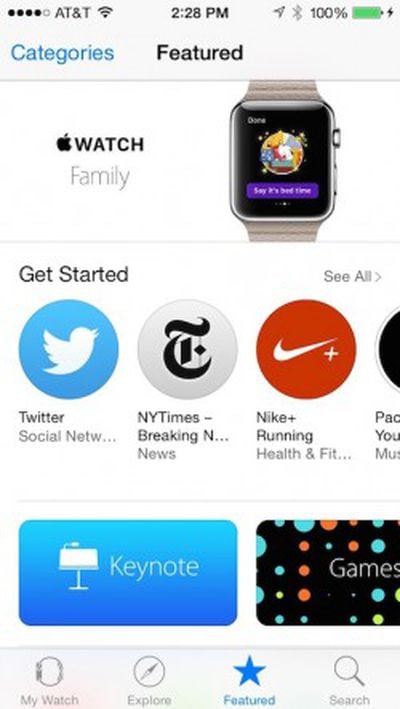 At the current time, all Apple Watch apps are powered by the iPhone, which means they're bundled into iPhone apps. Apple Watch apps are downloaded by downloading a compatible app onto your iPhone, which can be done from the regular App Store or through the "Apple Watch App Store" located within the Apple Watch companion app on your iPhone. The Apple Watch companion app has an icon that looks like a watch and is automatically installed on all iOS devices running iOS 8.2 or later.
- Open the Apple Watch app on your iPhone.
- Tap "Featured" to visit the Apple Watch App Store.
- Find the apps you wish to add to your collection and download them the way you would with an iPhone app. If it is already on your iPhone, you will see "Open." If you have previously downloaded the app, but it is not currently on your iPhone, you will see the iCloud icon.
- Alternatively, you can open the regular App Store on your iPhone or Mac and look for apps that are tagged with "Offers Apple Watch app for iPhone."
Installing Apps on Apple Watch
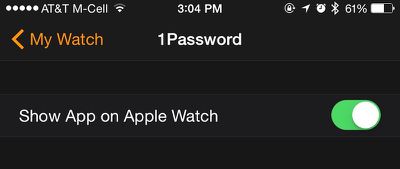
When you first set up your Apple Watch, you will have the option to automatically add all available Apple Watch apps already on your iPhone, or you can manage which ones you install manually via the Apple Watch app. Chances are, without even downloading a single app, you probably already have a number of compatible ones already on your iPhone.
- Open the Apple Watch app on your iPhone.
- Tap "My Watch" to find the settings section of your Apple Watch.
- Scroll down to the list of Apple Watch compatible apps that are on your iPhone
- Tap on an app you wish to add to Apple Watch
- Toggle the Show App on Apple Watch switch to the On position.
- Do the same for apps that you wish to include Glances for when available.
- On Apple Watch, you will see a message prompting you to install the app. Select Yes.
There is a setting in the General section of the Apple Watch companion app that allows you to choose whether or not apps with new or updated Apple Watch functionality will be automatically installed on your Apple Watch. If this option is turned off, you'll have to manually add these apps to your Apple Watch from the companion app on your iPhone.
Arranging Apps on Apple Watch Home Screen
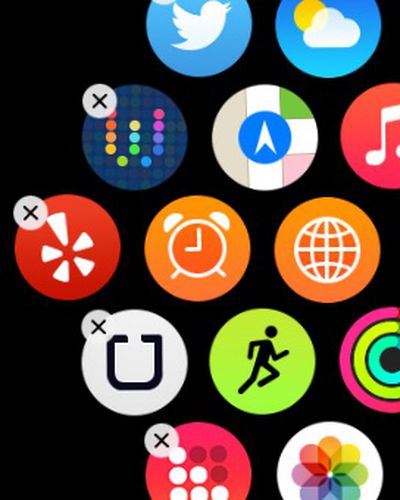 Similar to the iPhone or iPad, you can rearrange the app icons on Apple Watch so the most-used ones are easiest to access. There are two ways to rearrange app icons on your Apple Watch Home screen.
On iPhone
- Open the Apple Watch App on the iPhone.
- Tap "My Watch" and then tap App Layout.
- Touch and hold an app until it wiggles. Then, drag it to its new location.
- You can tap "Reset" to restore the original app layout.
On Apple Watch
- Press the Digital Crown to go to the Home screen.
- Touch and hold an app until it wiggles. Then, drag it to its new location.
- Press the Digital Crown again when finished.
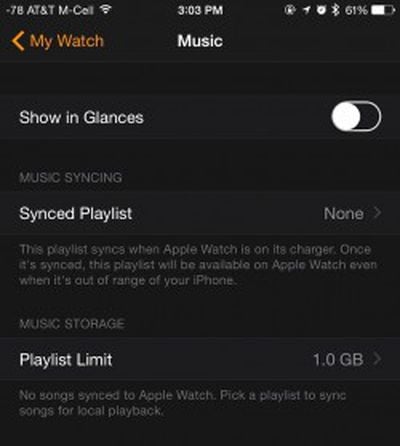 You can also make adjustments to the settings of some installed Apple Watch apps. Open the Apple Watch app on your iPhone, tap My Watch, and scroll down to the app you wish to adjust the settings for.
Once you've added apps to your Apple Watch and arranged your Home Screen just right, you’ll be ready to use all the apps you've installed. You can scroll through all of your apps with a finger, using the Digital Crown to zoom in. Launch your apps by zooming all the way in with the Digital Crown or with a simple tap on the app's icon.











































Top Rated Comments
I was just about to write* not to be rude but what's with all the 'How to...' articles? I'm sure they're well written and all, but this isn't exactly rocket science. I can't quite imagine anybody really requiring a guide for this stuff, never mind someone tech-savvy enough to be visiting MacRumors in the first place....? :confused:
Can tell you from experience, I got my watch, paired it, and knew how to use it without any tutorials by the end of the first day. It's really as simple as you'd expect from Apple. If anything, I am confused about the reviews which said it was complicated, or that it was giving too many notifications and such. The watch app lays it all out very clearly, so I chalk those issues up to absolutely lazy users who think that everything they do requires being in the "VIP" category.
2. Make sure you post a separate article for each page of the manual
3. all readers will click through if for no other reason than to critique, or make satirical step by step guides...
4. PROFIT!!