How to Customize Mail App Inbox Gestures on iPhone and iPad - MacRumorsOpen MenuShow RoundupsShow Forums menuVisit ForumsOpen Sidebar
Skip to Content

How to Customize Mail App Inbox Gestures on iPhone and iPad

by

ios 11 mail icon pnIn iOS 11, Apple's Mail app includes a handful of neat swipe gestures that can help significantly reduce the amount of time you spend managing messages in your inbox on iPhone and iPad. In this article, we'll show you how to perform these gestures and how to customize some of the actions they reveal according to your personal preference.

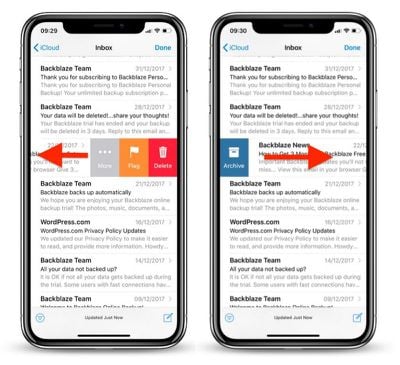
The basic inbox gestures are swiping right or left on an email to reveal tappable actions that you can perform instantly, without having to call up additional menus.

For example, swiping left on an email reveals three options: the default Flag action which can be customized, a Delete or Archive button (depending on the account), and a More option that takes you to a pop-up menu with additional email management functions.

Swiping right on an email reveals a single customizable action. By default, this is either Archive or Delete (again, depending on the account). This can be a tad confusing, but basically, accounts that include Archive in the swipe left menu will by default show Delete when swiping right.
mail inbox swipe gestures iphone1
Tip: The right swipe menu action and the Archive/Delete action on the left swipe menu can both be performed without having to tap them at all. For example, to delete (or archive) an email, swipe left all the way across the message in one continuous sweep and it will vanish from your inbox instantly.

This single extended swipe action is nice and swift, but it can leave you open to deleting emails a bit too hastily. Fortunately, you can shake your iOS device to bring up the Undo button and revert the last action. (Make sure the option is toggled on in the Settings app, under General -> Accessibility -> Shake to Undo.)

Finally, don't forget that a tap of the Edit button in the upper right of your inbox lets you select multiple emails in the messages list, allowing you to Mark, Move, or Delete them all in one go.

How to Change Mail Swipe Gestures in iOS

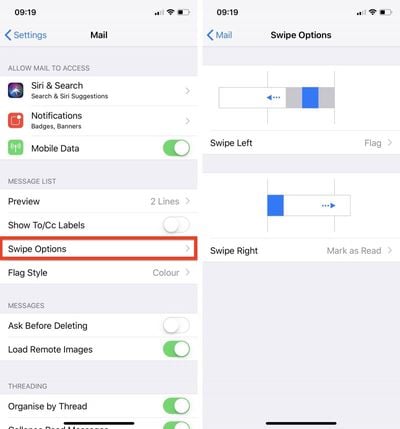
  1. Launch the Settings app on your iPhone or iPad.

  2. Scroll down and tap Mail.

  3. Tap Swipe Options.
    customize mail gestures 1

  4. Tap Swipe Left or Swipe Right under the gesture example images.
    customize mail gestures2

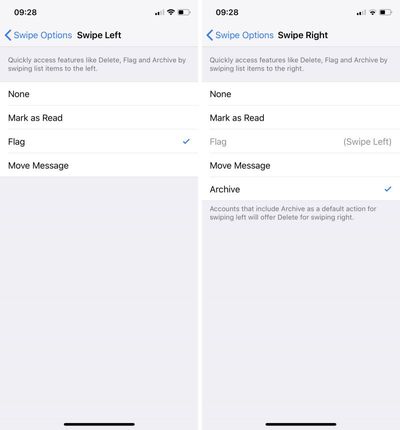
  5. Tap a function to assign it to the selected swipe gesture. Your options include None, Mark as Read, Flag, Move Message, and Archive.
Related Forum: iOS 11

Top Rated Comments

Ritmo Avatar
107 months ago
And why the heck swipe left doesn’t have delete option? That’s how the whole damn OS works by default.
Score: 2 Votes (Like | Disagree)
B60boy Avatar
107 months ago
Also need to add a reminder feature that ties into the Reminder app. I can’t belive in this day and age that it’s so difficult to turn an email into a task or reminder.

Yes, I know that you can do this with Siri, but adding it to the slider here is what is needed.
Score: 2 Votes (Like | Disagree)
Kangastu Avatar
107 months ago
Hoping for snooze to be added in MacOS iOS 12 this year. Spark is nice - but I’d prefer to be using native apps.
Score: 2 Votes (Like | Disagree)
thefourthpope Avatar
107 months ago
There are some very meagre swipe options ('http://osxdaily.com/2015/12/02/change-mail-swipe-gesture-mac-os-x/') in MacOS Mail. I have never for the life of me been able to figure out why we can't have more options here.

Absolutely. At least have consistent options across both platforms. Maybe this is where they’ll go with the more universal apps said to be coming?

Score: 1 Votes (Like | Disagree)
107 months ago
Like many, I prefer to use the native iOS email app, but cant because of all its problems. No push notifications with Gmail or paid G Suite Gmail...even when configured as an Exchange account (which causes you to lose STARRED messages). And even worse, it will not notify you of new email until you open the app. Then all new email comes into the inbox and the app icon badge for new mail is finally displayed. This used to work fine before iOS 11 broke it. Come on, Apple...is this abomination of an email app the best you can do?
Score: 1 Votes (Like | Disagree)

Popular Stories

Apple Event Logo

Apple Working on All-New Operating System

Wednesday July 29, 2026 11:39 am PDT by
Apple is developing an all-new operating system that is essentially a mix of tvOS, watchOS, and iOS, according to Bloomberg's Mark Gurman. In a report this week, he said the operating system will feature a grid of icons, widgets, and apps, along with customizable clock faces. The new software platform is intended for Apple's long-rumored smart home hub. With built-in facial recognition,...
imac video apple feature

Apple Made Its Second-Biggest Acquisition Ever This Year

Wednesday July 29, 2026 12:03 pm PDT by
Apple this year acquired Israeli startup Q.ai for close to $2 billion, according to the Financial Times. That would make this Apple's second-biggest acquisition ever, after it paid $3 billion for the popular headphone maker Beats in 2014. This is also the largest known Apple acquisition since the company purchased Intel's smartphone modem business and patents for $1 billion in 2019. Q.ai...
Dynamic Island iPhone 18 Pro Feature

iPhone 18 Pro: Twelve Changes Coming to Apple's Next Flagship

Thursday July 30, 2026 3:43 am PDT by
We're less than two months out from the launch of Apple's premium next-generation smartphone lineup, and while we're not expecting a dramatic change in terms of functionality, there are still several enhancements rumored to be coming to the iPhone 18 Pro and iPhone 18 Pro Max. One thing worth noting is that Apple is reportedly planning a major change to its iPhone release cycle this year,...

🔗 Related Apple News & Rumors

Stay updated with the latest Apple ecosystem news and verified rumors