The Home app is what allows you to easily control your HomeKit-compatible devices using your iPhone, iPad, or Mac. You can use the app to do everything from turning on smart lights or adjusting a smart thermostat to opening and closing automated window shades.
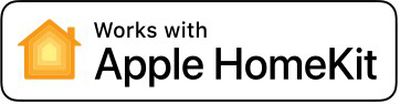
Before you start with the app, make sure the smart accessory that you want to use with it is HomeKit-enabled. If your smart product has the label "Works with Apple HomeKit" on the product packaging, you can add it as an accessory in the Home app. If you're still not sure, see Apple's regularly updated list of compatible devices on its website.
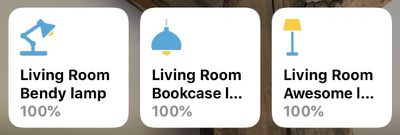
Adding an accessory to your smart home setup is fairly straightforward, but there are a few areas where it's not entirely intuitive, so check out our article about adding accessories for more.
Once you've added your devices to the Home app, you can edit the information for them on your iOS device or Mac. On your iPhone or iPad, press and hold an accessory, then tap Settings. On your Mac, double-click the accessory, then click Settings.
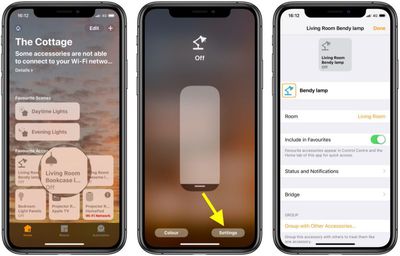
From this screen, you can change the accessory's name and the room in which it's located, and you can group the device with other accessories. You can also add the device to your Favorites to access and control it in Control Center, the Home tab, and on your Apple Watch.
To turn a HomeKit accessory on or off using the Home app, simply tap the device (or click it on Mac). To adjust additional device settings, like light bulb brightness for instance, press and hold (or double-click on Mac) instead. You can also create scenes to activate multiple accessories in one go, and even share access to your HomeKit devices with others.
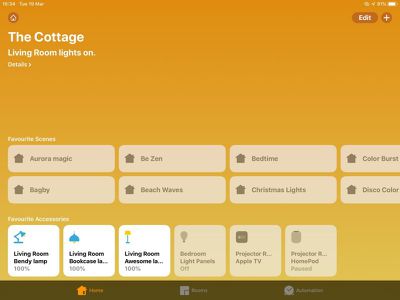
In addition, you can use Siri to turn on and control your devices. The Siri commands you use will obviously depend on the type of accessory, but a couple of examples might be "Turn on the living room light" or "Open the garage door," or you could ask Siri to check the temperature of a thermostat, for example. You can find more information about using Siri to control HomeKit accessories by clicking here.