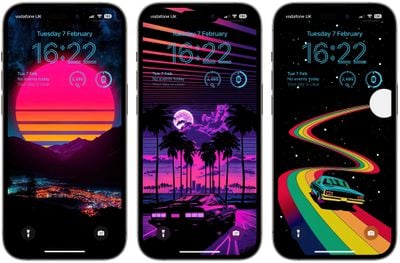
When Apple released iOS 16, it introduced some major changes to the Lock Screen experience, including the ability for users to make their iPhone wallpaper shuffle between a pre-selected set of photos with a simple tap of the screen.
Using the Photo Shuffle option, you can include different categories of photos to tap through, including people, pets, nature, and cities. Or if you want, you can manually select the photos that you want to include in the shuffle individually.
The first series of steps below show you how to set up a Lock Screen wallpaper photo shuffle based on preselected categories. The second set of steps explains how to manually select the photos you want to include. Keep reading to learn how it's done.
How to Make a Lock Screen Photo Shuffle With Categories
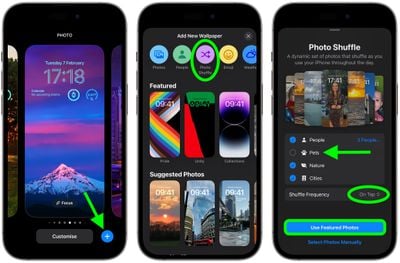
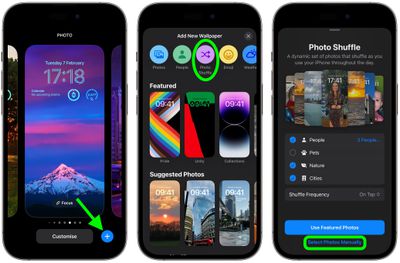
- Wake your iPhone and use Face ID or Touch ID to unlock it, then press and hold on the Lock Screen until the wallpaper gallery appears.
- Tap the circular blue + button in the bottom-right corner of the screen.
- Tap Photo Shuffle in the top row of the "Add New Wallpaper" menu.
- Check/uncheck the types of photos from your library that you want to include/exclude in the shuffle. (You can tap X People... to select individual persons to include.)
- Tap Shuffle Frequency -> On Tap.
- Tap Use Featured Photos.
The next screen allows you to change the font style of the clock display and add optional widgets. Simply tap the frames around the different elements to make changes/additions to your photo shuffle Lock Screen.
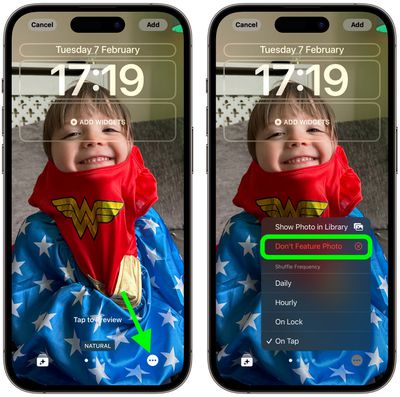
Tap the screen to preview the photos in your shuffle. You can also pinch the screen to zoom the image. If you see one that you'd rather not include, tap the ellipsis icon (three encircled dots) in the bottom-right corner of the screen and select Don't Feature Photo.
If there's a set of photos that you decide you don't want included (pets, for example) tap the Shuffle Categories button in the bottom-left corner and uncheck the ones you want to leave out. You can also swipe left and right to preview filters that can be applied to your photos.
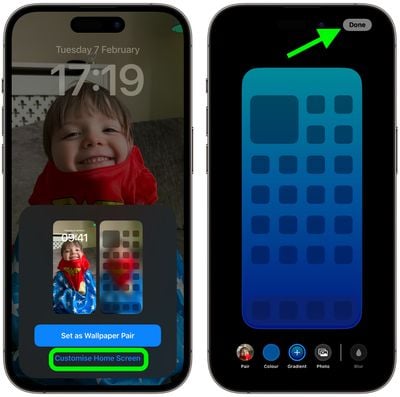
When you're happy with your new shuffle Lock Screen, tap Add in the top-right corner, then select either Set as Wallpaper Pair or Customize Home Screen. If you chose the former option, simply tap the Lock Screen you just created to make it go live. If you chose the latter option, you'll be taken to a set of tools that let you change your Home Screen wallpaper's color and gradient independently, or even select a different image for it entirely. When you're finished customizing, tap Done in the top-right corner.
How to Make a Lock Screen Photo Shuffle Manually
- Wake your iPhone and use Face ID or Touch ID to unlock it.
- Press and hold on the Lock Screen until the wallpaper gallery appears.
- Tap the circular blue + button in the bottom-right corner of the screen.
- Tap Photo Shuffle in the top row of the "Add New Wallpaper" menu.
- Tap Select Photos Manually at the bottom of the screen.

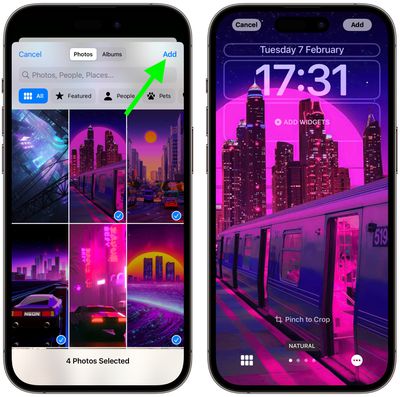
- Use the options at the top to select photo types or specific albums, or type a search term into the search field to narrow down the selection.
- Tap the photos that you want to include in the shuffle so that a blue check mark appears in the corner of each image.
- When you're finished choosing photos, tap Add in the top-right corner.
The next screen allows you to change the font style of the clock display and add optional widgets. Simply tap the frames around the different elements to make changes/additions to your photo shuffle Lock Screen.
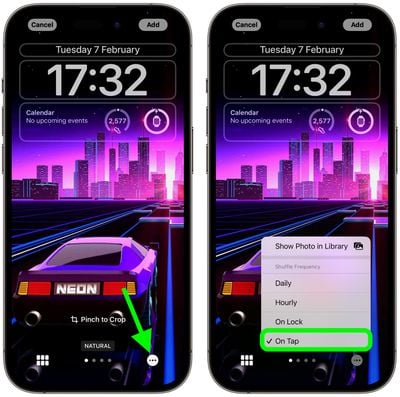
Tap the screen to preview the photos in your shuffle. You can also pinch the screen to zoom the image. If you decide that you don't want to include a particular photo after all, tap the Photos icon in the bottom-left corner, then tap Select. Tap the image you want to remove, then tap the trash icon in the bottom-left corner. Tap Done to finish.
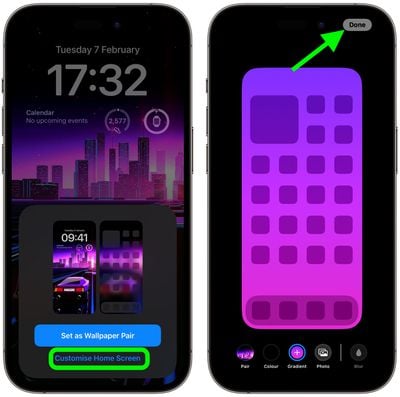
When you're happy with your new shuffle Lock Screen, tap Add in the top-right corner, then select either Set as Wallpaper Pair or Customize Home Screen. If you chose the former option, simply tap the Lock Screen you just created to make it go live. If you chose the latter option, you'll be taken to a set of tools that let you change your Home Screen wallpaper's color and gradient independently, or even select a different image for it entirely. When you're finished customizing, tap Done in the top-right corner.