How to Batch Convert Images Using macOS Preview - MacRumorsOpen MenuShow RoundupsShow Forums menuVisit ForumsOpen Sidebar
Skip to Content

How to Batch Convert Images Using macOS Preview

by

Preview appThere are many third-party apps available for Mac that will batch convert images for you (Permute is one example). And then there's Preview, the powerful file viewer that's built into macOS.

Preview will happily convert several images for you in one go. If you have lots of photos on your Mac in Apple's HEIC format, for instance, you can use Preview to quickly convert them to the more accessible JPEG format.

In fact, what's not obvious to many users is that Preview is capable of converting files in 18 different image formats, including the following:

  • GIF
  • HEIC
  • ICNS
  • JPEG
  • JEPG-2000
  • KTX
  • Microsoft BMP
  • Microsoft Icon
  • OpenEXR
  • PBM/PGM/PPM
  • PDF
  • PNG
  • PVRTC
  • Photoshop
  • PostScript
  • QuickTime Movie
  • TGA
  • TIFF

The secret to accessing all of the available format export options in Preview is with the Option (⌥) key. Keep reading to learn how it's done.

How to Batch Convert Images in Preview

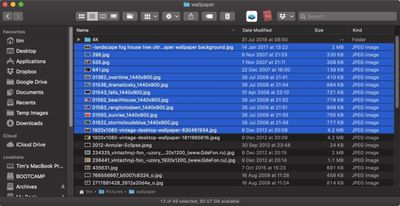
  1. In a Finder window, hold down the Command (⌘) key and individually click all the images you want to convert; if they're grouped together consecutively, hold down Shift and click the first and then the last file, and all of them will be selected.
    how to batch convert images in preview03

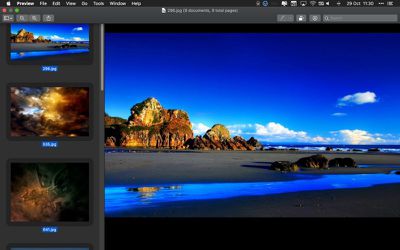
  2. Double-click one of the selected images to open them all in Preview. If Preview isn't your default image viewer, right-click (Ctrl-click) instead and choose Open With -> Preview from the dropdown menu.
  3. Click inside the Preview sidebar. (if it's not showing, click the View Menu button and select Thumbnails.) Alternatively, if you're using the Contact Sheet view, drag a box over all the images to select them.
    batch convert images in Preview

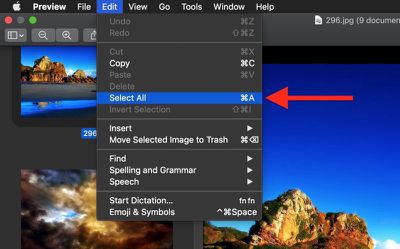
  4. Select Edit -> Select All from the Preview menu bar, or use the Command-A keyboard shortcut to select all the open images.
    how to batch convert images in preview 03

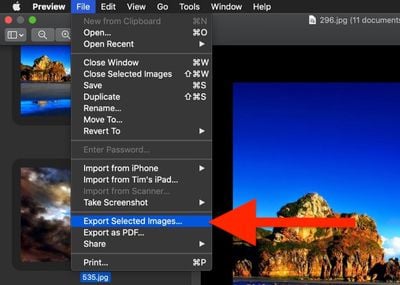
  5. Select File -> Export Selected Images... from the menu bar.
    how to batch convert images in preview02

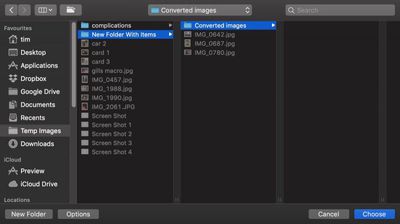
  6. Choose a location to export your converted images.
    how to batch convert images in preview 08

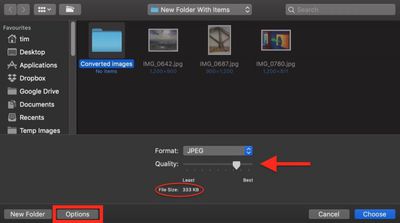
  7. Click the Options button in the Export window.
    how to batch convert images in preview04

  8. Drag the Quality slider to the desired level (keep an eye on the file size).
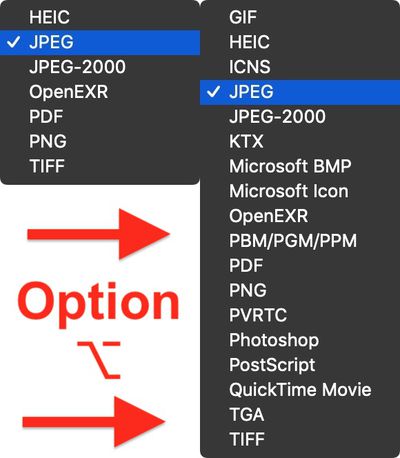
  9. Select an image type from the Format dropdown. Pro tip: Hold down the Option (⌥) key when you click the Format button to reveal several more image formats available to you.
    how to batch convert images in preview05

  10. Click Choose.

A progress indicator bar will replace Preview's Export window. Once it has completed you'll find your exported images in the chosen location and format, ready for use in your projects.

Note that you can also batch resize images using the method outlined above. After Step 4, select Tools -> Adjust Size... from the menu bar, input the resolution you want all the selected images to take, and click Resize. Note: You may need to select all the images again for export.


Tag: Preview

Top Rated Comments

fairuz Avatar
101 months ago
Preview is one of those secretly really powerful Mac apps for which there's no good replacement elsewhere. At least not that I've seen.

Score: 3 Votes (Like | Disagree)
101 months ago
Is there a way to do file conversions like this that preserves the meta data (original image date, etc.)?
Score: 3 Votes (Like | Disagree)
101 months ago
These How-To articles are the best of MacRumors.
Agreed. I would totally visit a MacRumors spinoff site... MacHints (or maybe something catchier?)

@MacRumors: could you guys at least tag these all with "Hints" or something?
Score: 3 Votes (Like | Disagree)
Solomani Avatar
101 months ago
These How-To articles are the best of MacRumors.
Score: 3 Votes (Like | Disagree)
outskirtsofinfinity Avatar
101 months ago
How do you know which buttons have "hidden" features that are revealed using the Option button? Is there a GUI style convention (say, the way the button is shaded when you hover over it, or something?) that suggests that more hidden options are available? Or is it just impossible to tell and you have to try the Option button everywhere you go to try to reveal hidden treasure... i.e., is it considered more of an "easter egg" kind of thing to delight the ones that stumble across these treasures and allow them to write a 'macOS Secrets revealed' kind of book or article? It just seems so stupid... it's something I'd expect from some hopeless nerd Android programmer (or the self indulgent programmers of the Tesla user interface), not from Apple. E.g., how's my mother in law supposed to figure it out?
Score: 2 Votes (Like | Disagree)
AlumaMac Avatar
101 months ago
If anyone can tell me how to access all of Preview's format conversion options in Automator, I'd be very grateful.

Looks like Automator hasn't been updated and I doubt it will. You could add a terminal command to your Automator Workflow that runs the 'sips' command to do additional filetype conversions. (i.e. sips -s format jpeg filename.gif --out newfilename.jpg)
Score: 2 Votes (Like | Disagree)

Popular Stories

Apple Event Logo

Apple Working on All-New Operating System

Wednesday July 29, 2026 11:39 am PDT by
Apple is developing an all-new operating system that is essentially a mix of tvOS, watchOS, and iOS, according to Bloomberg's Mark Gurman. In a report this week, he said the operating system will feature a grid of icons, widgets, and apps, along with customizable clock faces. The new software platform is intended for Apple's long-rumored smart home hub. With built-in facial recognition,...
imac video apple feature

Apple Made Its Second-Biggest Acquisition Ever This Year

Wednesday July 29, 2026 12:03 pm PDT by
Apple this year acquired Israeli startup Q.ai for close to $2 billion, according to the Financial Times. That would make this Apple's second-biggest acquisition ever, after it paid $3 billion for the popular headphone maker Beats in 2014. This is also the largest known Apple acquisition since the company purchased Intel's smartphone modem business and patents for $1 billion in 2019. Q.ai...
Dynamic Island iPhone 18 Pro Feature

iPhone 18 Pro: Twelve Changes Coming to Apple's Next Flagship

Thursday July 30, 2026 3:43 am PDT by
We're less than two months out from the launch of Apple's premium next-generation smartphone lineup, and while we're not expecting a dramatic change in terms of functionality, there are still several enhancements rumored to be coming to the iPhone 18 Pro and iPhone 18 Pro Max. One thing worth noting is that Apple is reportedly planning a major change to its iPhone release cycle this year,...

🔗 Related Apple News & Rumors

Stay updated with the latest Apple ecosystem news and verified rumors