Mastering your iPhone's navigation gestures can take time, but doing so can transform your daily interactions, making your smartphone experience smoother and more efficient. Yet, many users remain unaware of some of the most powerful and time-saving gestures available.
Whether you're an iPhone veteran or a newcomer, these hidden tricks can significantly enhance your device's usability. From quickly switching between apps to accessing controls with a simple swipe, here are six gestures designed to streamline your daily tasks.
Return to Top
Whenever you're browsing in Safari or scrolling through a long app menu or feed, tap the status bar at the top of your iPhone's display to shoot back up to the top.
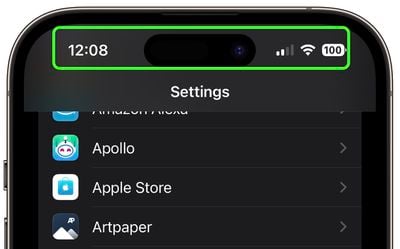
If you have an iPhone 14 Pro or iPhone 15 and the Dynamic Island isn't in use, tapping it performs the same action.
Switch Apps
The Quick App Switcher is a handy feature on iPhones with no Home button that allows you to rapidly switch between recently used apps without the need to open the app switcher interface fully. It's ideal for tasks that require frequent app switching, such as copying information from one app to another.
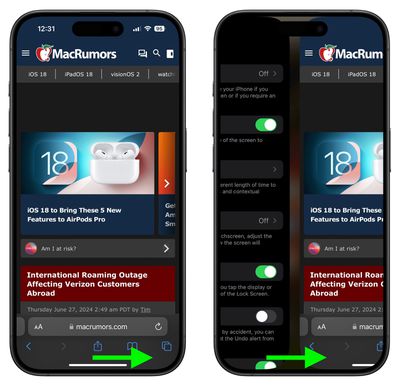
Simply swipe your finger horizontally across the bottom edge of your iPhone’s screen. This gesture will cycle through your most recently used apps, allowing you to switch between them effortlessly.
Access Camera Faster
Capturing memories on camera often requires speed and spontaneity, and this iPhone camera feature is designed to ensure you never miss a shot.
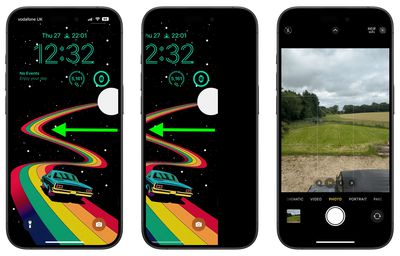
Instead of pressing the Camera icon on your Lock Screen, when your iPhone is locked, simply wake the screen and swipe left. This action immediately launches the Camera app, ready for you to take photos or videos.
Access Hidden Trackpad
Navigating and editing text on your iPhone can sometimes feel cumbersome, especially when trying to precisely place the cursor. Fortunately, Apple has integrated a hidden feature in the virtual keyboard that can make this task much easier.
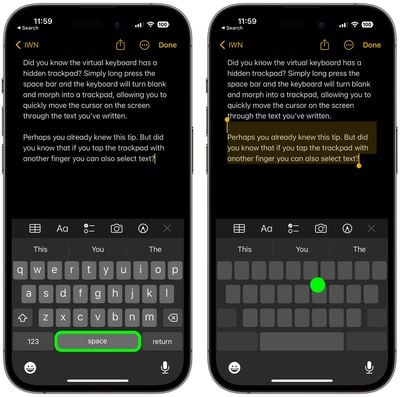
The next time you are writing something a little more lengthy and need to go back and change something, simply long-press the space bar, and the on-screen keyboard will transform into a trackpad that you can use to control the cursor. This allows you to navigate quickly through your text, moving the cursor to any desired spot with ease.
If you tap the trackpad with another finger while in this mode, you can also select chunks of text. This dual-functionality makes editing and tweaking text on your iPhone a breeze. Give it a try next time you're typing a message or note.
Spotlight Search
Spotlight Search is a powerful and efficient feature on iPhone that allows you to quickly find anything on your device, from apps and contacts to emails and web results. Spotlight can even search text in your photos thanks to Apple's Live Text feature.
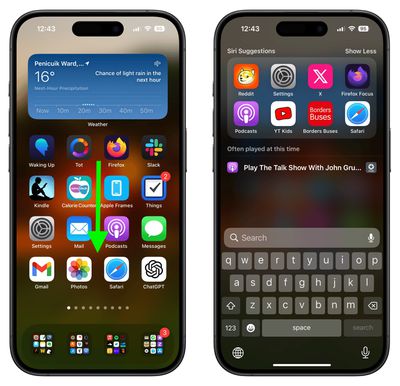
From any home screen, simply swipe downwards in the middle of the screen. This action will reveal the Spotlight Search bar at the top of your screen, along with a keyboard for entering your search query. You can even access it from the Lock Screen. (To disable access, go to Settings ➝ Face ID & Passcode, and toggle off Today View and Search under the "Allow Access When Locked" menu section.)
Reachability
Reachability is a convenient feature designed to make it easier to use your iPhone with one hand, especially on larger models. By temporarily shifting the screen’s top half down, it allows you to reach icons, buttons, and other elements at the top of the screen without needing to use both hands.
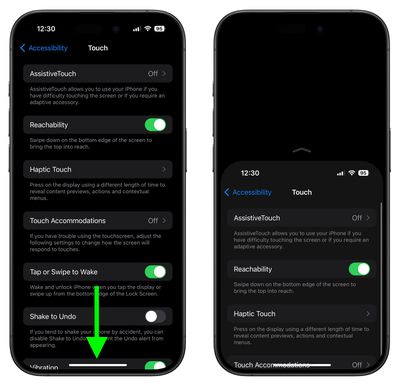
To enable the feature, go to Settings ➝ Accessibility ➝ Touch, and turn on the switch next to Reachability. Then all you have to do is lightly swipe downwards on the bottom edge of the screen (above the Home button on iPhone SE models, or the gesture bar on models without a Home button). The entire screen will shift down, bringing the top portion within easier reach. To revert back to full screen, simply repeat the gesture.