When you connect your iPhone or iPad to a Windows PC, you'll be able to sync to it albums, songs, playlists, movies, TV shows, podcasts, books, audiobooks, photos and videos, contacts and calendars. This article shows you how.
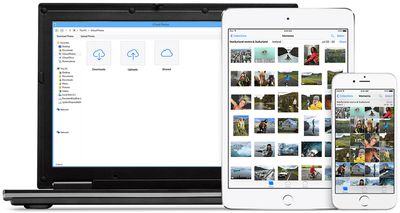
You can sync your iPhone or iPad to a Windows PC by physically connecting them, but did you know that you can sync your Apple device by having them connected over same Wi-Fi network? The only real difference to the operation is that syncing over Wi-Fi is slower than syncing over a cable.
Note that if you connect an iPhone or iPad to your Windows PC while the device is syncing over Wi-Fi, the syncing process will continue over the cable. But if you disconnect the device's cable from the computer while syncing, syncing will stop, even if Wi-Fi syncing is on.
To enable syncing over Wi-Fi, you'll first need to connect your iPhone or iPad to your Windows PC using a cable.
If your iPhone or iPad came with a Lightning to USB Cable and your computer has a USB-C port, you'll need to connect the USB end of the cable to a USB-C to USB Adapter (sold separately), or use a USB-C to Lightning Cable (sold separately).
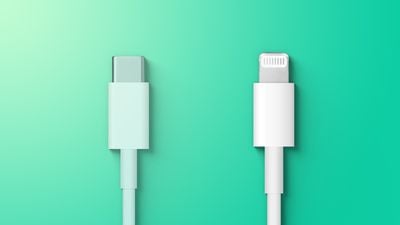
If your iPhone or iPad came with a USB-C to Lightning Cable and your computer has a USB port, you'll need to use a Lightning to USB Cable (sold separately).
If your iPhone or iPad came with a USB-C Charge Cable and your computer has a USB port, use a USB-C to USB Adapter and a USB-A cable.
How to Enable iPhone and iPad Wi-Fi Syncing
- If you haven't go iTunes on your computer already, go to the Microsoft Store to download and install the latest version of iTunes for Windows.
- Connect your iPhone or iPad to your computer using a compatible USB charging cable (see above).
- Launch the iTunes app on your PC.

- Click the iPhone button near the top-left of the iTunes window.
- Click Summary in the sidebar.
- Select the checkbox for Sync with this [device] over Wi-Fi.
- Click Apply.
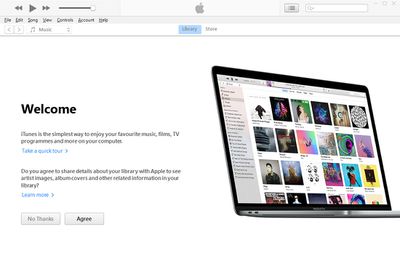
When you disconnect your iPhone or iPad from your computer, the icon for your device will remain in iTunes unless you click the Eject button. If you click Eject, the icon for the device is removed, but Wi-Fi syncing remains turned on.
You can now sync your device wirelessly by connecting it to a charger and plugging it into an electrical outlet. Syncing will begin automatically. Alternately, click the icon for your device in the iTunes app, then click the Sync button.