Apple Watch models are available in 40mm and 44mm sizes to compensate for different wrist shapes and to offer customers the choice of a smaller or bigger screen. Whichever model size you go for, both feature clear and bright high-resolution OLED screens that are designed to display text as clearly as possible.
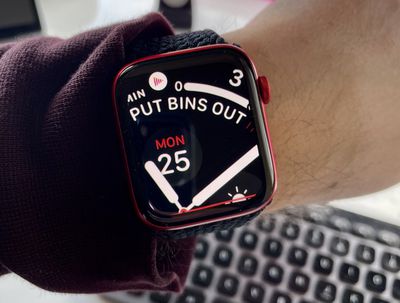
On the other hand, if you're longsighted or you regularly suffer from eyestrain, no amount of backlighting will make up for text or graphics that are uncomfortably small to look at. Fortunately, Apple Watch includes an accessibility feature that lets you zoom in on any portion of the screen to make its contents more legible. Here's how to use it.
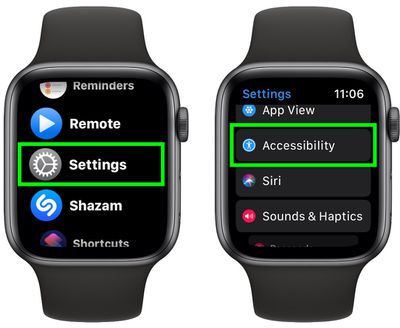
- Press the Digital Crown on your Apple Watch and select the Settings app from the apps list.
- Scroll down and select Accessibility.

- Select Zoom.
- Tap the switch next to Zoom to toggle it to the green ON position, and you'll see a fullscreen message indicating that Zoom has been enabled.
- To try out the Zoom feature, use two fingers to double tap anywhere on the display. You can drag around the zoomed display with two fingers to view different parts of the screen, or rotate your watch's Digital Crown to move the view up and down.
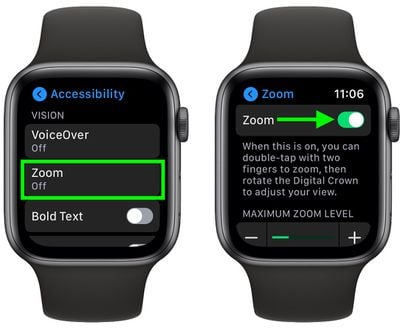
If you want, you can adjust the maximum zoom level to suit your needs using the + and - button slider on the same Zoom menu screen you used to enable the feature. Simply move the slider to the right to increase the zoom level.
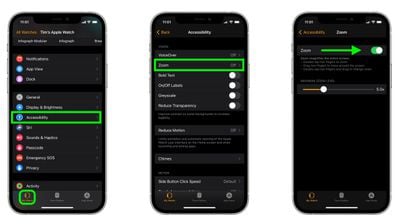
As with many Apple Watch features, you can enable and adjust the zoom level of your watch's display via your iPhone. Simply launch the Watch app, select the My Watch tab in the bottom-left of the screen, then choose Accessibility -> Zoom, where you'll find similar controls for adjusting the feature.
If you find this feature useful, don't forget that there are other accessibility features available on Apple Watch, such as the ability to make icons bigger and even have your watch use haptic vibrations to tap out the time on your wrist on the hour.