

How to Use Finder Quick Actions in macOS Mojave - MacRumorsOpen MenuShow RoundupsShow Forums menuVisit ForumsOpen Sidebar
Skip to Content

How to Use Finder Quick Actions in macOS Mojave

by

In macOS Mojave, Apple has introduced a range of new Finder Quick Actions that make it easier for you to perform quick edits to files without having to open the apps associated with them.
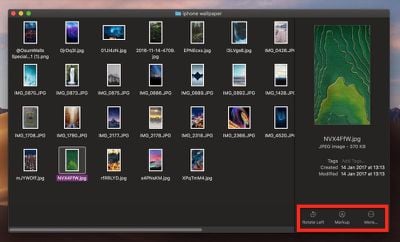
how to use mojave quick actions 2 1
To view available Quick Actions, you need to enable the Preview panel in Finder. To do this, open a Finder window and select the menu bar option View -> Show Preview, or press the keys Shift-Command-P.

Quick Actions for Images, Video, and Audio

Quick Actions are located in the bottom right of the Finder window, just under the preview of the selected file. These actions will change depending on the file: For images, clicking Rotate Left turns the image counterclockwise, while clicking Markup invokes an enhanced Quick Look window containing a set of markup tools.
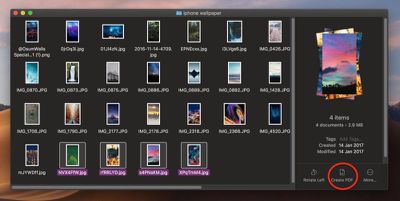
how to use mojave quick actions 1
If two or more images are selected in Finder, the Markup button will change to Create PDF, allowing you to turn the images into a single portable document. If a QuickTime compatible video or audio file is selected, Markup will be replaced by Trim. Clicking this brings up a Quick Look window with an editing ribbon to trim the file.

How to Customize Quick Actions

You've probably noticed the More... button beside the default Quick Actions. Click this and then select Customize..., and you'll be taken to the Extensions pane in System Preferences, where you'll be able to select other actions to add to Finder's Preview pane.
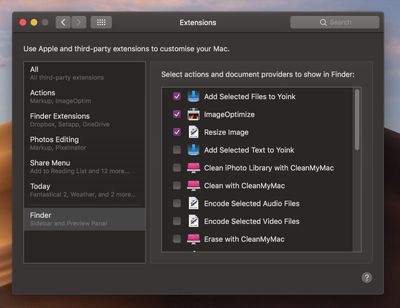
how to use mojave quick actions 3
The actions available to you will depend on which applications you have installed and any pre-existing Apple scripts on your Mac. Apple is encouraging third-party developers to add support for more Quick Actions in their apps, but you can also create your own custom ones using the Automator app. For a useful example, check out our tutorial on how to quickly resize images using your very own Automator service.


Related Forum: macOS Mojave

Top Rated Comments

107 months ago
Note for author: hold space after pressing cmd + shift + 4. Makes a cleaner window screenshot. Maybe you already know that. But i find it at a better way of doing screenshots of windows
Next Mac rumours tutorial:
How to take better screenshots :)
Score: 1 Votes (Like | Disagree)
Internet Enzyme Avatar
107 months ago
In macOS Mojave, Apple has introduced a range of new Finder Quick Actions that make it easier for you to perform quick edits to files without having to open the apps associated with them.

use quick actions in macos mojave image

To view available Quick Actions, you need to enable the Preview panel in Finder. To do this, open a Finder window and select the menu bar option View -> Show Preview, or press the keys Shift-Command-P.

Quick Actions for Images, Video, and Audio

Quick Actions are located in the bottom right of the Finder window, just under the preview of the selected file. These actions will change depending on the file: For images, clicking Rotate Left turns the image counterclockwise, while clicking Markup invokes an enhanced Quick Look window ('https://www.macrumors.com/how-to/use-quick-look-in-macos-mojave-quick-file-edits/') containing a set of markup tools.


use quick actions in macos mojave image

If two or more images are selected in Finder, the Markup button will change to Create PDF, allowing you to turn the images into a single portable document. If a QuickTime compatible video or audio file is selected, Markup will be replaced by Trim. Clicking this brings up a Quick Look window with an editing ribbon to trim the file.

How to Customize Quick Actions

You've probably noticed the More... button beside the default Quick Actions. Click this and then select Customize..., and you'll be taken to the Extensions pane in System Preferences, where you'll be able to select other actions to add to Finder's Preview pane.

use quick actions in macos mojave image

The actions available to you will depend on which applications you have installed and any pre-existing Apple scripts on your Mac. Apple is encouraging third-party developers to add support for more Quick Actions in their apps, but you can also create your own custom ones using the Automator app. For a useful example, check out our tutorial on how to quickly resize images using your very own Automator service ('https://www.macrumors.com/how-to/quickly-resize-images-mac-automator/').

Article Link: How to Use Finder Quick Actions in macOS Mojave ('https://www.macrumors.com/how-to/use-quick-actions-in-macos-mojave/')
Note for author: hold space after pressing cmd + shift + 4. Makes a cleaner window screenshot. Maybe you already know that. But i find it at a better way of doing screenshots of windows
Score: 1 Votes (Like | Disagree)
107 months ago
I played around with Mojave for a fortnight and this was one of my favourite features.
Score: 1 Votes (Like | Disagree)

Popular Stories

iOS 27 Next to iPhone

Here's When iOS 27 Rolls Out Today in Every Time Zone [Update: It's Out]

Sunday September 13, 2026 3:00 am PDT by
Update 10:04 a.m.: iOS 27 is rolling out now, though it may take a bit for all users to see it, so keep checking! Apple is about to release iOS 27, which will finally deliver more advanced Siri AI capabilities as well as a variety of other refinements, improvements, and new features to iPhones. It's Apple's biggest software update of the year, and Apple announced at Wednesday's iPhone event...
iOS 27 Icon iPhone

iOS 27 Available Today With These 8 New Features

Monday September 14, 2026 9:00 am PDT by
Update: Apple has released iOS 27. During its iPhone 18 Pro and iPhone Duo event last week, Apple announced that iOS 27 will be released widely on Monday, September 14. iOS 27 should be available around 10 a.m. Pacific Time / 1 p.m. Eastern Time today via the Settings app, under General → Software Update. Below, we have highlighted eight new features and changes coming with iOS...
deep black iphone 18 pro

Apple Says iPhone 18 Pro Max Sold in U.S. Differs in One Way

Saturday September 12, 2026 3:27 pm PDT by
As noted by Nicolas Lellouche, who writes for the French tech website Numerama, Apple has updated its tech specs pages for the iPhone 18 Pro and iPhone 18 Pro Max to clarify which models are equipped with its new C2 cellular modem and where. Apple now says the iPhone 18 Pro has a C2 modem worldwide, while the iPhone 18 Pro Max uses the chip in every country except for the U.S. According...

🔗 Related Apple News & Rumors

Stay updated with the latest Apple ecosystem news and verified rumors










































