How to Use the New Continuity Camera Feature in macOS Mojave - MacRumorsOpen MenuShow RoundupsShow Forums menuVisit ForumsOpen Sidebar
Skip to Content

How to Use the New Continuity Camera Feature in macOS Mojave

by

In macOS Mojave, Apple has extended its Continuity features so that now you can use your iPhone or iPad's camera to take a photo or scan a document, and it will be immediately available on your Mac.
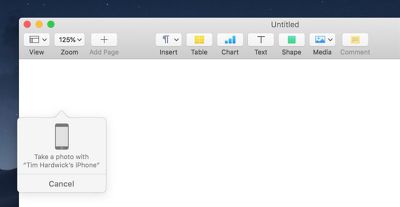
continuity camera 2
Continuity Camera works in several native Mac apps, including Pages, Keynote, and TextEdit. The following steps explain how to use it. Bear in mind that both your iOS device and your Mac need to be logged into the same Apple ID for this feature to work.

How to Add a Photo Using Continuity Camera

  1. Launch the app that you want to import a photo into.
  2. Open an existing project or document, or create a new one.
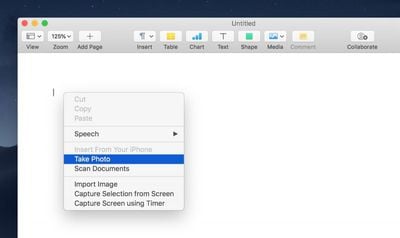
  3. Right-click (or Ctrl-click) the location where you want to insert the photo.
    continuity camera 1
  4. In the contextual menu, click Take Photo under the name of the iOS device that you want to use.
  5. Take the photo on your iPhone or iPad.
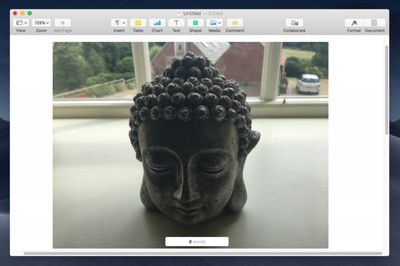
  6. Tap Use Photo on your iOS device, and the image will appear in the open project or document on your Mac.
    continuity camera 3

How to Scan a Document Using Continuity Camera

  1. Launch the app you want to use and open a project or document, or create a new one.
  2. Right-click (or Ctrl-click) the space where you want to insert the captured document.
  3. In the contextual menu, click Scan Document under the name of the iOS device that you want to use.
  4. Using your iPhone or iPad's camera, frame the document in the onscreen viewfinder. The document should turn yellow and scan automatically. You can repeat this step to scan several documents if desired.
  5. Tap Save on your iOS device, and your scanned documents will be inserted into the open project or document on your Mac.
Related Forum: macOS Mojave

Top Rated Comments

Benjamid Avatar
105 months ago
Hmm, I don’t get why it can’t just create a document as pdf. It’s already annoying that I have to create a note to scan documents in iOS than move the scan to files and then delete the note...
Score: 5 Votes (Like | Disagree)
103 months ago
Hmm, I don’t get why it can’t just create a document as pdf. It’s already annoying that I have to create a note to scan documents in iOS than move the scan to files and then delete the note...
You can scan docs directly from your iPhone to a file on your Mac. In Finder, Ctrl-click in an empty area in the folder where you want scanned docs to be saved, then choose Import from iPhone or iPad > Scan Documents. This saves as a PDF.

Attachment Image
Score: 4 Votes (Like | Disagree)
BWhaler Avatar
105 months ago
I’m really looking forward to Mohave. Reminds me of old school Apple, where there were new touches which ended up being remarkable useful in your workflow. And quality, the old, “ it just works”

Fingers crossed App,e has learned some good lessons this year. I’m hopeful.
Score: 3 Votes (Like | Disagree)
105 months ago
In macOS Mojave, Apple has extended its Continuity features so that now you can use your iPhone or iPad's camera to take a photo or scan a document, and it will be immediately available on your Mac.

use continuity camera in macos mojave image

Continuity Camera works in several native Mac apps, including Pages, Keynote, and TextEdit. The following steps explain how to use it. Bear in mind that both your iOS device and your Mac need to be logged into the same Apple ID for this feature to work.

How to Add a Photo Using Continuity Camera
[LIST=1]
* Launch the app that you want to import a photo into.
* Open an existing project or document, or create a new one.
* Right-click (or Ctrl-click) the location where you want to insert the photo.
use continuity camera in macos mojave image
* In the contextual menu, click Take Photo under the name of the iOS device that you want to use.
* Take the photo on your iPhone or iPad.
* Tap Use Photo on your iOS device, and the image will appear in the open project or document on your Mac.
use continuity camera in macos mojave image

How to Scan a Document Using Continuity Camera
[LIST=1]
* Launch the app you want to use and open a project or document, or create a new one.
* Right-click (or Ctrl-click) the space where you want to insert the captured document.
* In the contextual menu, click Scan Document under the name of the iOS device that you want to use.
* Using your iPhone or iPad's camera, frame the document in the onscreen viewfinder. The document should turn yellow and scan automatically. You can repeat this step to scan several documents if desired.
* Tap Save on your iOS device, and your scanned documents will be inserted into the open project or document on your Mac.


Article Link: How to Use the New Continuity Camera Feature in macOS Mojave ('https://www.macrumors.com/how-to/use-continuity-camera-in-macos-mojave/')

[doublepost=1530967502][/doublepost]Note that the camera app must be open/active on your iOS device for it to show the 'Take a photo' and 'Scan document' contextual menu items. If Camera app is NOT open, you get the regular contextual menu without those items.
Score: 2 Votes (Like | Disagree)
105 months ago
Hmm, I don’t get why it can’t just create a document as pdf. It’s already annoying that I have to create a note to scan documents in iOS than move the scan to files and then delete the note...



This gets a photo directly from iOS directly into most Mac apps WITHOUT having to use AirDrop and Copy / Paste. If you need a PDF of ONLY the image ... just Open Photo on iOS device and Save it as a PDF.

Also ... if you already have an image on the Mac -- copy it to the Clipboard -- Open Preview and Save as a PDF.

Having several ways to skin a cat is a big help.
Score: 2 Votes (Like | Disagree)
amaze1499 Avatar
105 months ago
This. I came here to type exactly this.
Because some like to scan directly into a document. This feature makes totally sense to me.
Score: 2 Votes (Like | Disagree)

Popular Stories

Apple Event Logo

Apple Working on All-New Operating System

Wednesday July 29, 2026 11:39 am PDT by
Apple is developing an all-new operating system that is essentially a mix of tvOS, watchOS, and iOS, according to Bloomberg's Mark Gurman. In a report this week, he said the operating system will feature a grid of icons, widgets, and apps, along with customizable clock faces. The new software platform is intended for Apple's long-rumored smart home hub. With built-in facial recognition,...
imac video apple feature

Apple Made Its Second-Biggest Acquisition Ever This Year

Wednesday July 29, 2026 12:03 pm PDT by
Apple this year acquired Israeli startup Q.ai for close to $2 billion, according to the Financial Times. That would make this Apple's second-biggest acquisition ever, after it paid $3 billion for the popular headphone maker Beats in 2014. This is also the largest known Apple acquisition since the company purchased Intel's smartphone modem business and patents for $1 billion in 2019. Q.ai...
Dynamic Island iPhone 18 Pro Feature

iPhone 18 Pro: Twelve Changes Coming to Apple's Next Flagship

Thursday July 30, 2026 3:43 am PDT by
We're less than two months out from the launch of Apple's premium next-generation smartphone lineup, and while we're not expecting a dramatic change in terms of functionality, there are still several enhancements rumored to be coming to the iPhone 18 Pro and iPhone 18 Pro Max. One thing worth noting is that Apple is reportedly planning a major change to its iPhone release cycle this year,...

🔗 Related Apple News & Rumors

Stay updated with the latest Apple ecosystem news and verified rumors