facetime icon macApple's FaceTime app lets you make video or audio calls from your Mac to any of your friends and family for free, as long as they have an ‌iPhone‌, iPad, iPod touch or Mac.

Using your Mac's built-in ‌FaceTime‌ or iSight camera and built-in microphone, you can talk face to face. If you want, you can optionally use a connected camera and microphone instead.

Alternatively, if you're put off by a video call, you can just use ‌FaceTime‌ Audio to make an audio call, which should be a lot clearer than a typical phone call.

Setting up ‌FaceTime‌ on ‌your Mac is easy – just make sure you have a working internet connection, then follow the steps below. Note that you'll need an Apple ID to use ‌FaceTime‌ – if you don’t have one, go to Apple's webpage and click Create Your Apple ID.

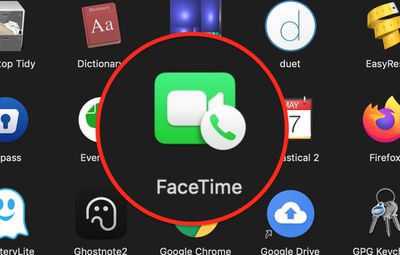
  1. Launch the FaceTime app on your Mac. If it's not in your Dock, you can find it in the Applications folder.
    apps

  2. If ‌FaceTime‌ is off, click the Turn On button.
    FaceTime

  3. Log in with your ‌Apple ID‌ and password.
  4. Wait a moment while you're signed in.
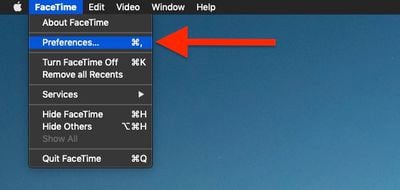
  5. From the menu bar at the top of your screen, select FaceTime -> Preferences.
    FaceTime

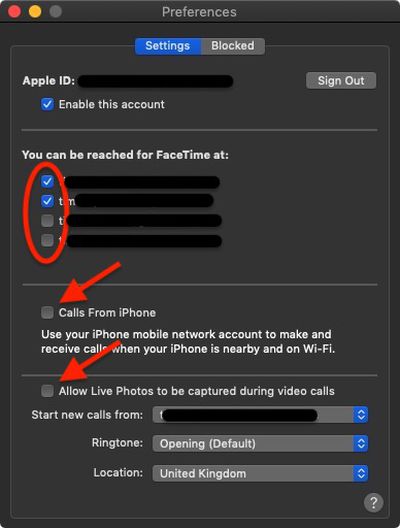
  6. In the Settings tab, deselect any email addresses that you don't want to be associated with your ‌FaceTime‌ account (work email addresses, for example).
    FaceTime

  7. Check the box next to Calls from ‌iPhone‌ if you want to use your ‌‌iPhone‌‌'s cellular number to make and receive calls when it's nearby and connected to the same Wi-Fi network as your ‌Mac.
  8. If you want people to be able to take Live Photos during ‌FaceTime‌ calls, check the box next to where it says Allow Live Photos to be captured during video calls.
  9. Select an email address to Start new calls from: using the associated dropdown menu.
  10. If you like, you can choose a ringtone for incoming ‌FaceTime‌ calls from the Ringtone dropdown menu.
  11. Using the last dropdown menu, select your correct Location.
Note that you can block people from contacting you over ‌FaceTime‌ (or phone calls, messages, and email) by clicking the Blocked preferences tab and then using the plus (+) button to add numbers from your contacts list.

Popular Stories

Aston Martin CarPlay Ultra Screen

Apple's CarPlay Ultra to Expand to These Vehicle Brands Later This Year

Sunday February 1, 2026 10:08 am PST by
Last year, Apple launched CarPlay Ultra, the long-awaited next-generation version of its CarPlay software system for vehicles. Nearly nine months later, CarPlay Ultra is still limited to Aston Martin's latest luxury vehicles, but that should change fairly soon. In May 2025, Apple said many other vehicle brands planned to offer CarPlay Ultra, including Hyundai, Kia, and Genesis. In his Powe...
Apple Logo Black

Apple's Next Launch is 'Imminent'

Sunday February 1, 2026 12:31 pm PST by
The calendar has turned to February, and a new report indicates that Apple's next product launch is "imminent," in the form of new MacBook Pro models. "All signs point to an imminent launch of next-generation MacBook Pros that retain the current form factor but deliver faster chips," Bloomberg's Mark Gurman said on Sunday. "I'm told the new models — code-named J714 and J716 — are slated...
iOS 26

iOS 26.3 and iOS 26.4 Will Add These New Features to Your iPhone

Tuesday February 3, 2026 7:47 am PST by
We are still waiting for the iOS 26.3 Release Candidate to come out, so the first iOS 26.4 beta is likely still at least a week or two away. Following beta testing, iOS 26.4 will likely be released to the general public in March or April. Below, we have recapped known or rumored iOS 26.3 and iOS 26.4 features so far. iOS 26.3 iPhone to Android Transfer Tool iOS 26.3 makes it easier...
Apple MacBook Pro M4 hero

New MacBook Pros Reportedly Launching Alongside macOS 26.3

Sunday February 1, 2026 5:42 am PST by
Apple is planning to launch new MacBook Pro models with M5 Pro and M5 Max chips alongside macOS 26.3, according to Bloomberg's Mark Gurman. "Apple's faster MacBook Pros are planned for the macOS 26.3 release cycle," wrote Gurman, in his Power On newsletter today. "I'm told the new models — code-named J714 and J716 — are slated for the macOS 26.3 software cycle, which runs from...
iOS 26 Home Feature

Apple Gives Final Warning to Home App Users

Tuesday February 3, 2026 8:55 am PST by
In 2022, Apple introduced a new Apple Home architecture that is "more reliable and efficient," and the deadline to upgrade and avoid issues is fast approaching. In an email this week, Apple gave customers a final reminder to upgrade their Home app by February 10, 2026. Apple says users who do not upgrade may experience issues with accessories and automations, or lose access to their smart...