iOS 18: Add a Tint to Your iPhone Home Screen Icons - MacRumorsOpen MenuShow RoundupsShow Forums menuVisit ForumsOpen Sidebar
Skip to Content

iOS 18: Add a Tint to Your iPhone Home Screen Icons

by

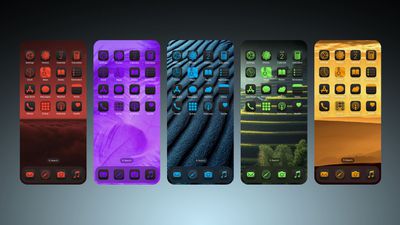
Apple in iOS 18 has made a wealth of customization options available for your iPhone Home Screen, one of which is the ability to add a tint to your app icons.
iOS 18 Home Screen Feature 1
Essentially, the tint feature offers a unique way to customize your device's appearance by changing the color of all your icons at once. Unlike individual icon customization, tinting affects every icon on your app pages, Home Screen, and App Library, creating a unified look across your entire interface.

Tinting works by first desaturating all icons and then applying a single color overlay. This process results in a monochromatic appearance, which means you'll lose the original colors of your app icons and widgets, but what you gain is a more cohesive look. It's a powerful tool for creating a coordinated, stylish interface that reflects your personal taste, so be sure to experiment with it.

To choose a tint color, you can also use an eyedropper tool to select a shade from your wallpaper, or manually adjust hue and saturation using two slider bars. This flexibility allows you to perfectly match your icons to your background or create a contrasting color scheme.

Lastly, it's important to remember that the tint setting is universal. You can't apply different tints to different app pages or sections of your device. Whatever color you choose will be applied everywhere icons appear. Here's how to tint your icons in iOS 18:

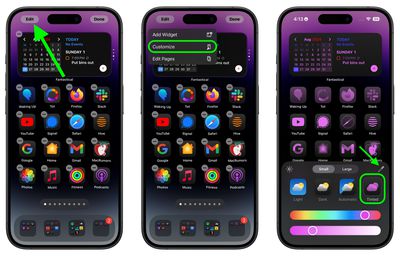
  1. Long press a space on your Home Screen.
  2. Tap Edit in the top-right corner.
  3. Tap Customize.
  4. Select the Tinted option.
  5. Adjust the sliders to change the tint. Note that you can also use the eyedropper icon to select a hue from a region of your wallpaper.
  6. Tap anywhere outside of the Customize panel to finish.
Home Screen

The tint feature is in addition to a new Dark mode option for your app icons in iOS 18, which you can learn more about by checking out our dedicated how-to.
Top Rated Comments

SouthBronx187 Avatar
24 months ago
Eye bleed 2009
Score: 25 Votes (Like | Disagree)
magicschoolbus Avatar
24 months ago
This looks like a bad myspace page
Score: 18 Votes (Like | Disagree)
DaniTheFox Avatar
24 months ago
Ugly as hell.

Edit: I am running iOS Beta 18 and I have already dicovert it. But when I see this 5 tint next to it in the picture above, I am glad I did not turn it on.
Score: 17 Votes (Like | Disagree)
24 months ago
All the good ideas have left the building it seems.
Score: 13 Votes (Like | Disagree)
24 months ago

Ugly as hell.
I can’t believe they allowed such hideous project to move forward.

I don’t want to be that guy, but no way Steve Jobs would have ever allowed such customisation and deviation from the default Apple experience and intended aesthetics.

And that’s coming from someone who still finds the default icons to be hideous as hell 10 years after iOS 6.
Score: 11 Votes (Like | Disagree)
coffeemilktea Avatar
24 months ago
All these new customization options are so excellent..... at making me appreciate how good the default icons and color schemes look. 🤪
Score: 9 Votes (Like | Disagree)

Popular Stories

American Express Gold Apple Pay Feature

American Express Announces New Apple Pay Feature

Tuesday June 30, 2026 10:27 am PDT by
American Express today announced that you can now redeem Membership Rewards points when checking out with Apple Pay on the web and in apps on the iPhone and iPad. When checking out with Apple Pay on iOS 18 or iPadOS 18 or later, tap on your eligible American Express card (Platinum, Gold, Green, and others) and select the Membership Rewards points option. You can use points to cover all or...
Apple Acquires Award Winning App Play Feature

Apple Acquires Award-Winning App 'Play'

Monday June 29, 2026 7:39 am PDT by
In February, Apple notified the European Commission that it would be acquiring certain assets from and have the right to hire certain employees from Rabbit 3 Times, the company behind the award-winning app design tool Play. The notification was published on the European Commission's website this week, following a four-month waiting period. Play was a Mac and iPhone app that allowed designers ...
series 10 apple watch titanium digital crown

Report: Apple Watch Redesign Coming Next Year With New Band System

Tuesday June 30, 2026 8:45 am PDT by
A "major overhaul" of the Apple Watch's design is due to arrive next year with a new system for connecting bands, according to a known Weibo leaker. In a set of recent posts, the leaker known as "Instant Digital" linked the new claim to older rumors about an "Apple Watch X" model, which was said to introduce a fresh design and break compatibility with the existing watch band system. Citing...

🔗 Related Apple News & Rumors

Stay updated with the latest Apple ecosystem news and verified rumors