In iOS 18, Apple has completely overhauled the Control Center, enabling users to customize the interface in several ways. There are more Control Center options, and more screens to navigate, but in this article we're going to show you how to reorder the controls to suit your preferences.
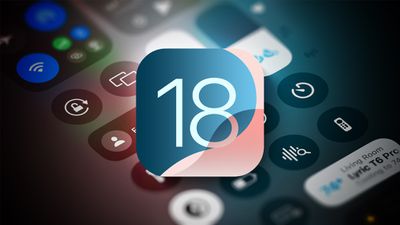
In iOS 17, you could choose some of the controls that were available in Control Center, but in iOS 18, customization has advanced significantly. Now you can rearrange Control Center quick access buttons into a layout that works best for you.
The Control Center uses a customizable grid layout reminiscent of the Home Screen. This grid contains 32 circular spots arranged in 8 rows and 4 columns. You have the flexibility to add controls to any of these spots, or you can leave some empty for spacing if you prefer.
In short, the Control Center is entirely customizable. Every control can be moved to different positions, added multiple times, removed if unwanted, and rearranged to suit your needs. The layout is completely up to you.
How to Move Controls
The following steps explain how to move controls.
- Swipe down from the top-right corner of your iPhone or iPad screen to open Control Center.
- Long press on an empty space until the grid shows up, or tap the "+" button at the top-left of the screen.
- Use your finger to grab an icon and move it where you want it.
- Tap the top or the bottom of the display to exit the grid mode.
How to Resize Controls
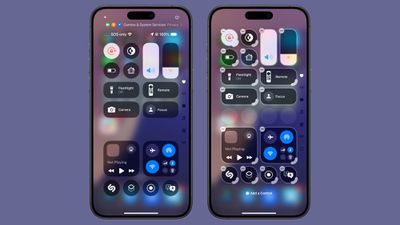
You can resize most Control Center buttons so that the ones you use the most are bigger and easier to tap. Single buttons like the Flashlight and Orientation Lock can be up to four grid circles in size.
You can expand these to a horizontal two-grid circle, which displays the control's name, and a four-grid circle arranged in a larger square shape.
Most controls are amenable to these sizes, but there are exceptions. Vertical slider controls like volume and brightness cannot be resized. Likewise, connectivity controls that are collated into a single expandable frame either take up a four-grid circle, or the whole screen.
Controls like those for Now Playing, smart home accessories, and scenes have more variable sizing options that can include taking up the entire screen.
- Long press an open space in the Control Center or tap the "+" button.
- Grab the bottom right corner of an icon with the curved hook, indicating that it can be resized.
- Drag and pull outward to make a control bigger, or drag up and over to make it smaller. There will be minimum and maximum sizes that vary for different controls.
- Tap the top or bottom of the display to exit the editing menu.
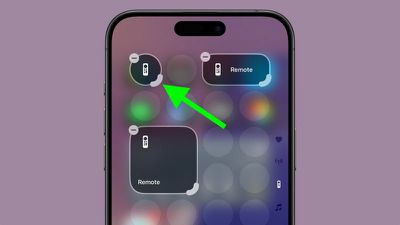
How to Remove Controls
To delete any Control Center control, simply follow the steps above to enter edit mode and tap the "-" button next to a control.
In iOS 18 and iPadOS 18, the Control Center also includes a new Controls Gallery and even allows you to set up multiple screens for your controls. Click the links for all the information on these features found in our dedicated how-to series.