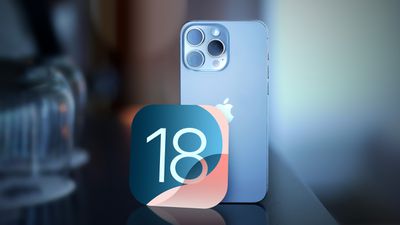
In iOS 17, Apple doesn't offer a system-level method for individually locking sensitive apps like Photos behind Face ID. There is a Shortcut action that provides rudimentary protection, but it's not infallible. Thankfully, iOS 18 includes a dedicated option to lock and even hide individual apps even when the iPhone itself is already unlocked.
This is useful because it means you can unlock your iPhone and hand it to someone for them to look at something, knowing they won't be able to open the apps you have locked. If someone using your iPhone tries to open an app that you have manually locked using the method described below, they will see a popup informing them that it can't be accessed without secondary authentication via Face ID (or Touch ID on the iPhone SE).
Notably, if Stolen Device Protection is active, entering a passcode to unlock an app is not an option, so even if your iPhone is stolen and the thief knows your passcode, they still won't be able to open the app. However, if Stolen Device Protection is not enabled, a passcode prompt appears that can be used to unlock the app after three failed Face ID attempts.
It's worth noting that not all apps can be locked. Apple does not provide the lock option for apps like Maps, Clock, Calculator, and Settings. Otherwise, almost every other app can be locked, including third-party apps. Here's how it's done.
- On your Home Screen, press and hold on the icon for the app that you want to lock.
- Tap Require Face ID (or Touch ID).
- Tap Require Face ID (or Touch ID) to confirm.
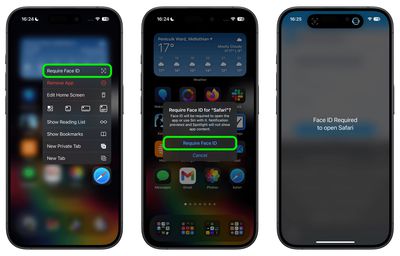
Note that you can't use Siri with a locked app, and Spotlight search and any notification previews will not show content from the app.
How to Lock and Hide Apps
When you lock a third-party app using the above method, you have the option to hide it as well – but you cannot hide system apps like Safari or Photos. When enabled, the app icon and name is removed from the Home Screen, and it will not show up in searches, although it may still appear in the Settings app.
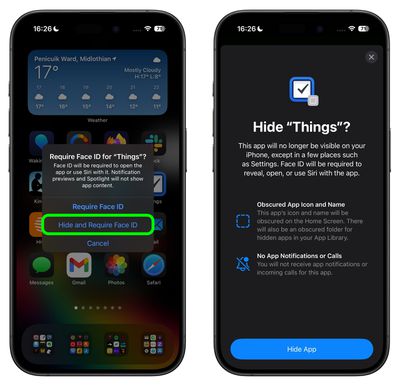
An obscured folder for hidden apps is also created in your App Library, which is accessed by swiping left to the end of your Home Screen pages. However, you will not get app notifications or incoming calls from a hidden third-party app.
How to Unlock and Unhide Apps
To unlock an app that you previously locked, simply long press on the app's icon and choose the "Don't Require Face ID" option. As long as you have Stolen Device Protection enabled, turning the lock on and off requires a Face ID scan, so it can't be turned off without your knowledge.
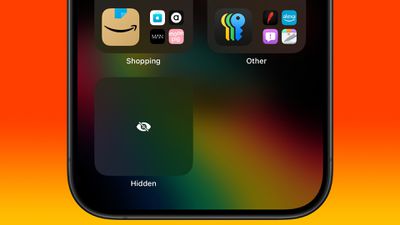
To unhide a locked third-party app, swipe through to the App Library and tap the obscured Hidden folder at the bottom. You will be required to perform a Face ID scan to reveal its contents. After that, you can access any hidden apps contained within it.