How to Use Instant Markup to Quickly Edit Screenshots - MacRumorsOpen MenuShow RoundupsShow Forums menuVisit ForumsOpen Sidebar
Skip to Content

How to Use Instant Markup to Quickly Edit Screenshots

by

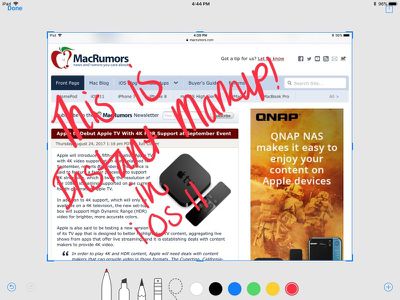
When you take a screenshot in iOS 11 or later, there's a new feature that's designed to let you open it right up and edit it with Apple's Markup tools.

Using the screenshot editing feature, you can capture what's on the screen of your iPad or iPhone and then add text, crop, highlight specific areas, and more.

Using Instant Markup

  1. Press the Home button and the sleep/wake button simultaneously to capture a screenshot.
  2. A preview of the screenshot will pop up in the lower left of the display. Tap it to open up the Instant Markup interface. You'll have about five seconds before it disappears.ipadscreenshoteditingios11
  3. Use a finger to adjust the blue outline if you want to crop your image.
  4. Choose a pen/marker/pencil and a color and then draw with a finger or the Apple Pencil (on iPad Pro) to edit your screenshot. instantmarkupinterface

If you take multiple screenshots at once, they'll all be displayed in Instant Markup and you can swipe between them.

There are all kinds of tools in Instant Markup, including a pen, pencil, highlighter, eraser, drop shadow tool, crop, multiple pen colors, and undo/redo.

instantmarkupinterfaceios11
To access even more tools, tap on the "+" button. This gives you access to a text entry field, a signature tool to add a signature to a screenshot, a magnifier tool, and various shapes.

Saving, Sharing, or Deleting an Edited Screenshot

When you're done editing your screenshot, you can save it to photos, delete it, or share it.

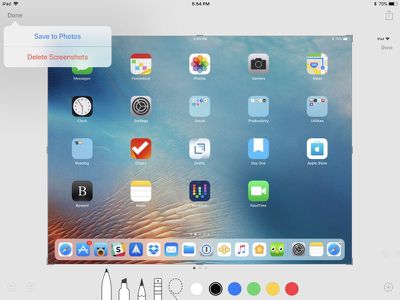
  1. To save a photo or delete it, tap the "Done" button in the upper left of the iPad's display and then choose the appropriate option.instantmarkupios11savetophotos
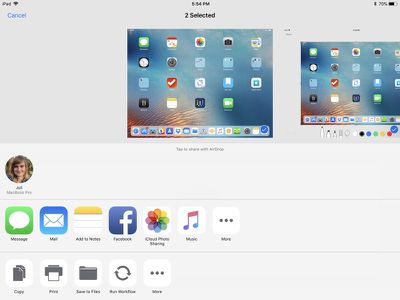
  2. To share, tap on the Share Sheet icon at the upper right of the display, which will pop up icons to share the screenshot in an iMessage, email, or social network. instantmarkupscreenshotshareios11
  3. The Share Sheet also includes options to save the screenshot to the Files app, add it to the Photos app, and more.

Instant Markup is a feature that's present on the iPhone and the iPad in iOS 11. There is no way to turn it off at the current time, so if you dislike those little screenshot popups, the only option is to wait the few seconds for them to disappear or swipe them away to the left of the display.

Related Forums: iOS 11, iPad Accessories

Top Rated Comments

Xavier Avatar
119 months ago
Such a useful feature!
Score: 4 Votes (Like | Disagree)
cecil444 Avatar
119 months ago
The markup feature existed before, you just had to dig a little to use it. Now it's super easy.

One odd note: the screenshot preview feature turned off for me somehow and I can't get it to reappear. I've been testing iOS 11 on a 6S (it's been a crazy battery hog... like horrendous, for the last couple days... hoping it gets better or a fix is issued soon). The first screenshot I took showed the preview and I was able to view and markup the image as described. But every screenshot since has (1) failed to show me the preview of the screenshot -- it just drops it in my photos as with iOS 10; and (2) failed to "blink" the screen indicating that a screenshot was successfully taken. With the sound on I do hear the camera shutter sound, but the screen no longer "blinks" as it always used to. Anyone else experiencing this same issue?
Score: 3 Votes (Like | Disagree)
wolfshades Avatar
119 months ago
Does this only work with screenshots? Or can you use those tools on your saved photos?
Yes they are. Go into Photos, Edit, click on the ellipses (the "more" button) and then hit Markup, and you should be good to go.
Score: 2 Votes (Like | Disagree)
Carlos Adell Avatar
80 months ago

Try a reboot on ipad.
Yes did that too, still not working. Thanks for helping bro!
Score: 1 Votes (Like | Disagree)
macguruireland Avatar
119 months ago
When you take a screenshot in iOS 11, there's a new feature that's designed to let you open it right up and edit it with Apple's Markup tools.

Using the screenshot editing feature, you can capture what's on the screen of your iPad or iPhone and then add text, crop, highlight specific areas, and more.

Using Instant Markup

[LIST=1]
* Press the Home button and the sleep/wake button simultaneously to capture a screenshot.

* A preview of the screenshot will pop up in the lower left of the display. Tap it to open up the Instant Markup interface. You'll have about five seconds before it disappears.

instant markup edit screenshots ios 11 image


* Use a finger to adjust the blue outline if you want to crop your image.

* Choose a pen/marker/pencil and a color and then draw with a finger or the Apple Pencil (on iPad Pro) to edit your screenshot.
instant markup edit screenshots ios 11 image

If you take multiple screenshots at once, they'll all be displayed in Instant Markup and you can swipe between them.

There are all kinds of tools in Instant Markup, including a pen, pencil, highlighter, eraser, drop shadow tool, crop, multiple pen colors, and undo/redo.
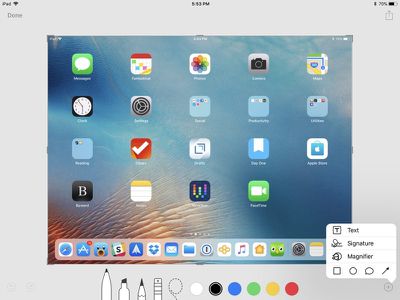
instant markup edit screenshots ios 11 image

To access even more tools, tap on the "+" button. This gives you access to a text entry field, a signature tool to add a signature to a screenshot, a magnifier tool, and various shapes.

Saving, Sharing, or Deleting an Edited Screenshot

When you're done editing your screenshot, you can save it to photos, delete it, or share it.
[LIST=1]
* To save a photo or delete it, tap the "Done" button in the upper left of the iPad's display and then choose the appropriate option.
instant markup edit screenshots ios 11 image


* To share, tap on the Share Sheet icon at the upper right of the display, which will pop up icons to share the screenshot in an iMessage, email, or social network.
instant markup edit screenshots ios 11 image


* The Share Sheet also includes options to save the screenshot to the Files app, add it to the Photos app, and more.
Instant Markup is a feature that's present on the iPhone and the iPad in iOS 11. There is no way to turn it off at the current time, so if you dislike those little screenshot popups, the only option is to wait the few seconds for them to disappear or swipe them away to the left of the display.


Article Link: How to Use Instant Markup to Quickly Edit Screenshots in iOS 11 ('https://www.macrumors.com/how-to/instant-markup-edit-screenshots-ios-11/')
[doublepost=1506036921][/doublepost]Has anybody found the way to increase the thickness of the pen tool?
Score: 1 Votes (Like | Disagree)
I7guy Avatar
119 months ago
I like these “how to’s”. Keep em coming.

Score: 1 Votes (Like | Disagree)

Popular Stories

iPhone Duo Apple Pencil Useful Thumb

Using an Apple Pencil With the iPhone Duo: What to Know

Friday October 23, 2026 1:49 pm PDT by
The iPhone Duo is compatible with the Apple Pencil, if you have the right one. MacRumors videographer Dan Barbera tested the Apple Pencil with the iPhone Duo to see if it's a useful tool to pick up. If you already have an Apple Pencil 1, Apple Pencil 2, or Apple Pencil Pro to use with an iPad, you're going to be disappointed to hear they won't work with the iPhone Duo. The iPhone Duo only...
iPhone Duo Apple Pencil

iPhone Duo Supports Apple Pencil Starting With iOS 27.2

Wednesday October 21, 2026 8:19 am PDT by
As noted by Creative Strategies analyst Max Weinbach, the iPhone Duo is gaining Apple Pencil support with iOS 27.2, which is expected to be released to the public next week. You can use the USB-C version of the Apple Pencil to draw, annotate, and scroll within supported apps on the iPhone Duo's inner and outer displays. In a post on X, Weinbach confirmed that Apple Pencil support was enabled...
iPhone Duo Display Cracking

Apple Alerts Stores to iPhone Duo's Display Cracking Issue

Friday October 30, 2026 3:20 pm PDT by
In a memo shared with Apple Stores and Apple Authorized Service Providers this week, and later obtained by MacRumors, Apple provided technicians with guidance on how to diagnose and address the iPhone Duo's inner display cracking issue. If a customer reports the issue, Apple advised technicians to inspect the iPhone Duo and repair or replace it in accordance with their standard procedures....
Latest Stories
Apple Offers Steps to Fix Daylight Saving Time Bug on Apple Watch
1 hour ago
Apple Watch Ultra 4 Hits All-Time Low Price With Amazon's $99 Discount
20 hours ago
Reminder: Apple's Big Discount on Beats 360 Ear Cushions Ends Today
20 hours ago
Here's a New Tour of Apple's HomeView Software
20 hours ago
Apple Reveals New iPad Mini's Battery Capacity
21 hours ago
Top Stories: Apple's Big MacBook Pro, iPad mini and iMac Updates
23 hours ago
'Pluribus' Season 2 Reportedly Starts Production Today
1 day ago
iPhone 18 Pro Sales Surge in China, Offsetting Decline in U.S. and Japan
1 day ago
HomeView Software 27.2: Wallpapers, Control Center, and More
2 days ago
Apple Alerts Stores to iPhone Duo's Display Cracking Issue
2 days ago
iOS 27.3 Will Enable These Apple Intelligence Features in China
2 days ago
Apple Says iOS 27.3 Beta Coming Next Week
2 days ago
Apple's Flash Storage Suppliers Are Finally 'Getting Their Revenge'
2 days ago
14 New Things Your iPhone Can Do in iOS 27.2
2 days ago
iPhone Duo Review: One Week Later
2 days ago
Samsung Mocks iPhone Duo Display Cracks in New Ad Campaign
2 days ago
The MacRumors Show: OLED MacBook Pro, iPad Mini 8, and More
2 days ago
MacBook Pro With Touch Display: 15 More Details Revealed
2 days ago
Russia Places Apple on State Surveillance Registry
2 days ago
Halloween Weekend Brings Discounts on Apple Accessories and Pre-Orders
2 days ago
Apple Has Released More Than 25 New Products in the Past Two Months
2 days ago
Local Code Launches as Free, Private AI Assistant Tool for Mac
2 days ago
Apple Acquires Ascend.io
2 days ago
HomePod Mini 2 Launches Today: All the New Features
2 days ago
AirTag 2 4-Pack Drops to New Low Price of $69.99
2 days ago
Rian Johnson's iPhone Camera App Goes Viral
2 days ago
Where Did All the iPhone Duos Go? Mostly to Apple's Stores
2 days ago
Apple's Touchscreen MacBook Pro Could Ship 1.5M Units in 2027
2 days ago
New Apple TV 4K and iPad Mini: RAM Amounts Revealed
2 days ago
Apple Executive Comments on New iPad Mini Lacking 120Hz Display
3 days ago

🔗 Related Apple News & Rumors

Stay updated with the latest Apple ecosystem news and verified rumors