

Apple's 16-inch MacBook Pro with the M1 Max chip was the first Apple silicon laptop to feature a High Power Mode for intensive, sustained workloads, and now both the 14-inch and 16-inch models with M3 Max support the feature. This article explains what it does and how to enable it.
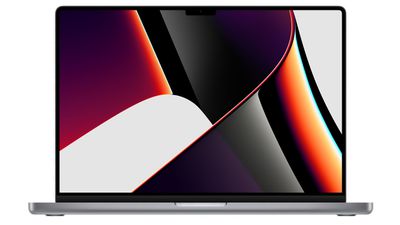
Both of Apple's latest 14-inch and 16-inch MacBook Pro models with M3 Max chip include a High Power Mode that is designed to optimize performance to better support resource-intensive tasks, such as color grading 8K ProRes video, according to Apple.
The mode is available in macOS Monterey and later, and is meant to be enabled when users are rendering larger files or doing graphically intensive tasks that require an added performance boost. In other words, it's not likely to be beneficial in typical work cases like web browsing or productivity. Whether it boosts performance in games remains an open question at this point.
When enabled, High Power Mode will de-prioritize resource-hungry system processes in order to leverage the full performance capability of the M1 Max, M2 Max, or M3 Max processor. The setting is basically the opposite of "Low Power Mode," which aims to decrease system performance in favor of prolonging battery life.
The following steps show you how to enable High Power Mode. Bear in mind that High Power Mode is only available on both 14-inch and 16-inch MacBook Pro laptops with the M3 Max chip. MacBook Pro models with M1 Pro/M2 Pro/M3 Pro chips do not support the feature, while out of the earlier M1 Max/M2 Max models, only the 16-inch MacBook Pro laptop supports High Power Mode.
High Power Mode in macOS Ventura and Later
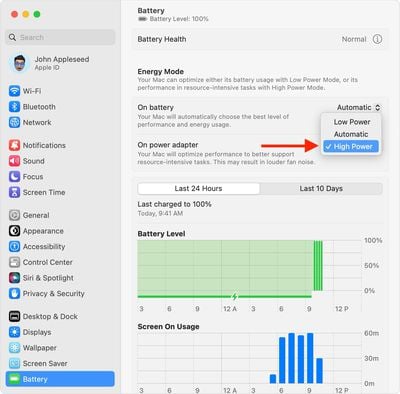
- In macOS, click the Apple () symbol in the menu bar and select System Settings....
- Click Battery.
- Choose High Power Mode from the "On battery" or the "On power adapter" pop-up menu under Energy Mode.
High Power Mode in macOS Monterey
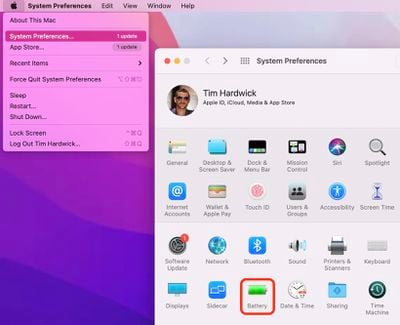
- In macOS Monterey and later, click the Apple () symbol in the menu bar and select System Preferences....
- Click the Battery icon in the preferences panel.

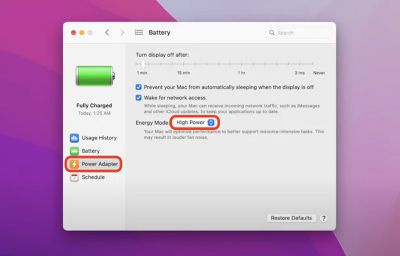
- Select Power Adapter from the sidebar.
- Where it says "Energy Mode" click the selection box and choose High Power.
That's all there is to it. Note that High Power Mode may result in louder fan noise for as long as it's turned on. The bottom of the MacBook Pro may also become noticeably hotter to the touch, but rest assured that while the feature can cause the M1 Max chip to run hotter, the mode also ramps up fan speeds to accommodate this.






















Top Rated Comments