How to Erase Your Old iPhone or iPad Before Selling It or Trading It In - MacRumorsOpen MenuShow RoundupsShow Forums menuVisit ForumsOpen Sidebar
Skip to Content

How to Erase Your Old iPhone or iPad Before Selling It or Trading It In

by

If you got a new iPhone or iPad for Christmas, you may have an old one that you're ready to sell or trade in to get a bit of extra cash. You'll want to make sure to adequately erase everything on it to get it ready for its next owner.

There are only a few steps to follow so it take you just a few minutes to clean up an old iOS device. Here's what to do:

Unpair Your Apple Watch

If you're selling your iPhone and have an Apple Watch linked to it, you're going to want to unpair it first.

  1. Make sure your iPhone and Apple Watch are close to each other.
  2. Open up the Apple Watch app on the iPhone.
  3. Choose the "My Watch" tab.
  4. Select the Apple Watch you want to unpair and tap the "i" button.
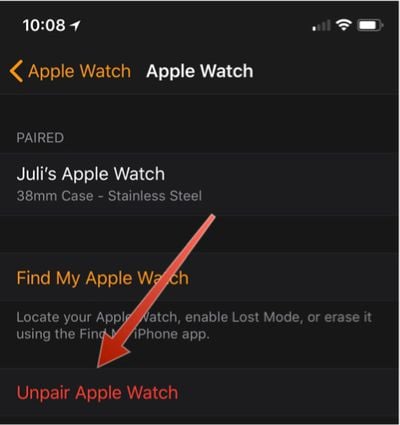
  5. Tap "Unpair Apple Watch." unpairapplewatch
  6. Tap a second time to confirm.
  7. You'll need to enter your Apple ID password to turn off Activation Lock.

Turn Off Find My iPhone

Most trade-in sites won't accept your old iPhone or iPad if Find My iPhone isn't disabled, and if you sell an iOS device with the feature still turned on, the new owner won't be able to use it, creating a huge hassle for both of you.

Find My iPhone needs to be turned off because it's tied to Activation Lock. A phone that's linked to your iCloud account through Find My iPhone can't be used by anyone who doesn't have your Apple ID and password.

  1. Open the Settings app.
  2. Tap on your name to open your account settings.
  3. Tap "iCloud."
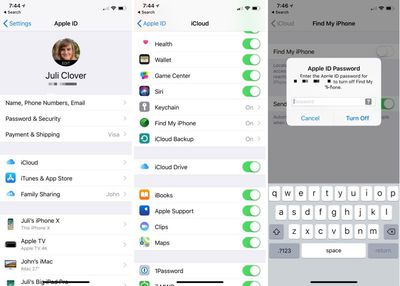
  4. Scroll down to "Find My iPhone." findmyiphoneoff
  5. Tap it.
  6. Tap the toggle to turn it off.

To turn off Find My iPhone, you'll need to enter your Apple ID password as an extra security measure, which is designed to keep someone who has your unlocked iPhone from turning the feature off.

After Find My iPhone is off, it's time to erase everything on your iPhone. Before you do this, make sure you have an iCloud backup and that there's nothing stored on your device that you're going to miss.

  1. Open the Settings app.
  2. Choose "General."
  3. Scroll down to the bottom of the menu.
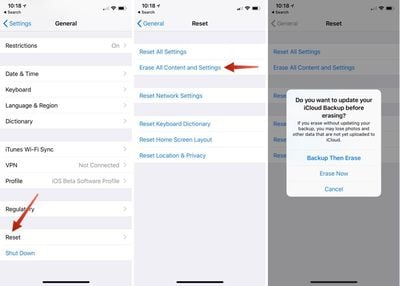
  4. Select "Reset."eraseiphonepart1
  5. Choose "Erase all Content and Settings."
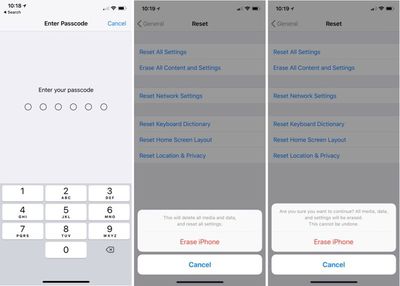
  6. You'll need to enter your device passcode if you have one set.
  7. Tap Erase iPhone, then tap it again to confirm. eraseiphonepart2
  8. If you didn't already turn off Find My iPhone, it will be turned off at this juncture and your device will be removed from your iCloud account.
Your iPhone will switch over to an Apple loading screen as the erasing process starts. It will take a few minutes for the device to be fully erased, but once it's done and boots up again, your old iPhone or iPad is clean, unassociated with your Apple ID, and ready to be sold.


Top Rated Comments

jonnysods Avatar
112 months ago
I would login to your Apple ID and make sure to remove the device as sometimes they stay in your My Devices list.
Score: 8 Votes (Like | Disagree)
112 months ago
The “Turning off Find My iPhone” step is not necessary if you’re erasing the phone completely - which you should do anyway - because it will log you out from all your iCloud/iTunes accounts when you erase (it will ask you to enter your AppleID).
Score: 4 Votes (Like | Disagree)
Will.O.Bie Avatar
112 months ago
Thank you for these helpful tips.
Score: 3 Votes (Like | Disagree)
Quu Avatar
112 months ago
What we really need is this article for Android. As lots of users will be changing to iPhone and coming here for the first time etc

Score: 2 Votes (Like | Disagree)
112 months ago
So, this article is not needed!?
For those who aren't sure or new to it all, like instructions for many things out there.

Score: 1 Votes (Like | Disagree)
112 months ago
I would login to your Apple ID and make sure to remove the device as sometimes they stay in your My Devices list.
This.. Sold my series 0 recently on craigslist only to be contacted by the panicked buyer. All worked fine after I removed it from my iCloud account.
Score: 1 Votes (Like | Disagree)

Popular Stories

Apple Event Logo

Apple Working on All-New Operating System

Wednesday July 29, 2026 11:39 am PDT by
Apple is developing an all-new operating system that is essentially a mix of tvOS, watchOS, and iOS, according to Bloomberg's Mark Gurman. In a report this week, he said the operating system will feature a grid of icons, widgets, and apps, along with customizable clock faces. The new software platform is intended for Apple's long-rumored smart home hub. With built-in facial recognition,...
imac video apple feature

Apple Made Its Second-Biggest Acquisition Ever This Year

Wednesday July 29, 2026 12:03 pm PDT by
Apple this year acquired Israeli startup Q.ai for close to $2 billion, according to the Financial Times. That would make this Apple's second-biggest acquisition ever, after it paid $3 billion for the popular headphone maker Beats in 2014. This is also the largest known Apple acquisition since the company purchased Intel's smartphone modem business and patents for $1 billion in 2019. Q.ai...
Dynamic Island iPhone 18 Pro Feature

iPhone 18 Pro: Twelve Changes Coming to Apple's Next Flagship

Thursday July 30, 2026 3:43 am PDT by
We're less than two months out from the launch of Apple's premium next-generation smartphone lineup, and while we're not expecting a dramatic change in terms of functionality, there are still several enhancements rumored to be coming to the iPhone 18 Pro and iPhone 18 Pro Max. One thing worth noting is that Apple is reportedly planning a major change to its iPhone release cycle this year,...

🔗 Related Apple News & Rumors

Stay updated with the latest Apple ecosystem news and verified rumors