How to Enable iOS 12's New Do Not Disturb at Bedtime Feature - MacRumorsOpen MenuShow RoundupsShow Forums menuVisit ForumsOpen Sidebar
Skip to Content

How to Enable iOS 12's New Do Not Disturb at Bedtime Feature

by

There's nothing worse than waking up in the middle of the night, glancing over at your iPhone to check the time, and seeing a bunch of notifications that demand your attention and distract you from getting back to sleep.

Apple is aiming to prevent this in iOS 12 with a new Do Not Disturb at bedtime feature that prevents notifications from being displayed on the iPhone's Lock Screen during your downtime, removing the temptation to start opening up apps in the middle of the night.

Enabling Bedtime Mode
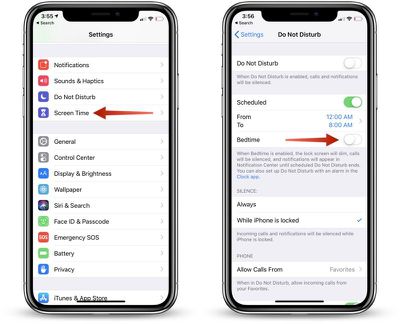
turningonbedtimemode

  1. Open up the Settings app.
  2. Scroll to the "Do Not Disturb" section and tap on it.
  3. In the Do Not Disturb section, tap on "Scheduled" to toggle it on.
  4. Select your Do Not Disturb time period, which, for most people, should be from when you go to bed until when you typically wake up.
  5. Tap on Bedtime Mode to toggle it on.

With Bedtime Mode enabled, when you activate the display on your device, the entire screen is dimmed and black, offering up only the time, the current device charge, and a notice that Bedtime Mode is turned on.
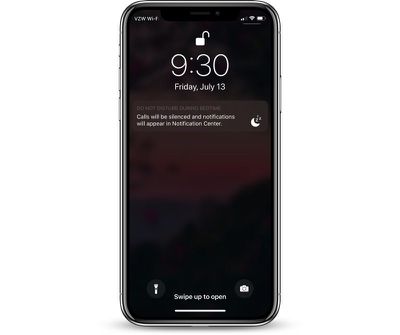
iphonebedtimeon
In this mode, all incoming calls are silenced as are all incoming notification messages. Your notifications are still listed in the Notification Center, accessible by swiping down from the top of the display, but you won't see them on the Lock Screen.

Bedtime Mode vs. Do Not Disturb

With Do Not Disturb turned on without Bedtime Mode, all of your incoming calls and notifications are still silenced, but the notification messages themselves will all be visible right on the Lock Screen.

Enabling Calls From Certain People

If you want family members to be able to contact you even with Do Not Disturb and Bedtime Mode turned on in case of emergency, there's a setting for that.
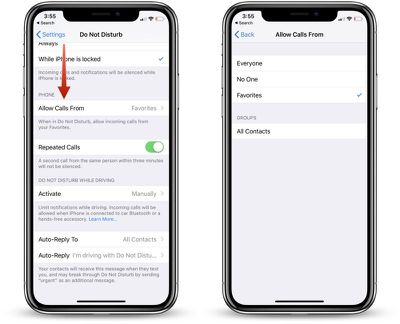
adjustingbedtimesettings

  1. Open the Settings app.
  2. Tap "Do Not Disturb."
  3. Scroll down to the Phone section where it says "Allow Calls From."
  4. Select Everyone, No One, or "Favorites," which can be set up in the Contacts app.

You can also toggle on "Repeated Calls" in the same section of the Settings app so a second call from the same person within three minutes won't be silenced. This is an ideal way to screen out unwanted calls while still allowing for potential emergencies as most people will try again if you're unreachable in a crisis.

Waking Up

When it's time to wake up, and when Bedtime Mode is scheduled to go off, your iPhone or iPad will display a "Good morning!" message and it will let you tap to reveal all of the notifications that were silenced during the night.
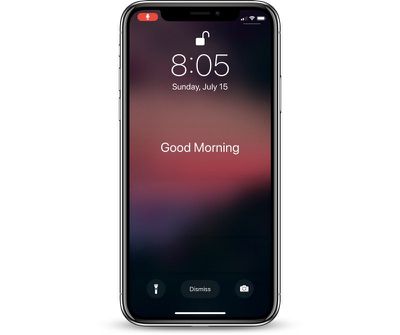
iphonebedtimeoff

Turning Off Bedtime Mode

If Bedtime Mode isn't for you, you can turn it off in the Settings app where it was enabled.

  1. Open the Settings app.
  2. Tap on "Do Not Disturb."
  3. If you want to turn off your scheduled Do Not Disturb session entirely, toggle off "Scheduled."
  4. If you want to leave Do Not Disturb on but disable Bedtime Mode, tap the Bedtime Mode toggle to turn it off.

Note: To quickly access Do Not Disturb settings, swipe to open up the Control Center and then 3D Touch or long press on the little moon icon.

This will provide you with options to enable Do Not Disturb for an hour, a few hours, until the end of an event, or until you leave a specific location, and it also offers up a "Schedule" option at the bottom that opens straight into the Do Not Disturb toggles in the Settings app.
Related Forum: iOS 12

Top Rated Comments

marvz Avatar
106 months ago
The first arrow is pointing at "Screen Time" and not at "Do Not Disturb" - kind of wrong. :p
Score: 5 Votes (Like | Disagree)
104 months ago
[doublepost=1532119285][/doublepost]
Ok...I got it to work the way that I want it to. I opened the clock app to the Bedtime feature. Then tapped options in the upper left corner. Then turned on the "Do Not Disturb During Bedtime" option. I'm not sure if that's new, or not.
I kind of feel like it's not. I can't remember why I didn't want to use that option, but, I forgot it existed. My habits have changed, and I want the DND schedule to mirror my Bedtime schedule. I also turned off the Scheduled option under DND in Settings. My bad...:confused:
This may be the most poorly implemented idea from apple in a while. Too many places to turn it off and on and to many options that are misleading. Why even have a bedtime toggle switch under the schedule if you still have to manually adjust the time to match the bedtime???? Make those options independent or don’t have the bedtime option on that screen at all.
Score: 2 Votes (Like | Disagree)
MacWanker Avatar
106 months ago
Can you use this without 'scheduled' being toggled, just by toggling 'bedtime' on when required?

If so, great. Not everyone has such a predictable schedule...
Score: 2 Votes (Like | Disagree)
TwoBytes Avatar
104 months ago
The article is wrong MacRumors. There are two DND modes. The bedtime is the second one so going back to your guide, you don’t have to set DND for hour sleep time. You do that in the clock app.
Score: 1 Votes (Like | Disagree)
106 months ago
[doublepost=1532119285][/doublepost]
You know, I thought that. But. I have mine set to DND for bedtime until 530am. Reason is where I work, we open at 6. I’d like to not be bothered until I need to wake up, but, if something comes up I don’t want to be that person who didn’t answer multiple phone calls.

But. Alarm is set for 7am.
Ok...I got it to work the way that I want it to. I opened the clock app to the Bedtime feature. Then tapped options in the upper left corner. Then turned on the "Do Not Disturb During Bedtime" option. I'm not sure if that's new, or not.
I kind of feel like it's not. I can't remember why I didn't want to use that option, but, I forgot it existed. My habits have changed, and I want the DND schedule to mirror my Bedtime schedule. I also turned off the Scheduled option under DND in Settings. My bad...:confused:
Score: 1 Votes (Like | Disagree)
106 months ago

There's nothing worse than waking up in the middle of the night, glancing over at your iPhone to check the time, and seeing a bunch of notifications that demand your attention and distract you from getting back to sleep.

Actually; there is: Being actively woken by your iPhone at 01:30am with a prompt to install the latest iOS release, because Apple have evidently reasoned that there's a better chance you'll (mistakenly) accept if you're not fully awake.

Score: 1 Votes (Like | Disagree)

Popular Stories

Apple Watch Ultra 2 Black Titanium

New Apple Watch Series 12 and Apple Watch Ultra 4 Features Revealed

Sunday August 30, 2026 7:54 am PDT by
Bloomberg's Mark Gurman today further outlined what to expect from the Apple Watch Series 12 and Apple Watch Ultra 4 set to be unveiled on September 9. While it was initially rumored that Touch ID may be coming to the Apple Watch this year, Gurman reiterated that he does not expect the Series 12 or Ultra 4 to have any major design changes compared to the current Series 11 and Ultra 3 models. ...
Mac mini vs Studio Feature Sans Text 1

Apple Caught Off Guard by AI Demand for Mac Mini and Mac Studio

Sunday August 30, 2026 8:52 am PDT by
Apple's unusually timed announcement of new Mac mini and Mac Studio models this week was driven by unexpectedly strong enterprise appetite for AI hardware, according to The Information. Apple normally releases new Mac models in the autumn, closer to October or November, making this week's announcement unusually early, falling just before the anticipated arrival of new iPhone models. The...
Apple Event Logo

Apple Unveiled Four New Products This Week

Wednesday August 26, 2026 5:54 pm PDT by
Apple on Tuesday unveiled a new Mac mini with M6 and M5 Pro chip options, a new Mac Studio with M5 Max and M5 Ultra chip options, a new version of the Polishing Cloth with a lower price, and updated Magic Keyboards for Macs. To learn more about these products, read our coverage below: Apple Announces New Mac Mini With M6 and M5 Pro Chips and More Apple Unveils New Mac Studio With M5 Max...

🔗 Related Apple News & Rumors

Stay updated with the latest Apple ecosystem news and verified rumors