Apple's HomeKit allows you to create home automations for your accessories so that you can have the lights automatically turn off when you leave, for example, or trigger a scene when you unlock the front door.
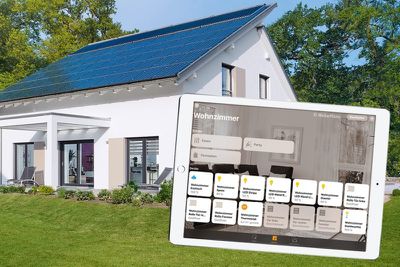
The Home app makes creating these automations simple and allows you to trigger them based on the time of day, your location, motion detection, and more.
Before you can create automations, you need to add HomeKit accessories to the Home app. You also need to designate a device as a home hub, which remains powered on and connected at your home when you're away. Click on one of the links below to learn how to set up an Apple device as a home hub.
- Set up HomePod as a HomeKit Home Hub
- Set up Apple TV as a HomeKit Home Hub
- Set up iPad as a HomeKit Home Hub
Create an Automation for an Accessory Action
- Launch the Home app on your iPhone or iPad.
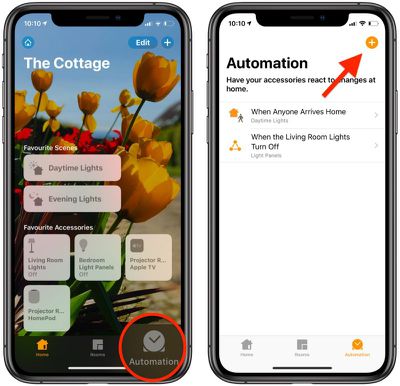
- Tap the Automation tab in the bottom right corner of the screen.

- Tap the plus (+) button in the top-right corner.
- Tap An Accessory is Controlled (or tap A Sensor Detects Something, if you have a motion device).
- Select the accessory that you want to start the automation.
- Tap Next.
- Choose the action that triggers the automation, such as if the device turns on or off. (On this screen, you can also choose a time of day when the automation is active, or base it on when someone is home or not.)
- Tap Next.
- Select the accessories and/or scenes that are activated in response to the action.
- Tap Next.
- Tap Done.
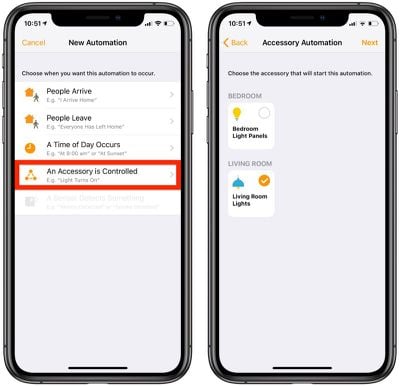
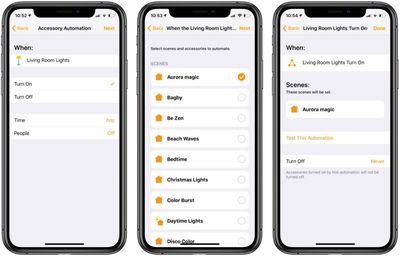
These kind of automations are useful if you want to do something like have all of your lights come on when your HomeKit-enabled camera or motion sensor detects motion.
Automations for People Arriving or Leaving
- Launch the Home app on your iPhone or iPad.
- Tap the Automation tab in the bottom right corner of the screen.
- Tap the plus (+) button in the top-right corner.
- Select whether you want the automation to occur when People Arrive or People Leave your home.
- Select when A Person Leaves or when Anyone Leaves. You can choose a specific person to start the automation by tapping the circled 'i' icon. You can also control the time and location of the automation from this screen.
- Tap Next.
- Select the accessories and/or scenes that are activated in response to arriving or leaving.
- Tap Next.
- Tap Done.
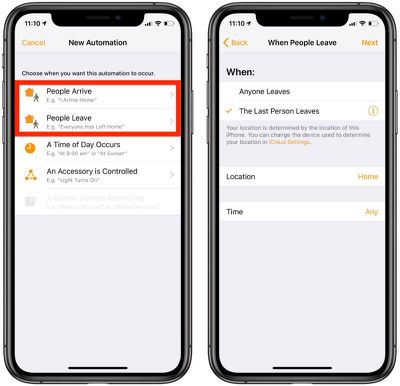
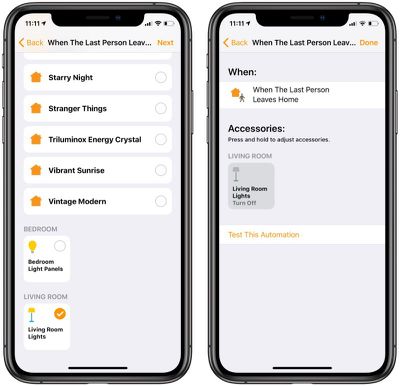
Automations that are based on when a person leaves or arrives at the home use location-based geofencing to enable the automations. When your iPhone detects that your location is at your house, it'll trigger the automation.
Automations Based on Time of Day
- Launch the Home app on your iPhone or iPad.
- Tap the Automation tab in the bottom right corner of the screen.
- Tap the plus (+) button in the top-right corner.
- Tap A Time of Day Occurs.
- Choose a time and day of the week from the onscreen options. You can also tap People to make the automation occur at specific times when someone is home.
- Tap Next.
- Select the scenes and accessories you want to automate.
- Tap Next.
- Tap Done.
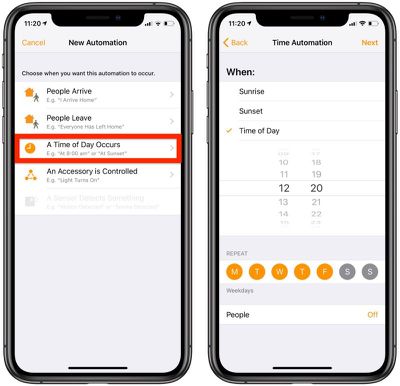
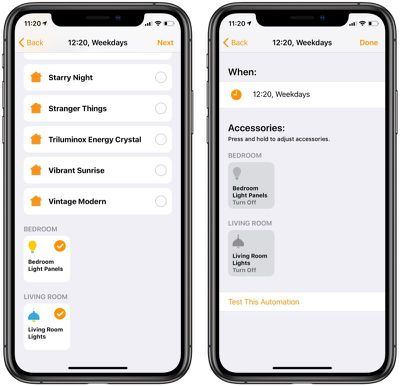
Time-based automations will do things like turn your lights on at a specific time. You can also use these to turn down the thermostat automatically at night and turn it up during the day, along with other similar actions.
How to Turn Off or Delete an Automation
Disabling an automation is easy – simply tap the Automation tab, select the automation, and then toggle the switch next to Enable This Automation.
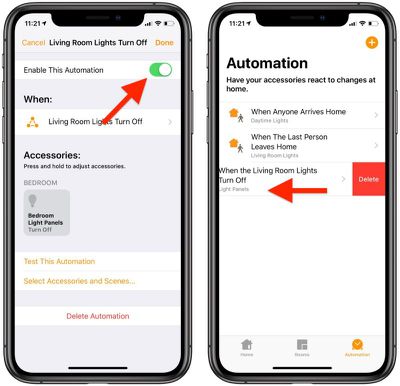
To delete an automation in the Automation tab, just slide your finger across it and tap on the Delete option.