How to Clean Install macOS Monterey Easily Using the New Erase Mac Option - MacRumorsOpen MenuShow RoundupsShow Forums menuVisit ForumsOpen Sidebar
Skip to Content

How to Clean Install macOS Monterey Easily Using the New Erase Mac Option

by

Apple today released macOS 12 Monterey, and whenever a new operating system is released for the Mac, some users prefer to perform a clean installation. This article explains how to perform what is effectively a clean install of Monterey using a brand new option that's available on Apple silicon-powered Macs and Intel Macs with a T2 security chip.
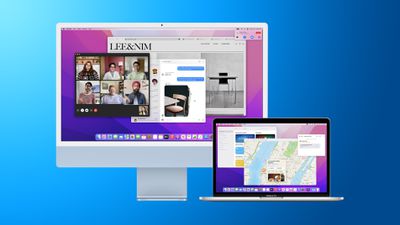
Monterey Mac as External Monitor Feature
Clean installing macOS is often done to remove annoying quirks and strange behaviors that a Mac may have inherited over time, and can also help to reclaim disk space caused by junk files left by third-party apps. However, even if neither of these issues have arisen for you, sometimes it's just nice to start afresh for that "brand new Mac" feeling and then migrate your apps, documents, and data, either manually, or by migrating from a Time Machine backup.

Clean installing previous versions of macOS usually involves creating a bootable copy of the macOS installer on a flash drive or USB stick and then reformatting your drive before installing the bootable copy on your Mac, or using macOS Recovery to reinstall the Mac operating system over an internet connection. In Monterey, however, a third option has come into play on newer Macs that offers a very simple and straightforward way to erase your Mac without needing to reinstall the operating system.

Following in the footsteps of the iPhone and iPad, Apple silicon Macs and Intel Macs with a T2 security chip (2017-2020 models) now have an "Erase All Content and Settings" option available in macOS Monterey. Because storage is always encrypted on Mac systems with Apple silicon or the T2 chip, the system is instantly and securely "erased" by destroying the encryption keys.
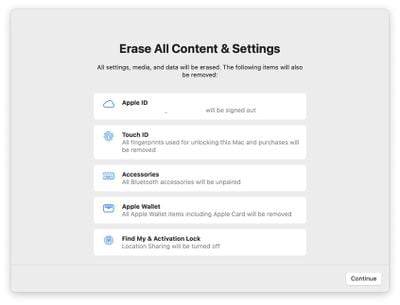
erase Mac
Not only does this effectively erase all user data and user-installed apps from your Mac without reinstalling macOS, it also signs out your Apple ID, removes your Touch ID fingerprints, purchases, and all Apple Wallet items, and turns off Find My and Activation Lock, making it far easier to restore your Mac to like-new factory settings.

This ability means you can simply download and install macOS Monterey over your current macOS version when prompted, and then select the new erase function in Monterey, which will erase your Mac and leave the core macOS system intact. After erasing the Mac, it will display the Setup Assistant and be ready to be set up like new. You can then migrate your data manually or by using the Setup Assistant's migration option. The following walkthrough breaks down the steps involved.

  1. Before you do anything else, back up your data using Time Machine or your preferred backup method.
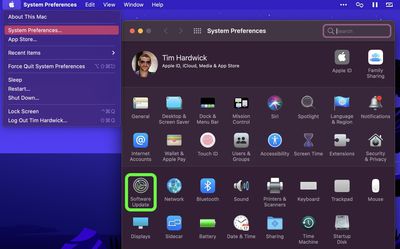
  2. In macOS, click the Apple () symbol in the menu bar and select System Preferences.
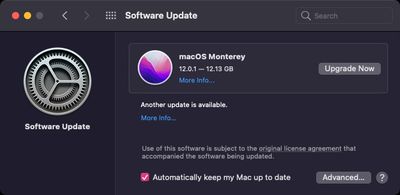
  3. Click Software Update in the preferences pane.
    macOS

  4. Allow Software Update to ping Apple's servers, then click Upgrade Now to download the Monterey installer when it appears. You can continue to use your Mac while the installer is being downloaded. Once the installer has downloaded, you'll receive a prompt. Click to install the new version of macOS and wait for the installation to complete.
    software update

  5. Once your Mac has restarted into Monterey, click the Apple () symbol in the menu bar and select System Preferences....
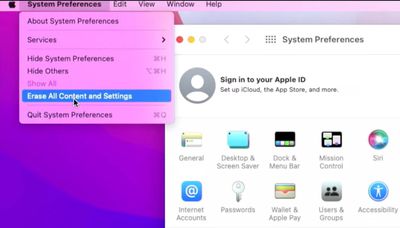
  6. When the preferences pane appears, select System Preferences -> Erase All Content and Settings from the menu bar.
    macOS

  7. Enter your admin password in the Erase Assistant dialog prompt and click OK.
  8. Note all the settings, data, media, and other items that will be removed. Click Continue if you're sure.
    erase Mac

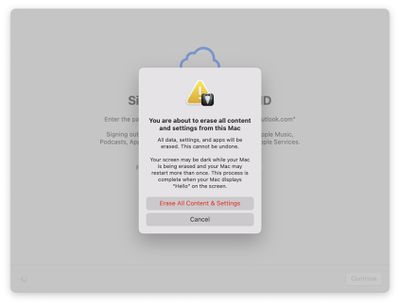
  9. Click to sign out of your ‌Apple ID‌, then click Erase All Content & Settings in the prompt to confirm.
    erase mac

  10. Allow the erase process to complete. Your Mac may restart more than once during the process, after which you may be prompted to activate your Mac over Wi-Fi.
  11. Once finished, you'll see the "hello" message on your Mac's screen, indicating the Setup Assistant is ready. Follow the onscreen instructions, and if desired, elect to migrate your data from a Time Machine backup when the option appears.
    hello Mac

That's all there is to it. Even if you're not clean installing Monterey today, the new option makes it far more convenient to restore your Mac to factory settings, whether you simply want to start afresh with your Mac in future or plan to sell or gift it to another person.
Related Forum: macOS Monterey

Top Rated Comments

kalsta Avatar
65 months ago

Clean installing macOS is often done to remove annoying quirks and strange behaviors that a Mac may have inherited over time, and can also help to reclaim disk space caused by junk files left by third-party apps. However, even if neither of these issues have arisen for you, sometimes it's just nice to start afresh for that "brand new Mac" feeling and then migrate your apps, documents, and data, either manually, or by migrating from a Time Machine backup.
Good luck with that. Migrating from a Time Machine backup will restore your Library folder, along with all those 'junk files' you just got rid of. A real clean install is not for the faint-hearted! I've done it several times over the years and should probably write a book about it. Possibly worth it if your Mac is behaving poorly. Definitely not worth it for 'that "brand new Mac" feeling'.
Score: 21 Votes (Like | Disagree)
65 months ago

This is not really a clean install, to be fair. You might end up in the same state, settings and user created files wise, but I’m not sure it’s an equivalent of formatting a partition and installing macOS on it from scratch.

Regardless, this is not Windows, so this should be more than enough.
Nope, this is a clean install. NOTHING related to the user is left on the drive. The reason this works is that starting with Catalina, Apple split the O/S volume from the Data volume. With Big Sur, Apple took one stop further and has cryptographically signed the O/S volume to prevent modification. In addition, during regular operation, the system volume is copied to a disk image and run from there. You are never running the system directly from the O/S volume.


Erasing the drive clears the encryption keys for the data volume, rendering it unusable. The system then recreates the data volume and activates the O/S.
Score: 12 Votes (Like | Disagree)
Kylo83 Avatar
65 months ago
I would rather fresh install, this will still keep main files that could be corrupted
Score: 8 Votes (Like | Disagree)
65 months ago
I do this with every Major OS update and seem to never get those “unique” quirky issues that others complain about… Bluetooth, display sleep/connection, audio, etc.
Score: 7 Votes (Like | Disagree)
kalsta Avatar
65 months ago

I was so excited reading the headline, but then my hopes were dashed since I have a 2015 iMac. I have some quirks that I'd like to try and get rid of by doing a clean install, so I guess it's the old-school method for me. If they release that iMac with M2 or M1 Pro/Max (and space gray please!), then I'll leave the old-school method behind!
Erasing macOS was never the hard bit. Sure, the real 'old-school method' of creating a bootable installer was a little bit of effort, but installing from macOS Recovery is a doddle. See How to reinstall macOS ('https://support.apple.com/en-au/HT204904'). The hard bit is restoring your Mac to the way you like it without copying over all the old Library files.
Score: 7 Votes (Like | Disagree)
Apple_Robert Avatar
65 months ago

I must be getting old. To me Clean Install is basically wiping the drive and reinstalling Mac OS for DISK, Another bootable external volume or Net Boot, Shift options command R. Am i right or just a ghost in the past. lol
I am used to old school as well. Monterey changed that for me and I am so glad I don't have to do the old school route any more.
Score: 3 Votes (Like | Disagree)

Popular Stories

Apple HomeView lineup feature1

Apple Announces 'HomeView' Smart Home Hub

Tuesday October 13, 2026 6:00 am PDT by
Apple today announced the "HomeView," an all-new kind of smart home hub featuring a 7-inch Liquid Retina display and Siri AI. Apple's senior vice president of Worldwide Marketing Greg Joswiak said: Apple HomeView is designed to be shared by everyone in the home yet feel completely personal to each user. It recognizes your face to shift from a household screen to your own experience,...
Apple TV 4K 4th Generation feature4

New Apple TV 4K Announced With A19 Chip, Updated Siri Remote, More

Tuesday October 13, 2026 6:08 am PDT by
Apple today announced the fourth-generation Apple TV 4K, with key features including an A19 chip, Siri AI support, an updated Siri Remote that has Find My support with Precision Finding, built in far-field microphones, support for surround sound with four HomePods in front and rear pairs, and more. The A19 chip in the new Apple TV 4K delivers up to 50% faster CPU performance and up to twice...
iOS 26 Home Feature

RIP, homeOS

Tuesday October 13, 2026 9:39 am PDT by
MacRumors was first to reveal the name "HomeView" last week, after discovering a trademark filing from a secretive shell company that we correctly suspected was linked to Apple. Apple was likely behind a "homeOS" trademark filing as well, but the company ultimately decided to stick with generic "HomeView software" naming, just like it refers to the HomePod's operating system as "HomePod...
Latest Stories
Oops, Apple's Website Just Hinted at iPad Mini 8
3 hours ago
OLED MacBook Pro Won't Get M7 Chips Until Late 2027
6 hours ago
Apple Pledged $25 Million to Trump's White House Ballroom
7 hours ago
Touchscreen MacBook Pro Could Launch on November 6
9 hours ago
New Withings Users Must Pay $99/Year for Apple Health Syncing
9 hours ago
Meta and Apple Bring Muse Spark Open AI Model to Mac Studio
10 hours ago
iPad Mini 8: Apple Has Tested Both 60Hz and 120Hz ProMotion Displays
10 hours ago
Apple TV 4K 2022 vs. 2026 Buyer's Guide: All Differences Compared
12 hours ago
Apple CEO John Ternus on Early Foldables: 'Kind of Cheap and Crappy'
13 hours ago
Greg Joswiak Says Apple Isn't Focused on Making AI for 'Lunatic Fringe'
13 hours ago
Amazon Offers $120 Discount on AirPods Max 2, $50 Off AirPods Pro 3
14 hours ago
Apple CEO John Ternus Featured on Cover of TIME Magazine: 'New Era'
14 hours ago
Apple Announces Deadline to 'Get Ready' to Pre-Order the iPhone Duo
15 hours ago
MKBHD is 'Not Convinced' About Apple's New HomeView, Here's Why
15 hours ago
Apple's Wall-Mounted HomeView Ships Without a Power Adapter
16 hours ago
Rare Apple-1 With Steve Jobs Letter Sells for $1.15 Million
16 hours ago
Apple Now Inviting Media to October 28 'Launch Experience'
17 hours ago
iPhone Duo's A20 Pro Chip Benchmarked Ahead of Launch
1 day ago
10 HomeView Features You Might Have Missed
1 day ago
Apple Becomes Second Company to Close Above $5 Trillion
1 day ago
Which Apple Home Devices Get Siri AI, and When
1 day ago
Apple's Long-Delayed HomeView Was Already Being Tested in 2024
1 day ago
Apple Intelligence Coming to China in December With iOS 27.3
1 day ago
Apple Invites App Updated With Two New Features
1 day ago
OpenAI Says Ex-Employee Showed Its Device Plans to Apple
1 day ago
Discover the Best Cases and Screen Protectors for Your New iPhone Duo
1 day ago
Apple Store Near Los Angeles Closed Due to 'Events Beyond Our Control'
1 day ago
No, HomePod Mini 1 Won't Support Siri AI as CNET Reported
1 day ago
iPhone Duo Compromises: Everything You Have to Give Up
2 days ago
Apple HomeView Has These 15 Apps, Some CarPlay Apps and Widgets Also Supported
2 days ago

🔗 Related Apple News & Rumors

Stay updated with the latest Apple ecosystem news and verified rumors