How to Perform a Clean Installation of macOS 10.14 Mojave - MacRumorsOpen MenuShow RoundupsShow Forums menuVisit ForumsOpen Sidebar
Skip to Content

How to Perform a Clean Installation of macOS 10.14 Mojave

by

This article guides you through the process of performing a clean installation of macOS 10.14 Mojave using the bootable USB drive method, rather than upgrading your Mac using Apple's standard installation package, which retains existing user data and any user-installed apps.
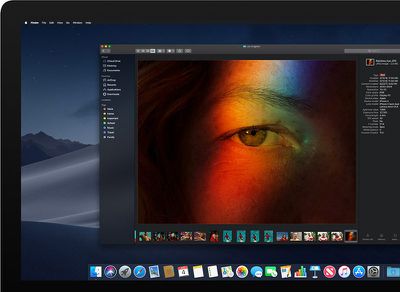
macosmojavedarkmode
Creating a bootable USB drive provides you with a convenient way to install a fresh copy of macOS Mojave on multiple Macs. Performing a clean install can also remove annoying quirks and strange behaviors that your Mac may have inherited over time, and often helps to reclaim disk space caused by junk files left by third-party apps.

The following procedure works with the latest public beta of macOS Mojave, which you can download by enrolling in the Apple Beta Software Program. It will also work with the final version of Mojave, once it's released in the fall. To follow the steps, you'll need an empty 8GB or larger USB thumb drive (USB-C or USB-A, depending on your Mac) and an hour or two of downtime while the installation procedure completes.

Also, be sure to perform a full backup of your Mac beforehand using Time Machine, so that you can restore your original system from the Recovery partition if something goes wrong.

Compatibility Check

macOS Mojave is a major update that introduces a range of new features like a Dark Mode, Desktop and Finder improvements, new apps, and a revamped Mac App Store, but not every Mac that can run macOS High Sierra will run macOS Mojave. The full list of compatible Mac models is as follows:

  • MacBook (Early 2015 or newer)
  • MacBook Air (Mid 2012 or newer)
  • MacBook Pro (Mid 2012 or newer)
  • Mac mini (Late 2012 or newer)
  • iMac (Late 2012 or newer)
  • iMac Pro (2017)
  • Mac Pro (Late 2013, plus mid 2010 and mid 2012 models with recommended Metal-capable GPU)

To check if your Mac is compatible, open the Apple () menu in the upper left corner of your Mac's screen and select About This Mac. Look just below the OS X version number in the Overview tab – if the Mac model name is the same or a later model year than the one shown in the compatibility list above, your Mac is compatible with macOS Mojave.

How to Perform a Clean Install of macOS Mojave

  1. Download macOS Mojave, either via Apple's Public Beta Program or from the Mac App Store (once it's available).
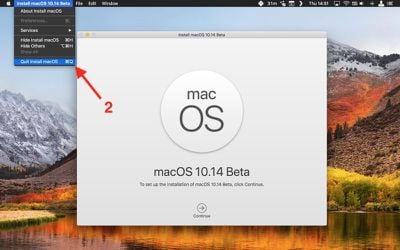
  2. Once the download is complete, close the installer window by selecting the Quit Install macOS option in the menu bar or using the keyboard shortcut Command (⌘) + Q.
    mojave clean install 1

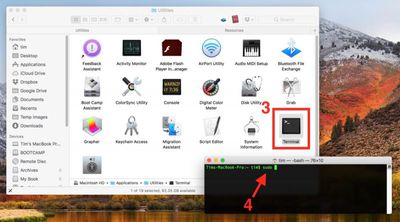
  3. Launch the Terminal app (found in Applications/Utilities/Terminal).
  4. At the Terminal command prompt, type sudo followed by a space.
    mojave clean install 2

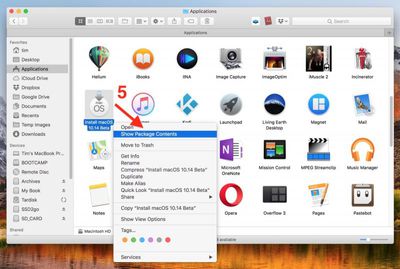
  5. Next, open a Finder window, navigate to your Applications folder, right-click (or Ctrl-click) on the macOS 10.14 installer, and select Show Package Contents from the contextual dropdown menu.
    mojave clean install 3

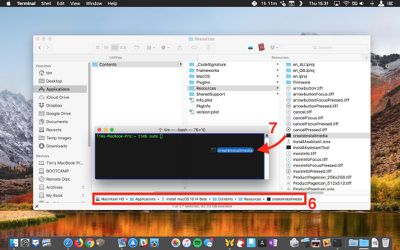
  6. Navigate to Contents -> Resources within the installer package.
  7. Drag the createinstallmedia file into the Terminal window.
    mojave clean install 4

  8. Still in the Terminal window, type --volume followed by a space.
    mojave clean install 5

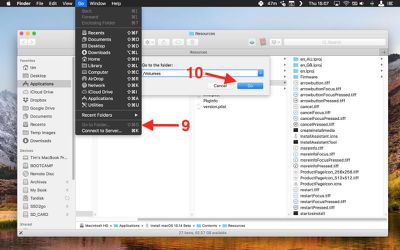
  9. Click the open Finder window to bring it to the front, and in the Finder menu bar select Go -> Go To Folder....
  10. In the Go to the folder input box, type /Volumes and click Go.
    mojave clean install 6

  11. Connect your USB thumbnail drive to your Mac.
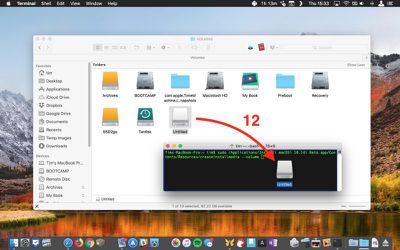
  12. Drag the USB drive's icon from Finder into the Terminal window.
    mojave clean install 7 1

  13. Press the Enter key on your keyboard to run the completed Terminal command.
  14. Enter your administrator password when prompted.
    mojave clean install 8

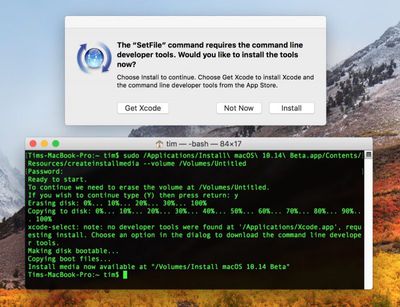
  15. Type Y and press Enter when prompted, and the command will create your bootable Mojave installer on the USB drive. This will take a few minutes to complete, so leave it running. Note that if you're asked whether you want to install Xcode during this time, you can safely click Not Now and the process will complete successfully regardless.
Restart and Install

Once the USB installer has been created, restart your Mac and hold down the Option (⌥) key as soon as you hear the reboot tone. Then follow these steps:

  1. Use the mouse pointer or the arrow keys on your keyboard to select the disk called Install macOS Mojave in the drive list that appears on the screen.
  2. Once the USB drive has booted, select Disk Utility from the Utilities window, choose your Mac's startup drive from the list, and click Erase.
  3. When your Mac's startup disk is formatted, return to the Utilities window and select Install macOS, choose your freshly erased startup drive when asked where to install the OS, and follow the onscreen prompts to complete the installation.

Related Forum: macOS Mojave

Top Rated Comments

Urbanpixels Avatar
106 months ago
Step 4 - Scream profanities when half your software doesn't work or you need to buy the yearly new version
Score: 16 Votes (Like | Disagree)
106 months ago
I've come to realize clean installs are just pedantic, a rudiment of the Windows era.

Goes in the same bin as memory cleaners, defragmentation etc.

Unless you have a serious problem, just upgrade.
Score: 11 Votes (Like | Disagree)
chucker23n1 Avatar
106 months ago
If you’re on APFS, none of this is necessary. Just create an additional APFS volume in Disk Utility (it won’t take up its own space), then install to that destination.

Score: 5 Votes (Like | Disagree)
106 months ago
Won't ⌘⌥R do the same? Just launch disk utility in Recovery mode to erase the drive, then let it install.
Score: 5 Votes (Like | Disagree)
wesley96 Avatar
106 months ago
Saying iMacs can’t use APFS is a misnomer. The culprit is the Fusion Drive, not any particular style of Mac. There are plenty of non-Fusion Drive iMacs out there. My 2017 iMac is running on APFS, too, and no, it does not use a Fusion Drive.
Score: 4 Votes (Like | Disagree)
EdT Avatar
106 months ago
If you're using an iMac or a fusion drive, then you can't use APFS
I thought that this OS would allow APFS with Fusion Drives/iMacs.
Score: 4 Votes (Like | Disagree)

Popular Stories

iPhone Duo Display Cracking

Apple Alerts Stores to iPhone Duo's Display Cracking Issue

Friday October 30, 2026 3:20 pm PDT by
In a memo shared with Apple Stores and Apple Authorized Service Providers this week, and later obtained by MacRumors, Apple provided technicians with guidance on how to diagnose and address the iPhone Duo's inner display cracking issue. If a customer reports the issue, Apple advised technicians to inspect the iPhone Duo and repair or replace it in accordance with their standard procedures....
iPad mini OLED feature 1

Apple Executive Comments on New iPad Mini Lacking 120Hz Display

Thursday October 29, 2026 1:47 pm PDT by
While the new iPad mini has an OLED display, the device does not support ProMotion, meaning the display's refresh rate is limited to 60Hz instead of 120Hz. ProMotion support would have allowed for the iPad mini's refresh rate to automatically adjust from 10Hz to 120Hz depending on the content being displayed, but evidently Apple has kept the feature exclusive to the iPad Pro among iPad...
Pinched iPad Mini

Apple Avoids Showing Pinched Fingers on iPad Mini Page in South Korea

Thursday October 29, 2026 11:52 am PDT by
In the U.S. and most other countries, Apple's website shows the new iPad mini being held by pinched fingers, but this is not the case in South Korea. The new iPad mini shown with pinched fingers on Apple's website in the U.S. On its South Korean website, Apple simply shows an image of the iPad mini on its own. The new iPad mini shown without pinched fingers on Apple's website in South Korea ...


Latest Stories
Apple Watch Ultra 4 Hits All-Time Low Price With Amazon's $99 Discount
13 hours ago
Reminder: Apple's Big Discount on Beats 360 Ear Cushions Ends Today
13 hours ago
Here's a New Tour of Apple's HomeView Software
13 hours ago
Apple Reveals New iPad Mini's Battery Capacity
14 hours ago
Top Stories: Apple's Big MacBook Pro, iPad mini and iMac Updates
16 hours ago
'Pluribus' Season 2 Reportedly Starts Production Today
22 hours ago
iPhone 18 Pro Sales Surge in China, Offsetting Decline in U.S. and Japan
23 hours ago
HomeView Software 27.2: Wallpapers, Control Center, and More
1 day ago
Apple Alerts Stores to iPhone Duo's Display Cracking Issue
1 day ago
iOS 27.3 Will Enable These Apple Intelligence Features in China
1 day ago
Apple Says iOS 27.3 Beta Coming Next Week
1 day ago
Apple's Flash Storage Suppliers Are Finally 'Getting Their Revenge'
1 day ago
14 New Things Your iPhone Can Do in iOS 27.2
1 day ago
iPhone Duo Review: One Week Later
1 day ago
Samsung Mocks iPhone Duo Display Cracks in New Ad Campaign
1 day ago
The MacRumors Show: OLED MacBook Pro, iPad Mini 8, and More
2 days ago
MacBook Pro With Touch Display: 15 More Details Revealed
2 days ago
Russia Places Apple on State Surveillance Registry
2 days ago
Halloween Weekend Brings Discounts on Apple Accessories and Pre-Orders
2 days ago
Apple Has Released More Than 25 New Products in the Past Two Months
2 days ago
Local Code Launches as Free, Private AI Assistant Tool for Mac
2 days ago
Apple Acquires Ascend.io
2 days ago
HomePod Mini 2 Launches Today: All the New Features
2 days ago
AirTag 2 4-Pack Drops to New Low Price of $69.99
2 days ago
Rian Johnson's iPhone Camera App Goes Viral
2 days ago
Where Did All the iPhone Duos Go? Mostly to Apple's Stores
2 days ago
Apple's Touchscreen MacBook Pro Could Ship 1.5M Units in 2027
2 days ago
New Apple TV 4K and iPad Mini: RAM Amounts Revealed
2 days ago
Apple Executive Comments on New iPad Mini Lacking 120Hz Display
2 days ago
Here's a Hands-On Look at HomePod Mini 2's New Two-Tone Colors
2 days ago

🔗 Related Apple News & Rumors

Stay updated with the latest Apple ecosystem news and verified rumors