How to Automatically Change Your Apple Watch Face Based on Time or Location - MacRumorsOpen MenuShow RoundupsShow Forums menuVisit ForumsOpen Sidebar
Skip to Content

How to Automatically Change Your Apple Watch Face Based on Time or Location

by

If you find yourself regularly swiping to a different watch face on your Apple Watch depending on what you're doing or where you are, this article is for you. Because thanks to the power that Apple has built into its Shortcuts app, it's possible to make the watch face on your Apple Watch automatically change based on the time of day or your location. Keep reading to learn how.
applewatchfaceswatchos7
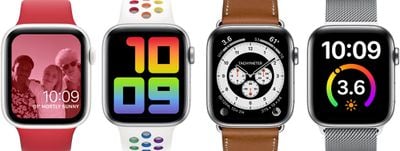
One of the great things about the Apple Watch is the number of watch faces you can customize, which allows you to make certain faces more informative or more functional for different purposes, and then swipe to them when you need them. When you go to the office, for example, you can have a watch face filled with work-focused complications. Or you might swipe to a minimal watch face in the evening when you're winding down before bed.

If you tend to set up different watch faces in such a way, then it's worth considering creating an automation in iOS that can change the watch face on your Apple Watch for you when you need it, without you having to even raise your wrist. With the Shortcuts app, you can.

If you've never created a shortcut before, don't worry – the steps below show you how easy this particular automation is to set up. The only thing to bear in mind is that if you want your Apple Watch to change back to another watch face after a certain time (when your working day is at an end, for example) then you'll need to set up a second, separate automation for this to happen.

Likewise, if you want the watch face to only be active when you're at a particular location and then revert when you leave, then unless you want to dig deeper into the complex world of Shortcuts, a second automation is required.

How to Automatically Change Your Apple Watch Face At a Certain Time

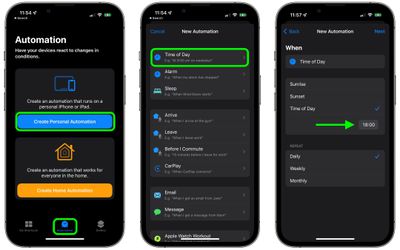
  1. Launch the Shortcuts app on your iPhone.
  2. Tap the Automation tab at the bottom of the screen.
  3. Tap Create Personal Automation.
  4. Select Time of Day.
  5. Choose Sunrise or Sunset (after which you'll be given the option to define a specific time around these solar events), or specify any time with Time of Day. (Note the Repeat options include Daily, Weekly, and Monthly.) Then tap Next.
    shortcuts

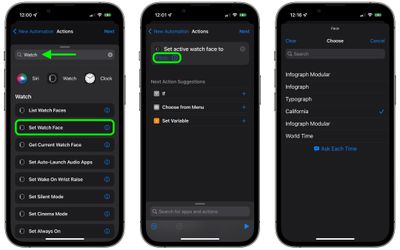
  6. Tap Add Action, then use the search field to look up "Watch."
  7. Select Set Watch Face from the results list of watch actions.
  8. On the Actions screen, immediately below "Set active watch face to," tap the word Face in blue.
  9. Choose the watch face you'd like to change to at the specified time. Note the list here uses Apple's official names for its watch faces, so you may see some duplicates. That's because the list corresponds to the current watch faces arranged on your watch, with the top watch face in the list being the one you see when you've swiped to the first (leftmost) face on your Apple Watch.
    shortcuts

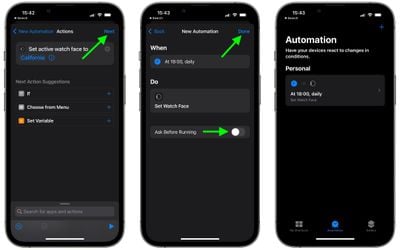
  10. Tap Next when the Actions screen reappears, then toggle off the switch next to Ask Before Running and confirm by tapping Don't Ask at the prompt.
  11. Tap Done to finish.
    shortcuts

You should now see the automation you just created on the Automation screen. You don't have to do anything else – your watch face should now automatically change at the time you set.

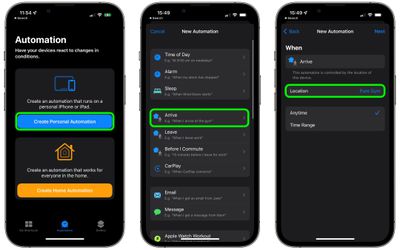
How to Automatically Change Your Apple Watch Face Based on Location

  1. Launch the Shortcuts app on your iPhone.
  2. Tap the Automation tab at the bottom of the screen.
  3. Tap Create Personal Automation.
  4. Select Arrive or Leave, depending on when you want the watch face to change.
  5. Choose the Location, and select it either by searching or entering the address, then tap Next.
    shortcuts

  6. Tap Add Action, then use the search field to look up "Watch."
  7. Select Set Watch Face from the results list of watch actions.
  8. On the Actions screen, immediately below "Set active watch face to," tap the word Face in blue.
  9. Choose the watch face you'd like to change to when arriving at or leaving the specified location. Note the list here uses Apple's official names for its watch faces, so you may see some duplicates. That's because the list corresponds to the current watch faces arranged on your watch, with the top watch face in the list being the one you see when you've swiped to the first (leftmost) face on your Apple Watch.
    shortcuts

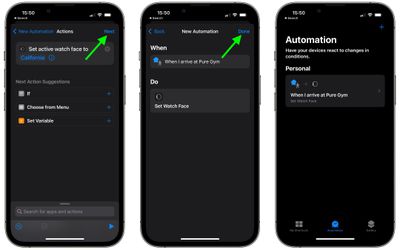
  10. Tap Next when the Actions screen reappears.
  11. Tap Done on the last screen to finish.
    shortcuts

You should now see the automation you just created on the Automation screen. You don't have to do anything else – your watch face should now automatically change either when you leave or arrive at the location you selected.

These two automations barely touch the surface of what is possible with the Shortcuts app. For example, you can create actions using predefined shortcuts in order to build complex automations that take in all manner of conditions and variables for when your watch face should change. Ultimately, the complexity of your automations depends on how much time you want to invest in discovering what's possible, and the only limit is your imagination.
Related Roundups: Apple Watch 12, Apple Watch SE 3
Related Forum: Apple Watch

Top Rated Comments

61 months ago
This right here my friends, is what I love seeing. Give us more of these super random yet quick and impactful tips, please. Love the post!

There’s a similar one on making ones of Memoji into an Apple Badge I saw a long time ago. Maybe if you have a collection of all these tips somewhere on the site? So we can see a collective amount of shortcuts, now that’s be cool!

🤩🤗😄✌🏼👋🏼🕊
Score: 41 Votes (Like | Disagree)
bradbomb Avatar
61 months ago
There needs to be a correction. For location based shortcut automations, they do not run automatically. They bring a pop up to run when arriving at the location.

Score: 15 Votes (Like | Disagree)
nattK Avatar
61 months ago
I wish there was a shortcut that automatically changes your watch face once you're closed all your activity rings.

Score: 12 Votes (Like | Disagree)
Unami Avatar
61 months ago
Yeah, but in reality your watch face then doesn't change with location automatically but it brings up a popup in the watch, which you have to confirm manually if you even notice it. Just as "usefull" as setting a location based reminder to change it yourselfy. A lot of shotcuts automations sound nicer in theory than they are.
Score: 6 Votes (Like | Disagree)
61 months ago

I have a regular watch to conveniently check the time and date and I carry a phone for the rest. So for me, Apple watch has always been completely pointless.
Cool story Hansel.
Score: 5 Votes (Like | Disagree)
61 months ago
Thanks for the amazing article!

By the way, it would also be great to set up album covers (from now playing) as a watch face.

Like here

Score: 4 Votes (Like | Disagree)

Popular Stories

apple watch s12 ultra 4

Apple Watch Series 12, Ultra 4 Owners Report Skin Irritation

Wednesday October 7, 2026 12:02 pm PDT by
Some Apple Watch Series 12 and Ultra 4 owners have experienced unexpected skin irritation with the new models, according to reports on the MacRumors forums and Reddit. Affected users complain of a burning sensation and redness under the sensor area. The Apple Watch Series 12 and Ultra 4 measure heart rate every five seconds, and some people have wondered if that's the cause of the skin...
iPhone Duo Hinge Feature 4

iPhone Duo Can Run Automations When You Open or Close It

Sunday October 25, 2026 3:26 pm PDT by
The iPhone Duo includes a new Shortcuts automation trigger that runs actions when the device is opened or closed. YouTuber Stephen Robles highlighted the trigger, which is called "Opened or Closed" and can be found under the Display automations category. It was first spotted in September by code sleuth pdfu in the iPhone Duo simulator. One possible use case is making the Duo switch to a...
southern straps 3 1

MacRumors Giveaway: Win an Apple Watch Series 12 and a Nylon Band From Southern Straps

Friday October 9, 2026 10:20 am PDT by
For this week's giveaway, we've teamed up with Southern Straps to offer MacRumors readers a chance to win an Apple Watch Series 12 and a nylon band from Southern Straps to go along with it. Southern Straps is a California-based company that has been making high-quality bands for the Apple Watch since the device first launched in 2015, and the company's selection of bands offer a an...
Latest Stories
Apple Watch Ultra 4 Hits All-Time Low Price With Amazon's $99 Discount
11 hours ago
Reminder: Apple's Big Discount on Beats 360 Ear Cushions Ends Today
11 hours ago
Here's a New Tour of Apple's HomeView Software
11 hours ago
Apple Reveals New iPad Mini's Battery Capacity
12 hours ago
Top Stories: Apple's Big MacBook Pro, iPad mini and iMac Updates
14 hours ago
'Pluribus' Season 2 Reportedly Starts Production Today
20 hours ago
iPhone 18 Pro Sales Surge in China, Offsetting Decline in U.S. and Japan
21 hours ago
HomeView Software 27.2: Wallpapers, Control Center, and More
1 day ago
Apple Alerts Stores to iPhone Duo's Display Cracking Issue
1 day ago
iOS 27.3 Will Enable These Apple Intelligence Features in China
1 day ago
Apple Says iOS 27.3 Beta Coming Next Week
1 day ago
Apple's Flash Storage Suppliers Are Finally 'Getting Their Revenge'
1 day ago
14 New Things Your iPhone Can Do in iOS 27.2
1 day ago
iPhone Duo Review: One Week Later
1 day ago
Samsung Mocks iPhone Duo Display Cracks in New Ad Campaign
1 day ago
The MacRumors Show: OLED MacBook Pro, iPad Mini 8, and More
1 day ago
MacBook Pro With Touch Display: 15 More Details Revealed
1 day ago
Russia Places Apple on State Surveillance Registry
2 days ago
Halloween Weekend Brings Discounts on Apple Accessories and Pre-Orders
2 days ago
Apple Has Released More Than 25 New Products in the Past Two Months
2 days ago
Local Code Launches as Free, Private AI Assistant Tool for Mac
2 days ago
Apple Acquires Ascend.io
2 days ago
HomePod Mini 2 Launches Today: All the New Features
2 days ago
AirTag 2 4-Pack Drops to New Low Price of $69.99
2 days ago
Rian Johnson's iPhone Camera App Goes Viral
2 days ago
Where Did All the iPhone Duos Go? Mostly to Apple's Stores
2 days ago
Apple's Touchscreen MacBook Pro Could Ship 1.5M Units in 2027
2 days ago
New Apple TV 4K and iPad Mini: RAM Amounts Revealed
2 days ago
Apple Executive Comments on New iPad Mini Lacking 120Hz Display
2 days ago
Here's a Hands-On Look at HomePod Mini 2's New Two-Tone Colors
2 days ago

🔗 Related Apple News & Rumors

Stay updated with the latest Apple ecosystem news and verified rumors