10 Things the Digital Crown and Side Button Do on Apple Watch - MacRumorsOpen MenuShow RoundupsShow Forums menuVisit ForumsOpen Sidebar
Skip to Content

10 Things the Digital Crown and Side Button Do on Apple Watch

by

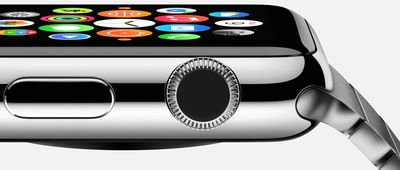
Other than touch-based screen gestures like tapping and swiping, the Digital Crown and Side buttons are the Apple Watch's only control mechanisms. You can use the Digital Crown to scroll through lists and zoom into pictures and maps, plus it can be used to control slider bars like volume and font size. The Side button is the Apple Watch's one-step access to contacts on your favorites list who you can then call, write a text, or even send your heartbeat.
digitalcrownfriendsbutton
The Digital Crown and Side buttons have a few additional uses that you may not already know about. We've got a list of 10 important actions that the Apple Watch's external controls activate.

Activate Siri

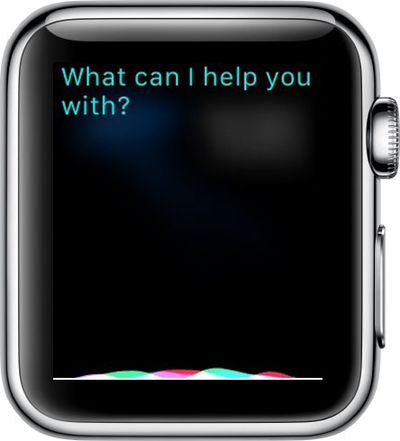
In addition to saying "Hey Siri," you can activate the personal assistant by holding down the Digital Crown until you see "What can I help you with?" You will also feel a tap on your wrist, acknowledging that Siri is listening.
Siri on Apple Watch

Trigger Apple Pay

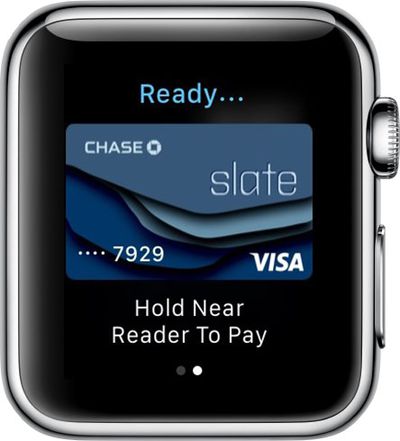
When near a supported terminal, you don't have to open the Apple Pay app on Apple Watch to activate it. Simply double-tap the Side button to bring up your card information. Then hold it near a terminal to make the purchase.
Apple Pay on Apple Watch

Return to Home Screen

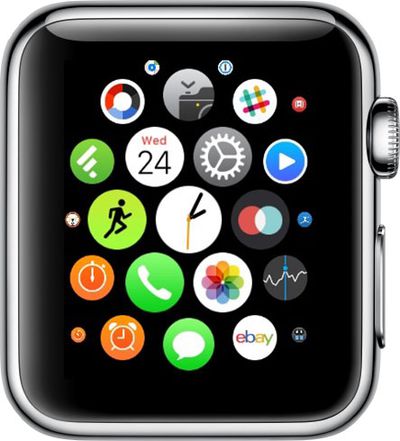
The Digital Crown is like the home button on Apple Watch. No matter what screen you are on, you will be able to get to the home screen with one click.
Home Screen on Apple Watch

Return to Watch Face

After returning to the home screen by clicking the Digital Crown once, you can click it again (not a double-click) to return to the center app, which is the clock app. Then, rotate the Digital Crown upward to switch to the watch face. You can also click the Digital Crown a third time to switch to the watch face.
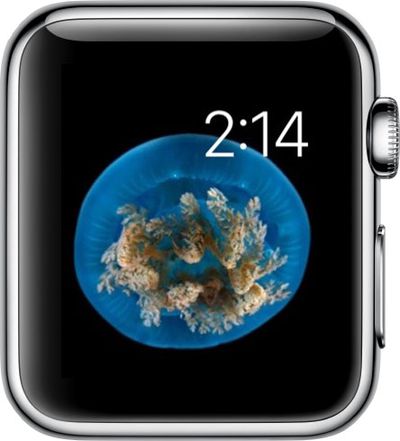
Watch Face on Apple Watch

Return to Last Used App

Whether you are looking at your calendar or checking your email, you can quickly switch to the last app you used by double-clicking the Digital Crown. You can switch between the two apps easily by double clicking each time. It also works with the watch face. If you went from the watch face to the Messages app, double-clicking the Digital Crown will switch between those two views.

Open an App

When on the Home Screen, you can center on an app and simply rotate the Digital Crown upward to open it. This helps you avoid those accidentally tapping on the wrong icon because it's so small.

Take a Screenshot

As with taking a screenshot on your iPhone, you need to press two buttons at once on the Apple Watch to capture what's on its display. Briefly press down on the Side button and the Digital Crown at the same time to take a screenshot. If it's not working, try holding the Side button down first and then pressing and releasing the Digital Crown. If a screenshot is successfully taken, you'll see a white flash, feel a tap, and hear the shutter sound if volume is enabled.

Activate VoiceOver

Just like on the iPhone, you can use VoiceOver on Apple Watch to help you know what is happening on the screen. Triple-click the Digital Crown to activate VoiceOver. You will hear a chime, and Siri will announce "VoiceOver on." Then you can tap on anything on the screen to have it read to you. Some gestures will change when VoiceOver is on, but it is familiar territory for anyone who has used the accessibility feature on the iPhone.
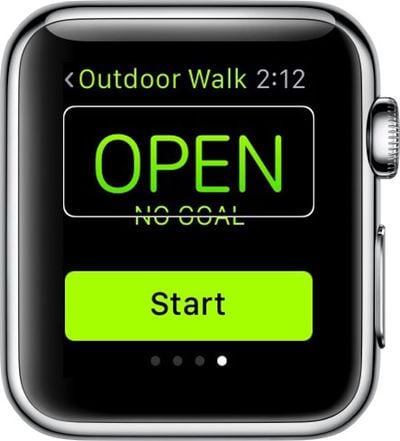
Voiceover on Apple Watch

Power Off and On Apple Watch

If, for any reason, you need to restart your Apple Watch, you can do so by holding down the Side button until the power options appear, prompting you to turn off, activate Power Reserve, or lock Apple Watch. Once this pops up, slide the bar to shut your Apple Watch down. To start it up again, press and hold the Side button until you see the Apple logo.
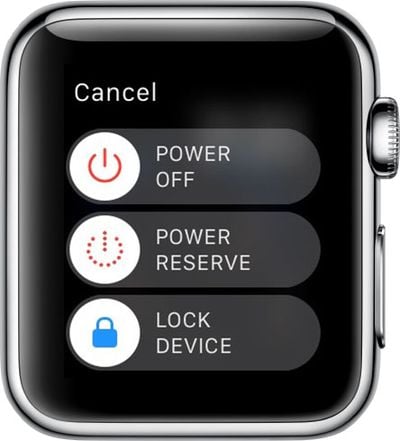
Apple Watch Power Off

Force Quit an App

Sometimes, an app will freeze up on you. It rarely happens, but it is good to know what to do in such a situation. Hold down the Side button while the frozen app is open. When the power options appear, hold down the Side button again until the app quits.

Now you know about the actions that both the Digital Crown and Side button can perform. They are more than just controls for zooming, scrolling, and finding your friends.
Related Roundup: Apple Watch 12
Buyer's Guide: Apple Watch (Buy Now)
Related Forum: Apple Watch

Top Rated Comments

AngerDanger Avatar
147 months ago
Unlike the 'How to use [insert app]' articles, this one sheds some light on multifunctional, unlabeled buttons. I'm glad to have read it.


Score: 9 Votes (Like | Disagree)
147 months ago
Slightly more informative than MR's usual Watch how-to posts.
Score: 4 Votes (Like | Disagree)
Chuck Kostalnick Avatar
147 months ago
The only useful one on this list was how to force-quit an app.
Score: 3 Votes (Like | Disagree)
147 months ago
I hope everyone who has one of these watches is enjoying it, but I just don't get the appeal of it.
Well, at least you never miss an opportunity to bash the watch. How many times does one individual have to indicate they hate the watch?


Apple Pay strikes me as clunky, having to reach over with your wrist and hold it awkwardly next to the terminal. I feel the phone is much better for this purpose.
You've obviously have never done it, so it amazes me how you can pass judgement. I've used Apple Pay on the watch many, many times. It's incredibly easy to do. While twisting my wrist to let the watch face the terminal might be uncomfortable is I had to hold it there for a minute, it only takes a second and there is absolutely no discomfort involved. It's so much easier than using the phone.

How can people continue to criticize something that they have never tried and what's even worse make up erroneous fantasies based upon unfounded and blind hatred of something. I'll never understand that.
Score: 2 Votes (Like | Disagree)
Billberryjuice Avatar
147 months ago
Hoping we'll get to see plenty of richly conceived and completely relevant comments from individuals who don't get the appeal of the watch!
I hope everyone who has one of these watches is enjoying it, but I just don't get the appeal of it.
Christmas in July!
Score: 2 Votes (Like | Disagree)
Benjamin Frost Avatar
147 months ago
I hope everyone who has one of these watches is enjoying it, but I just don't get the appeal of it.

Apple Pay strikes me as clunky, having to reach over with your wrist and hold it awkwardly next to the terminal. I feel the phone is much better for this purpose.
Score: 2 Votes (Like | Disagree)

Popular Stories

apple watch s12 ultra 4

Apple Watch Series 12, Ultra 4 Owners Report Skin Irritation

Wednesday October 7, 2026 12:02 pm PDT by
Some Apple Watch Series 12 and Ultra 4 owners have experienced unexpected skin irritation with the new models, according to reports on the MacRumors forums and Reddit. Affected users complain of a burning sensation and redness under the sensor area. The Apple Watch Series 12 and Ultra 4 measure heart rate every five seconds, and some people have wondered if that's the cause of the skin...
southern straps 3 1

MacRumors Giveaway: Win an Apple Watch Series 12 and a Nylon Band From Southern Straps

Friday October 9, 2026 10:20 am PDT by
For this week's giveaway, we've teamed up with Southern Straps to offer MacRumors readers a chance to win an Apple Watch Series 12 and a nylon band from Southern Straps to go along with it. Southern Straps is a California-based company that has been making high-quality bands for the Apple Watch since the device first launched in 2015, and the company's selection of bands offer a an...
apple watch series 6 blood oxygen monitoring 1

Apple's $634 Million Apple Watch Patent Bill Just Got Even Bigger

Tuesday October 6, 2026 6:09 am PDT by
Apple's $634 million patent loss to medical technology company Masimo has just gotten even bigger, after a federal judge ordered Apple to pay an additional $184 million in interest on what it owes (via Bloomberg Law). The ruling takes Apple's bill to around $818 million, but that doesn't include any post-judgment interest continuing to accrue until the judgment is paid. Judge James Selna ...
Latest Stories
Apple Watch Ultra 4 Hits All-Time Low Price With Amazon's $99 Discount
14 hours ago
Reminder: Apple's Big Discount on Beats 360 Ear Cushions Ends Today
14 hours ago
Here's a New Tour of Apple's HomeView Software
14 hours ago
Apple Reveals New iPad Mini's Battery Capacity
15 hours ago
Top Stories: Apple's Big MacBook Pro, iPad mini and iMac Updates
17 hours ago
'Pluribus' Season 2 Reportedly Starts Production Today
23 hours ago
iPhone 18 Pro Sales Surge in China, Offsetting Decline in U.S. and Japan
1 day ago
HomeView Software 27.2: Wallpapers, Control Center, and More
1 day ago
Apple Alerts Stores to iPhone Duo's Display Cracking Issue
1 day ago
iOS 27.3 Will Enable These Apple Intelligence Features in China
1 day ago
Apple Says iOS 27.3 Beta Coming Next Week
1 day ago
Apple's Flash Storage Suppliers Are Finally 'Getting Their Revenge'
1 day ago
14 New Things Your iPhone Can Do in iOS 27.2
1 day ago
iPhone Duo Review: One Week Later
1 day ago
Samsung Mocks iPhone Duo Display Cracks in New Ad Campaign
2 days ago
The MacRumors Show: OLED MacBook Pro, iPad Mini 8, and More
2 days ago
MacBook Pro With Touch Display: 15 More Details Revealed
2 days ago
Russia Places Apple on State Surveillance Registry
2 days ago
Halloween Weekend Brings Discounts on Apple Accessories and Pre-Orders
2 days ago
Apple Has Released More Than 25 New Products in the Past Two Months
2 days ago
Local Code Launches as Free, Private AI Assistant Tool for Mac
2 days ago
Apple Acquires Ascend.io
2 days ago
HomePod Mini 2 Launches Today: All the New Features
2 days ago
AirTag 2 4-Pack Drops to New Low Price of $69.99
2 days ago
Rian Johnson's iPhone Camera App Goes Viral
2 days ago
Where Did All the iPhone Duos Go? Mostly to Apple's Stores
2 days ago
Apple's Touchscreen MacBook Pro Could Ship 1.5M Units in 2027
2 days ago
New Apple TV 4K and iPad Mini: RAM Amounts Revealed
2 days ago
Apple Executive Comments on New iPad Mini Lacking 120Hz Display
2 days ago
Here's a Hands-On Look at HomePod Mini 2's New Two-Tone Colors
2 days ago

🔗 Related Apple News & Rumors

Stay updated with the latest Apple ecosystem news and verified rumors