

Apple's new subscription-based music service launched earlier this week, and even if you've taken advantage of Apple's free three-month trial to see if it is worth your dime and time, there are a few things you may not have discovered yet about its features.
While our Getting Started guide gives an overview of how to get up and running, this article gives more details on some of the things you can do with Apple Music and how to make it work for you. If you've noticed any other features we haven't listed yet, feel free to let us know in the forums.
Add a Nickname to Your Profile
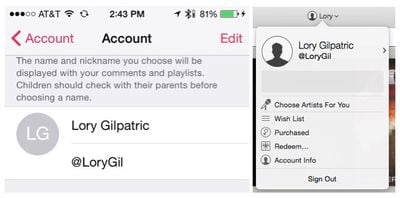 You could stick with your full Apple ID name, or change it to something that fits you better. Apple lets you add a nickname to your ID, which will be displayed on playlists and comments. Nicknames are unique, so the earlier you grab one, the better.
On iOS:
- Open the Music app and tap on any of the main section icons in the bottom toolbar if you're not already on a main page.
- Tap the silhouette profile icon in the upper left corner of the main screen.
- Tap your name. Then tap the Edit button to add a nickname.
In iTunes:
- Click on the arrow next to your name, and then click on your Apple ID.
- Enter a nickname in the fill-in form.
Start a Station Based on a Song or Album
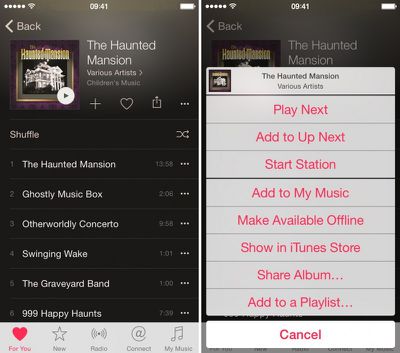
You can start a new station based on a song or album in either your music library or Apple Music. Tap the three dots next to the song or album to call up additional options. Then, tap "Start Station" on iOS or "New station from artist or song" on OS X to begin listening to tracks.
Create a Playlist
You can create a playlist and add songs to it right from within the Music app or in iTunes.
On iOS:
- Open the Music App and tap on the My Music section.
- Select the Playlist section at the top of the screen.
- Tap "New" under the All Playlists and enter a name and description for the playlist.
- Tap "Add Songs" and add tracks from your music library or Apple Music.
- You can also add songs to a playlist at any time from your library or Apple Music by tapping the three dots next to the song or album. When the list of options appears, tap "Add to Playlist."
In iTunes:
- In iTunes, select the Playlists tab and click on the add (+) icon in the bottom left corner of the screen. Or, click "File" in your computer's tool bar and hover over "New." Then, select "New Playlist."
- Name the playlist. Then click "Edit Playlist.
- Add songs from your music library.
- To add a song from Apple Music, tap the three dots next to a song or album to call up the options. Select "Add To," and then select the playlist you wish to add the music to.
Change Library and Playlist View Options
On iOS, you can adjust the way you see music in your library or playlists to show such categories as artists, albums, songs, and Apple Music playlists, and you can choose to only show music available offline (in other words, only music downloaded to your device). Under the Playlist or Library tab in the My Music section of your Music app, tap the category (like Albums, Songs, or All Playlists) to switch to a different view.
Tip: If you have the "Music Available Offline" feature turned on, you will not see songs or albums that you add to My Music on iOS. Follow the instructions above and toggle the Music Available Offline switch to the off position.
Add to My Music
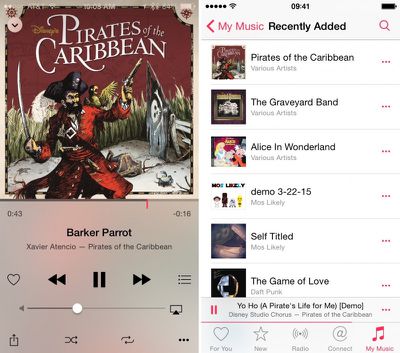
You can add any song or album to your iTunes library from Apple Music. When added, iTunes will play these songs as part of random shuffling. Find a song or album and select the three dots next to it. Then, select "Add to My Music." On iOS, you can also tap the add (+) icon next to an album to add it with one tap. Remember, if you have the "Music Available Offline" feature on, you will not see new music added unless you make it available offline.
Make Music Available Offline
On of the best things about Apple Music on iOS is the ability to listen to tracks, even when you are not connected to the Internet. To download music to your device, select the song or album and tap the three dots next to it to call up the options. Then, select "Make Available Offline."
Get More Recommendations Based on Likes (or Hearts)
Apple Music will learn your tastes and have more recommendations for you the more you "like" songs. Tap the heart next to the song in the Now Playing view to show that you like it. As Apple Music learns your preferences, new songs and playlists will be added to the "For You" section.
"Replay" Beats 1 Shows
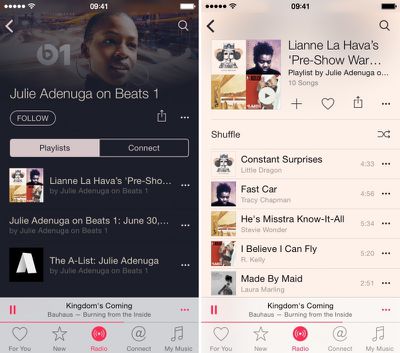
Did you miss out on a Beats 1 show that you were looking forward to? While you can't replay the show as it aired with DJ commentary, you can access playlists of tracks from featured shows on demand on iOS.
- Open the Music app and select the Radio section.
- Tap the Beats 1 banner (do not tap "Listen Now").
- Select a featured show. Then, select the show date you wish to listen to. You can even listen to specific tracks instead of the entire playlist from the show. Tap on a show to see the playlist.
In iTunes on the desktop, the best way to find a Beats 1 playlist is to search for the DJ you wish to hear and select the playlist you missed from his or her profile page.
Turn Off Apple Music
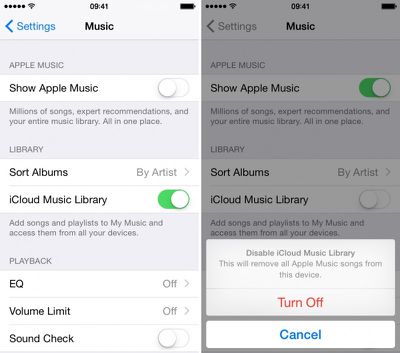
If you gave Apple Music a try and decided that it is just not for you, you can remove the service from the Music app and go back to the old way of listening to music.
- Open the Settings app on iOS and select Music from the menu.
- Toggle the "Show Apple Music" switch to the off position. This can easily be switched on or off without causing any storage or download issues. Songs you've downloaded for offline listening will still be in your music library.
Turn Off iCloud Music Library
The iTunes Match functionality users may already be familiar with has been converted to iCloud Music Library in Apple Music. If you have the feature turned on, it will allow you to store your music in iCloud so you can access it from any device with the feature enabled. Users should be aware that tracks downloaded using iCloud Music Library contain digital rights management (DRM), so users should make sure they have backups of their owned music uploaded to iCloud Music Library. If you wish to disable the feature, you can turn off your iCloud Music Library on any device.
On iOS:
- Open the Settings app on iOS and select Music from the menu.
- Toggle the "iCloud Music Library" switch to the off position. If you disable iCloud Music library, it will remove all Apple Music songs from your device.
In iTunes:
- Open iTunes, and then select iTunes -> Preferences from the main menu bar.
- Under the General tab, uncheck the "iCloud Music Library" box. If you disable iCloud Music library, it will remove all Apple Music songs from your computer.
Replace 'Connect' Tab with 'Playlist' Tab
If you are not a big fan of social networking, you may not care for the Connect feature in Apple Music. Luckily, you can replace it with a Playlists tab instead. Check out our how-to guide to find out how.
Turn Off Auto Renew
So, you've tried Apple Music and have decided it's not worth the $10 per-month price tag. No problem. Just make sure you turn off Auto Renew before the three-month trial period is up. See our guide to managing your subscriptions to find out how to turn off Auto Renew so you don't get a surprise charge to your credit card in three months.
These are just a few things you can do with Apple Music. As we learn more about the subscription-based music service, we'll have more useful tips to help you get the most out of your experience.















































Top Rated Comments
Peter Venkman: What?
Spengler: Don't choose @nickname as your actual nickname.
Venkman: Why?
Spengler: It would be bad.
Venkman: I'm fuzzy on the whole good/bad thing. What do you mean, "bad"?
Spengler: Try to imagine all life as you know it stopping instantaneously and every molecule in your body exploding at the speed of light. Plus iTunes not working.
Ray Stantz: Total protonic reversal! And no iTunes!?!
Venkman: Right. That's bad. Okay. All right. Important safety tip. Thanks, Egon.
A: They are not permanent and will reset after deleting and re-downloading tracks.
Well, that's just stupid.
For some songs, this was due to the song version in the Apple Music playlist and the song version in my library coming from different releases of the same song (eg, single vs album or release in another version of the album, eg, a deluxe edition). Of course, if they are nominally from different albums that might be expected, but I have also noticed the same song now showing up twice (in the same album) in the My Music section after adding it to my music from a playlist. This however might be just a UI bug as the both versions start playing simultaneously (at least that is what the UI is trying to tell me) when I select one of them.
Interestingly, this duplication does not show up in iTunes (not even the one where the song came from a different version of the album).