How to Secure Your Apple ID Using Two-Factor Authentication - MacRumorsOpen MenuShow RoundupsShow Forums menuVisit ForumsOpen Sidebar
Skip to Content

How to Secure Your Apple ID Using Two-Factor Authentication

by

Apple introduced two-factor authentication (2FA) in 2015 to provide an enhanced level of security when accessing Apple ID accounts. With 2FA enabled, you'll be the only person who can access your account, regardless of whether someone learns your password – as the result of a hack or a phishing scam, for example – so it's well worth taking the time to enable the feature. In this article, we'll show you how.

How Two-Factor Authentication Works

2FA offers hardened security during login attempts by requesting that the user provides an extra piece of information only they would know.
2fa verification on ios
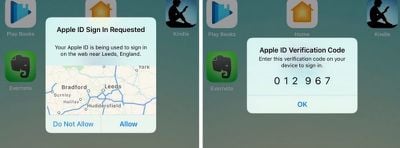
With 2FA enabled on your Apple ID account, the next time you try to log in you will be automatically sent a six-digit verification code to all the Apple devices you have registered to that Apple ID. If you try to access the account from an unknown device or on the web, 2FA also displays a map on all registered devices with an approximate location of where the Apple ID login attempt occurred.

In basic terms, this is an improved version of Apple's older two-step verification method, which prompted users to send a four-digit code to a registered SMS-capable device. Apple automatically upgraded most two-step verification users to 2FA as of iOS 11 and macOS High Sierra, but if you're still on two-step verification for some reason, follow the steps below to manually upgrade to 2FA.

How to Turn Off Two-Step Verification

  1. Open a browser and go to appleid.apple.com
  2. Enter your Apple ID and password in the login fields.
  3. In the Security section of your account page, click the Edit button on the right.
  4. Check to make sure two-step verification is enabled rather than two-factor authentication, and click Turn off two-step verification.

How to Turn On Two-Factor Authentication in iOS

To turn on 2FA using an iPhone or iPad, it needs to be running iOS 9 or later. Note that if you're running iOS 10 or later and you have any other, older devices tied to your Apple ID that aren't compatible with 2FA, you'll receive a compatibility warning during the setup process.

On top of that, you'll also be asked to append a six-digit code to the end of your password whenever you authenticate a login on your older devices in future. You can potentially avoid this hassle by updating those devices to the latest version of iOS or macOS where possible.

With that in mind, perform the following steps on your iOS device:

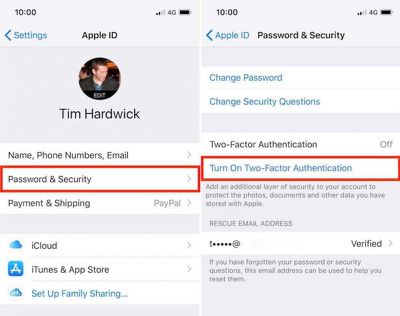
  1. Open the Settings app and tap your Apple ID banner at the top of screen.
  2. Tap Password & Security.
  3. Tap Turn On Two-Factor Authentication, and then tap Continue on the next screen.
  4. Tap Turn On Anyway if you see a compatibility warning about older devices.
  5. Check your phone number is correct. (If it isn't, tap Use a Different Number at the bottom of the screen and input a new number.)
  6. Select Text message or Phone call for verification, and then tap Next.
  7. Enter your Passcode.

2fa ios e1517490695102

How to Turn On Two-Factor Authentication on a Mac

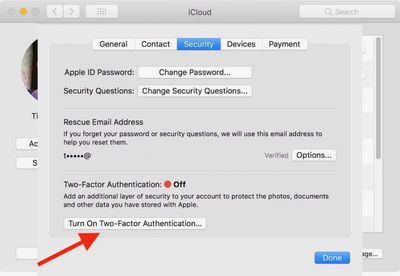
If it's a Mac you're using to enable two-factor authentication then make sure it's running OS X El Capitan or later. To turn on 2FA on Mac, follow these steps:

  1. Click the Apple () symbol in the menu bar at the top left of the desktop, and select System Preferences.
  2. Click the iCloud preferences pane.
  3. Click the Account Details button and select the Security tab.
  4. Click Turn on Two-Factor Authentication, and then click Continue in the drop-down pane.
  5. Check your phone number is correct and click Continue.
2fa mac 2

Verification Codes

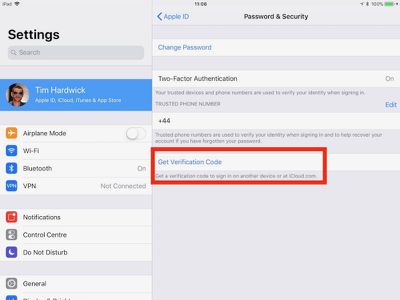
With 2FA enabled, you'll be prompted to enter a new verification code every time you log in to your Apple ID account using iCloud.com or another Mac or iOS device. These codes will automatically appear on devices that are already logged into your Apple ID, but you can also request them manually using an iPhone or iPad, like so:

  1. Open the Settings app and tap on your Apple ID banner at the top of the screen.
  2. Tap Password & Security.
  3. Tap Get Verification Code.

2fa codes

Top Rated Comments

111 months ago
User BEWARE!!
There's currently no way to recover your account using two factor authentication if you lose or forget your password and or the recovery key.
Without the recovery key the account and all its contents will be lost completely (all purchases)
The recovery key must be store in a "safe deposit box" outside the residence in case your house burns down i.e. Cal Wild Fires, floods, etc. and your recovery key was stored at home in a "safe" place.
DO NOT USE TWO FACTOR AUTHENTICATION if you do not store your password and recovery key outside the residence or in another cloud account where it can be readily accessed.
Yes there is. With the old way (2 step verification) you needed a recovery key. This way they are doing now, you don’t. I’m actually helped a person recover their data and they got a phone call in 12 days and got their account unlocked.

Personally, I rather have it so I need a recovery key.
Score: 4 Votes (Like | Disagree)
Weaselboy Avatar
111 months ago
You can set up more than 1 trusted phone number.
Yep... you can even add your home phone and Apple will robo call you with the six digit code.

Score: 3 Votes (Like | Disagree)
Apple_Robert Avatar
111 months ago
No way to recover if you lose your phone while travelling. Apple should allow two factor with a secondary email rather than phone number.
You can set up more than 1 trusted phone number.
Score: 3 Votes (Like | Disagree)
111 months ago
User BEWARE!!
There's currently no way to recover your account using two factor authentication if you lose or forget your password and or the recovery key.
Without the recovery key the account and all its contents will be lost completely (all purchases)
The recovery key must be store in a "safe deposit box" outside the residence in case your house burns down i.e. Cal Wild Fires, floods, etc. and your recovery key was stored at home in a "safe" place.
DO NOT USE TWO FACTOR AUTHENTICATION if you do not store your password and recovery key outside the residence or in another cloud account where it can be readily accessed.
This is obviously by design for security reasons.
Score: 3 Votes (Like | Disagree)
Weaselboy Avatar
111 months ago
If you set someone up as a "trusted" number, do they get notified every single time you get an access code to get into an iCloud setting or whatever?

For whatever reason, every single time -- for example -- that I open iCloud.com in a browser I'm prompted for a code from a trusted device... even though I've checked "remember me" over and over.
No it defaults to the main iCloud account. You would need to manually tell it to use one of the other numbers for the other person to get the code.

Score: 2 Votes (Like | Disagree)
Apple_Robert Avatar
111 months ago
Glad to see MR posting a much needed tutorial for those who may not know all that is involved.

Score: 2 Votes (Like | Disagree)

Popular Stories

Apple Event Logo

Apple Working on All-New Operating System

Wednesday July 29, 2026 11:39 am PDT by
Apple is developing an all-new operating system that is essentially a mix of tvOS, watchOS, and iOS, according to Bloomberg's Mark Gurman. In a report this week, he said the operating system will feature a grid of icons, widgets, and apps, along with customizable clock faces. The new software platform is intended for Apple's long-rumored smart home hub. With built-in facial recognition,...
imac video apple feature

Apple Made Its Second-Biggest Acquisition Ever This Year

Wednesday July 29, 2026 12:03 pm PDT by
Apple this year acquired Israeli startup Q.ai for close to $2 billion, according to the Financial Times. That would make this Apple's second-biggest acquisition ever, after it paid $3 billion for the popular headphone maker Beats in 2014. This is also the largest known Apple acquisition since the company purchased Intel's smartphone modem business and patents for $1 billion in 2019. Q.ai...
Dynamic Island iPhone 18 Pro Feature

iPhone 18 Pro: Twelve Changes Coming to Apple's Next Flagship

Thursday July 30, 2026 3:43 am PDT by
We're less than two months out from the launch of Apple's premium next-generation smartphone lineup, and while we're not expecting a dramatic change in terms of functionality, there are still several enhancements rumored to be coming to the iPhone 18 Pro and iPhone 18 Pro Max. One thing worth noting is that Apple is reportedly planning a major change to its iPhone release cycle this year,...

🔗 Related Apple News & Rumors

Stay updated with the latest Apple ecosystem news and verified rumors