Did you know you can quickly access your most recent files on your iPhone without navigating through folders or apps? Thanks to Apple's Files widget, you can directly access your files with a tap of your Home Screen.
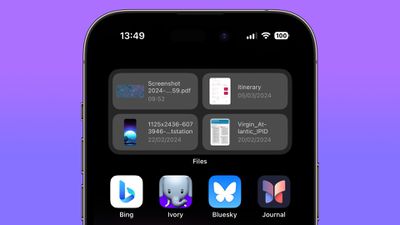
The Files widget helps keep your important documents at the forefront. It's great way to keep track of your most recent work without manually sorting through files, ensuring that nothing important gets lost or overlooked.
Using the widget also makes for a tidier and more orderly Home Screen, since it reduces the need for numerous app icons dedicated to file access. Here's how to set it up.
- Unlock your iPhone and navigate to the Home Screen page where you want to add the Files widget.
- Press and hold on an empty area of the screen or on any app icon until the icons start to jiggle, indicating you're in edit mode.
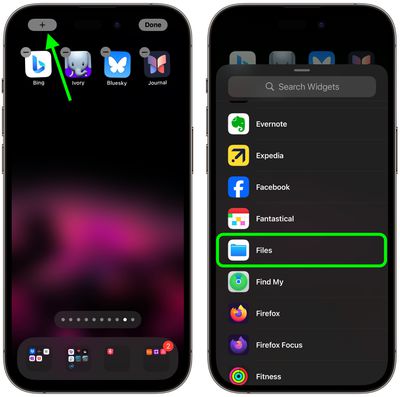
- Tap the plus (+) icon located in the top left corner of the screen to open the widget gallery.
- Use the search bar at the top to type "Files" or scroll down until you find the Files widget.

- Tap on the Files widget to select it, then swipe left or right to choose the widget size. The medium or large widget sizes are recommended for showing recent files.
- Tap Add Widget to place the desired widget size on your Home Screen.
- Position the widget by dragging it to your preferred location on the Home Screen, then tap Done in the top right corner to exit edit mode.
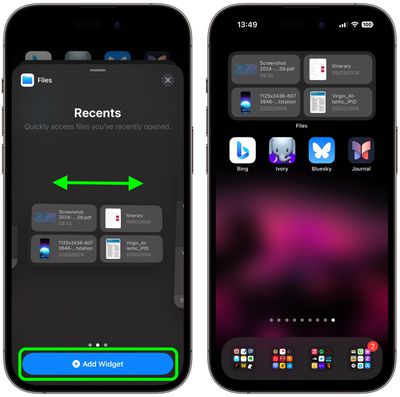
The Files widget will automatically display your most recent files directly on your Home Screen, enabling quick and easy access.
Note that if you decide you want the widget to show files from a specific folder, a different category of files (shared or downloaded files, for example) or only files tagged with a particular color, it's easy to change.
Simply press and hold on the widget, tap Edit Widget, and then tap Recents (in blue). Choose your preference from the list, then tap a blurred area of the screen to return to the Home Screen, and your widget will be updated to show the relevant files.